
 To Next Page


J
Justin JacobsonSep 12, 2025
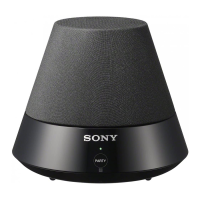
Why can't my Sony SA-NS500 leave the PARTY?
- EElizabeth ReyesSep 12, 2025
If your Sony Speakers cannot leave the PARTY, it is because you cannot leave the PARTY while using this unit as a PARTY host.

Why can't my Sony SA-NS500 leave the PARTY?
If your Sony Speakers cannot leave the PARTY, it is because you cannot leave the PARTY while using this unit as a PARTY host.
Why do my Sony Speakers remain warm after the power is turned off?
Your Sony Speakers may remain warm after being turned off because they are in network standby mode, where some internal parts remain active. To minimize power consumption, press the ?/1 (ON/Standby) button after setting the STANDBY MODE switch to STANDBY, or set the OPERATE ON/OFF switch to OFF. Note that with this setting, the unit cannot be operated using a controller.
What to do if my Sony SA-NS500 Speakers unit does not play back with white illumination indicator flashing?
If your Sony Speakers unit cannot play back and the white illumination indicator continues flashing, it may take several minutes before sound is output. Wait until the indicator stops flashing. Alternatively, the server may not permit access from this unit. Change the settings of the server to permit access from this unit.
What to do if my Sony SA-NS500 unit does not play back with white illumination indicator flashing quickly?
If your Sony Speakers unit cannot play back and the white illumination indicator continues flashing quickly, make sure that the audio content is not corrupted and has not been deleted from the server. Also, check that the server is not trying to play back an unsupported audio format on this unit. If it is activated, deactivate the multicast control of your wireless LAN router/access point.
Why won't my Sony Speakers turn on?
If your Sony Speakers aren't turning on, ensure the AC adapter and power cord are correctly connected. Also, check that the OPERATE ON/OFF switch is set to ON. If it still doesn't work, try setting the OPERATE ON/OFF switch to OFF and then back to ON.
How to resolve severe humming, noise, or sound distortion from Sony Speakers?
If you are experiencing severe humming, noise, or sound distortion from your Sony Speakers, ensure that the unit and other devices are connected correctly.
Why do my Sony SA-NS500 Speakers turn on and start playback automatically?
Your Sony Speakers might be turning on and starting playback automatically because they are being controlled by a controller on your network. If the unit is in network standby mode and receives a command to play audio content from a server, it will turn on and start playback. To prevent this, press the ?/1 (ON/Standby) button after setting the STANDBY MODE switch to STANDBY, or set the OPERATE ON/OFF switch to OFF.
What to do if my Sony Speakers have no sound?
If there is no sound coming from your Sony Speakers, first, try increasing the volume by pressing the VOLUME+ button. Also, check if the unit has been set to mute by a controller on your network. If the PARTY STREAMING indicator is lit in amber, verify the audio format of the content being played by the PARTY host, as the unit will stop playback if the format is unsupported.
What to do if my Sony SA-NS500 Speakers remote control does not work?
If the remote control for your Sony Speakers isn't working, first, ensure there are no inverter fluorescent lights nearby, as these can interfere with the signal. Next, verify that the battery is correctly installed and has sufficient charge. Finally, make sure you're aiming the remote control directly at the remote sensor on the unit.
What to do if my Sony Speakers unit does not work after you set the OPERATE ON/OFF switch to ON?
If your Sony Speakers unit does not work after you set the OPERATE ON/OFF switch to ON, allow about 40 seconds for the unit to turn on. You cannot control the unit while the ?/1 (ON/Standby) indicator is flashing. Please wait until the ?/1 (ON/ Standby) indicator stops flashing.
 General
| Type | Wireless Speaker |
|---|---|
| Power Source | AC Adapter |
| Connectivity | Wi-Fi, Bluetooth |
| Frequency Response | 20 Hz - 20 kHz |
| Inputs | 3.5 mm audio input |