96
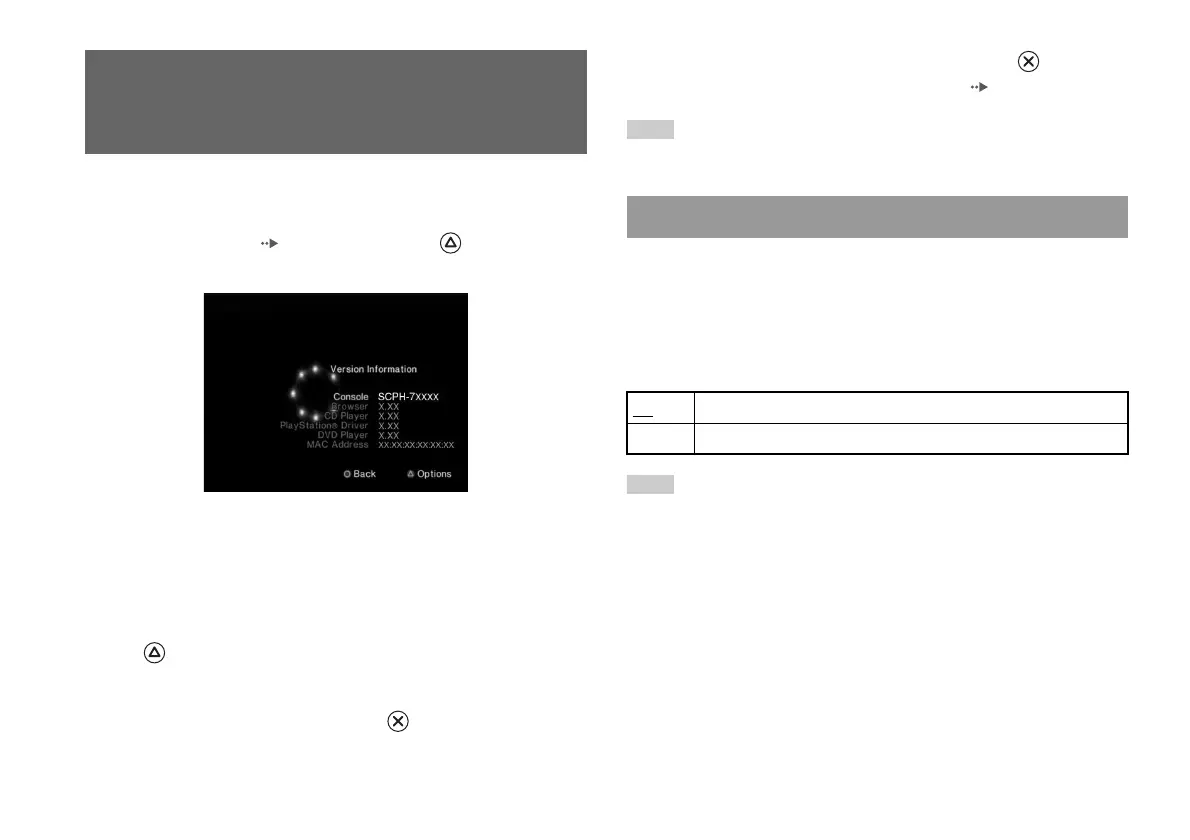
Using the Version Information screen
You can check version information for various console components by
selecting this option. You can also change optional settings for some items.
1 At the main menu ( page 92), press the button.
The Version Information screen is displayed.
Optional settings
Optional settings are available for "Console", "PlayStation® Driver" and
"DVD Player". "DVD Player" can be set only if the DVD player's
"Progressive" option is set to "On".
1 Using the directional buttons, select an item and then press
the button.
The current setting for the item is displayed.
2 Select an item, and then press the button.
The available options are displayed.
3 Select the desired setting, and then press the button.
For details, see the instructions for each item ( pages 96 to 98).
Note
The default setting for each menu item is underlined in the explanations below.
The PlayStation®2 console automatically adjusts its internal settings for
optimal playback. When "Diagnosis" is set to "On", the console makes
additional adjustments that may allow discs that were previously
unplayable to be played.
Diagnosis
Note
The "Diagnosis" setting will automatically return to the default setting in the
following cases:
– When playback of PlayStation
®2 or PlayStation® format software or a DVD
begins
– When the console is reset
– When the console is turned off
Using the Version Information
screen
Console
Off Diagnosis is turned off.
On Diagnosis is turned on.












 To Next Page