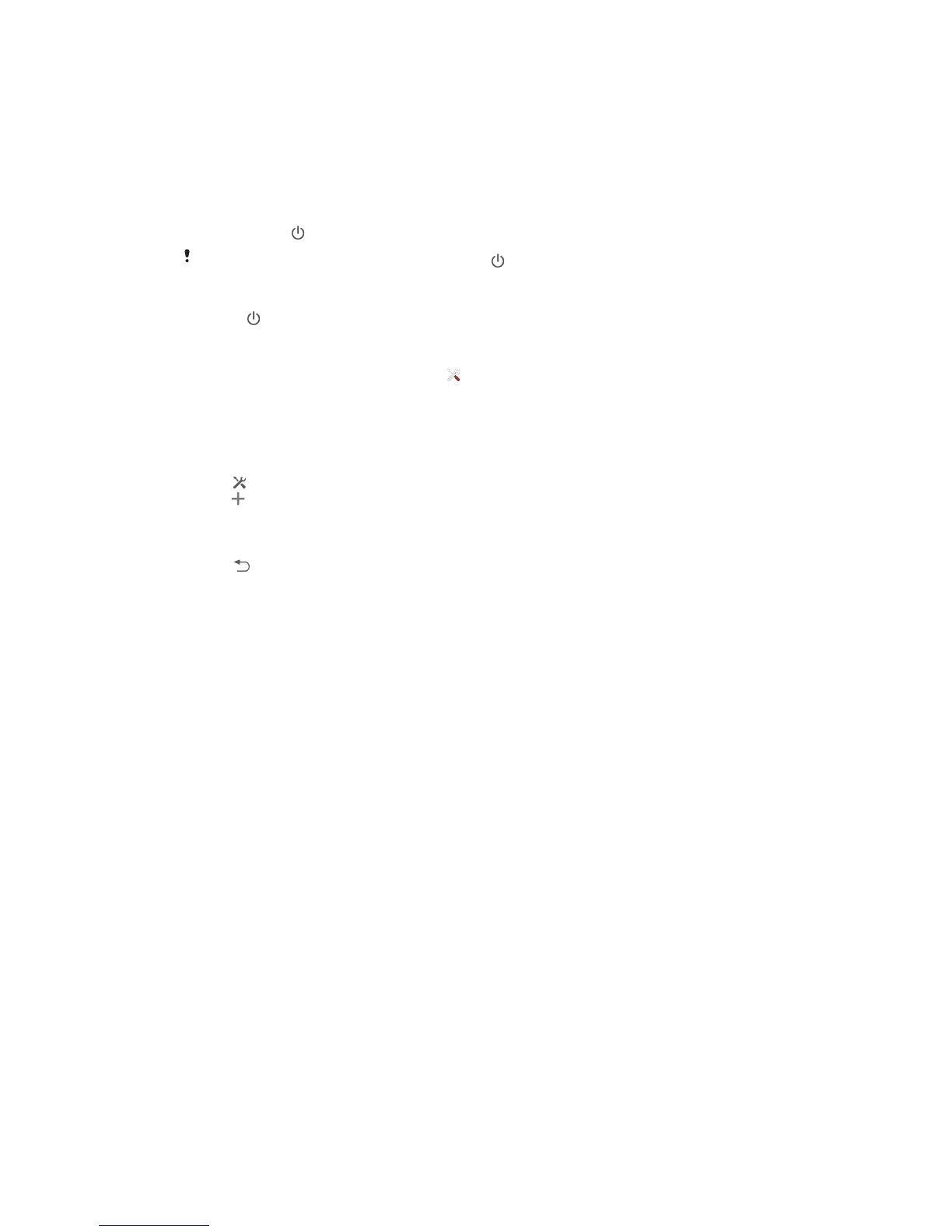
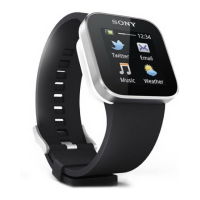
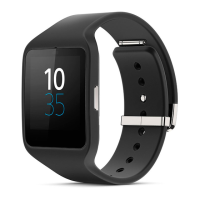
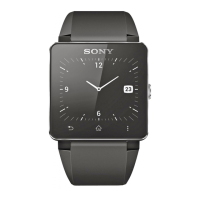
Clock screen
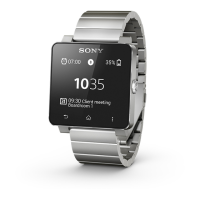
SmartWatch 2 shows the clock screen if you do not use it for a short while, so you
can use it as a standalone watch.
There are several different watch faces to choose between. You can also create a
watch face in your own style.
To go to the clock screen
•
Briefly press .
The clock screen backlight turns on if you press briefly.
To exit the clock screen
•
Press twice.
To choose a watch face
1
From the Home screen, find and tap
.
2
Tap Watchfaces, then swipe left or right to view the watch faces available.
3
Tap the watch face you want to use.
To edit the watch face from your Android™ device
1
Drag the status bar downwards, then tap SmartWatch 2 > Edit watchfaces.
2
Tap
beside the watch face that you want to edit. To add a new watch face,
tap .
3
To add a new watch or a widget on the watch face, tap Watches or Widgets
and select an option.
4
To move an item on the watch face, drag and drop it to the desired location.
5
Tap
. The watch face is saved automatically.
9
This is an Internet version of this publication. © Print only for private use.


 To Next Page