39
EN
Settings
Updating the software via the network
You can update the receiver software via the network.
Connect the receiver to the Internet beforehand, and then
make sure [Network Connection Status] is displayed as [OK]
in the [Network Settings] menu.
1 Select [Setup] - [Software Update] from the
home menu.
2 Select [Network Update].
3 Follow the instructions on the TV screen.
The progress rate is displayed in percentage. The
progress of loading software will be displayed as
[DOWNLOAD...XXX%] on the front display. Then,
[UPDATING…XXX%] will be displayed on the front
display.
When the update is completed, [UPDATE COMPLETED]
appears on the display panel and the receiver restarts
automatically.
Updating the software with a USB flash drive
Make sure to perform the following steps when a software
update is delivered.
You can download the update software from the following
website.
https://www.sony.com/am/support
Saving
New software
Updating
1 Copy the file for updating to the top level
directory (just under the root directory) of the
USB flash drive (FAT16 or FAT32 with more than
100MB of free space).
2 Turn the receiver on.
3 Insert the USB flash drive into the USB port on
the front panel of the receiver.
4 Select [Setup] - [Software Update] - [USB Update]
from the home menu.
The update progress rate is displayed in percentage.
[READING XXX%] will be displayed on the front display.
When the update is completed, [UPDATE COMPLETED]
appears on the display panel and the receiver restarts
automatically.
Note
• It takes up to 100minutes for the update to complete.
Using the PING button
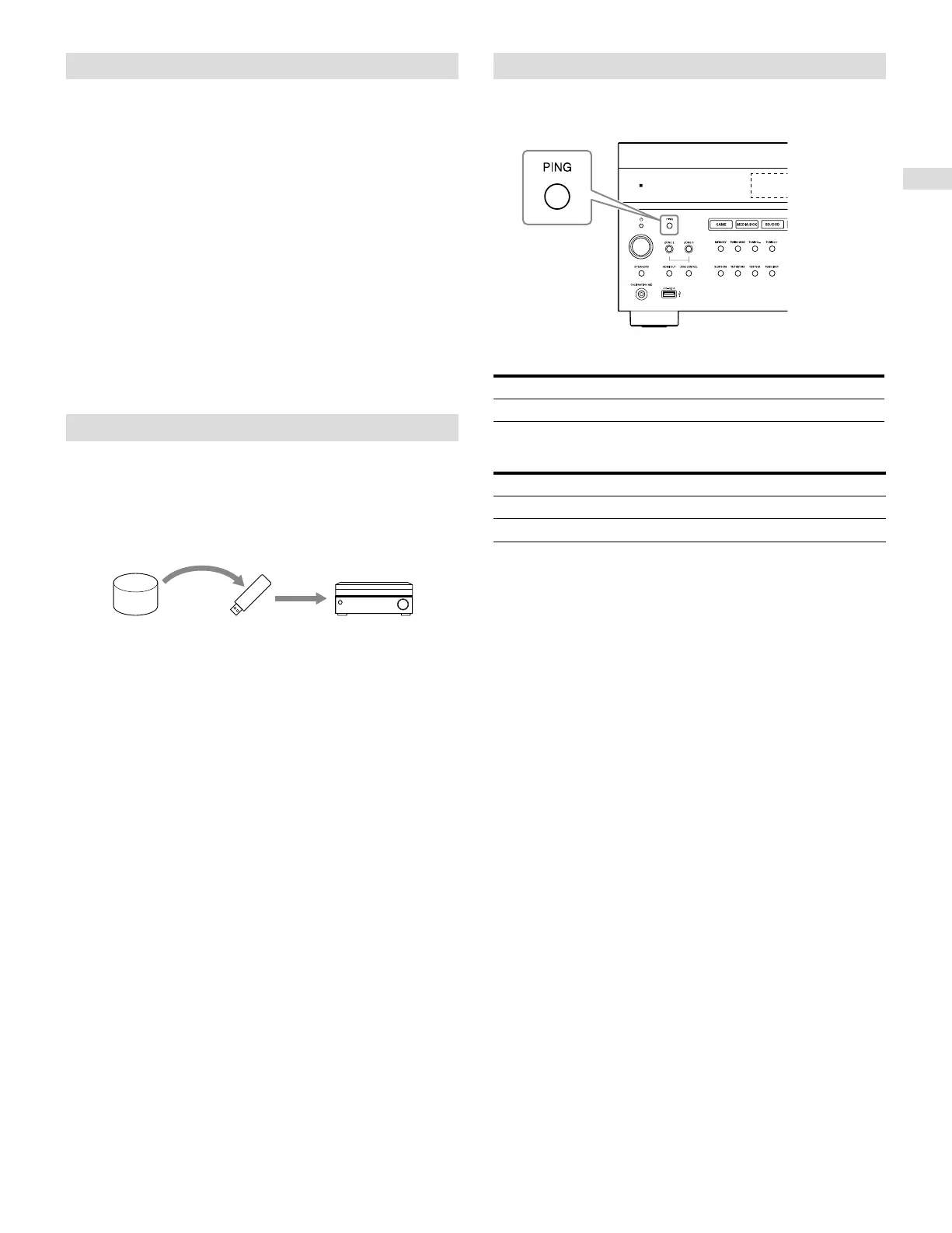
The receiver provides the following functions simply by
pressing the PING button on the front panel of the receiver.
The receiver sends specific UDP multicast or broadcast
packets to establish a network connection.
Protocol Protocol owner
SDDP Control4
The receiver displays its IP information on the front display
as follows.
Information
1 IP address
2 MAC address




 To Next Page