To Close All the Recently Used Applications
•
Tap , then tap .
To open a menu in an application
•
While using the application, press .
A menu is not available in all applications.
Widgets
Widgets are small applications that you can use directly on your Homescreen. They also
function as shortcuts. For example, the Weather widget allows you to see basic weather
information directly on your Homescreen. But when you tap the widget, the full Weather
application opens. You can download additional widgets from Google Play™.
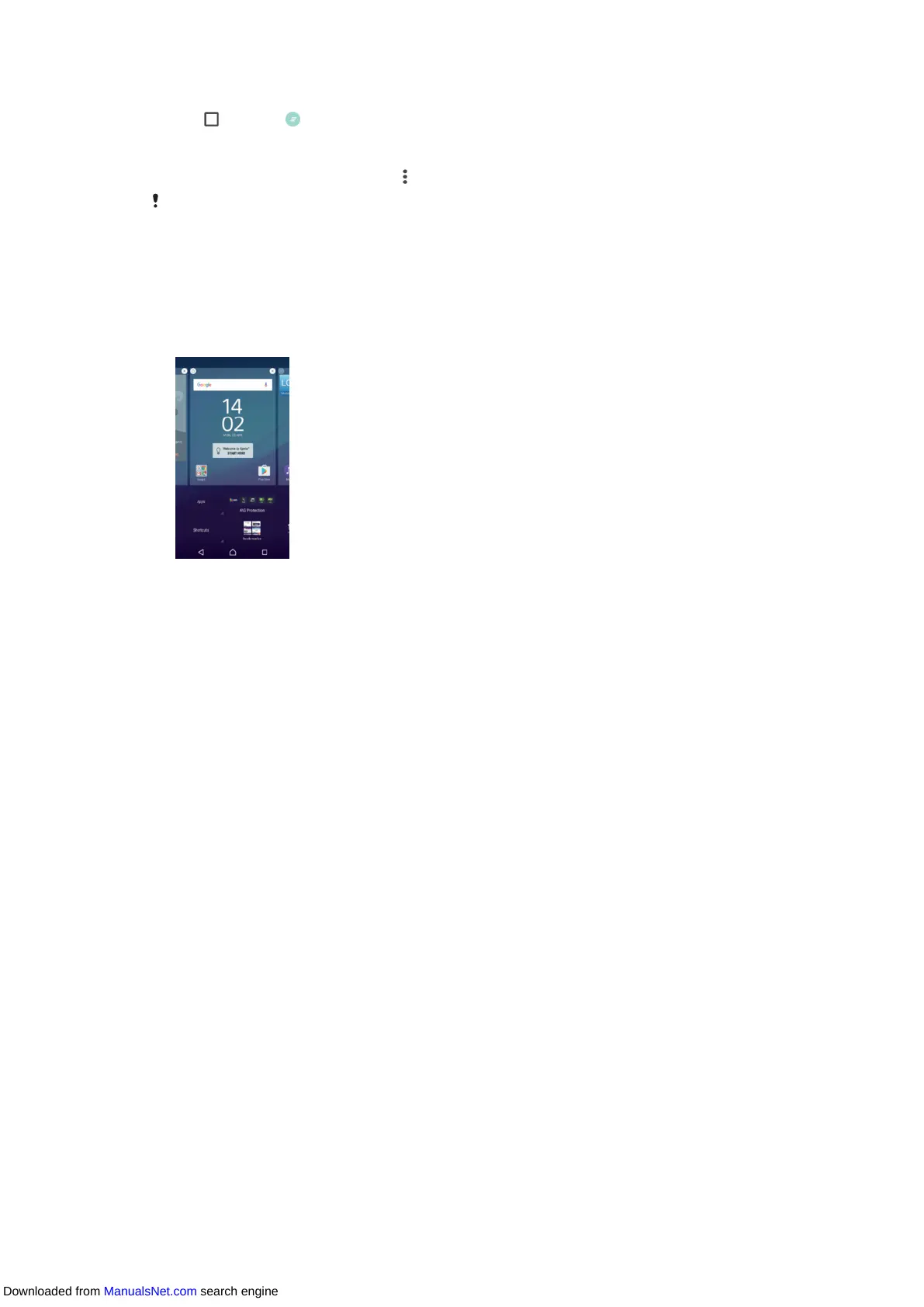
To add a widget to the Home screen
1
Touch and hold an empty area on your Homescreen until the device vibrates, then
tap
Widgets
.
2
Find and tap the widget that you want to add.
To Resize a Widget
1
Touch and hold a widget until it is selected, then release the widget. If the widget
can be resized, for example, the Calendar widget, then a highlighted frame and
resizing dots appear.
2
Drag the dots inward or outward to shrink or expand the widget.
3
To confirm the new size of the widget, tap anywhere on the Homescreen.
To Move a Widget
•
Touch and hold the widget until it is selected, then drag it to the new location.
To Remove a Widget
•
Touch and hold the widget until the device vibrates, and then drag it to Remove
from home screen.
Shortcuts and folders
Use shortcuts and folders to manage your applications and keep your Home screen tidy.
26
This is an internet version of this publication. © Print only for private use.
Downloaded from ManualsNet.com search engine


 To Next Page