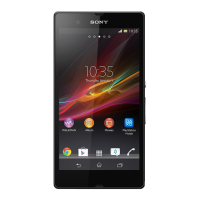
The items in the bar at the bottom of the screen are always available for quick access.
To go to the Home screen
• Press .
To browse the Home screen
• Flick right or left.
To share an item from your Home screen
1 Press to open your Home screen.
2 Touch and hold an item until it magnifies and the phone vibrates, then drag the
item to .
3 Select an option and confirm, if necessary. You can now share the applications
and widgets you like with your friends so they can download and use them.
Widgets
Widgets are small applications that you can use directly on your Home screen. For
example, the Music player widget allows you to start playing music directly.
Some widgets are resizable, so you can expand them to view more content or shrink
them to save space on your Home screen.
To add a widget to the Home screen
1 From your Home screen, press .
2 Tap Add > Widgets.
3 Tap a widget.
To resize a widget
1 Touch and hold a widget until it magnifies and the phone vibrates, then release the
widget. If the widget can be resized, for example, the Calendar widget, then a
highlighted frame and resizing dots appear.
2 Drag the dots inward or outward to shrink or expand the widget.
3 To confirm the new size of the widget, tap anywhere on the Home screen.
To get an overview of all widgets on your Home screen
• Pinch on any area of your Home screen. All widgets from different parts of your
Home screen are now displayed in one view.
When all Home screen widgets are combined in one view, tap on any widget to go to the part
of the Home screen containing that widget.
18
This is an Internet version of this publication. © Print only for private use.



 To Next Page