To select text
1 Enter some text, then tap and hold the text. The word you tap gets highlighted by
tabs on both sides.
2 Drag the tabs left or right to select more text.
To edit text in portrait orientation
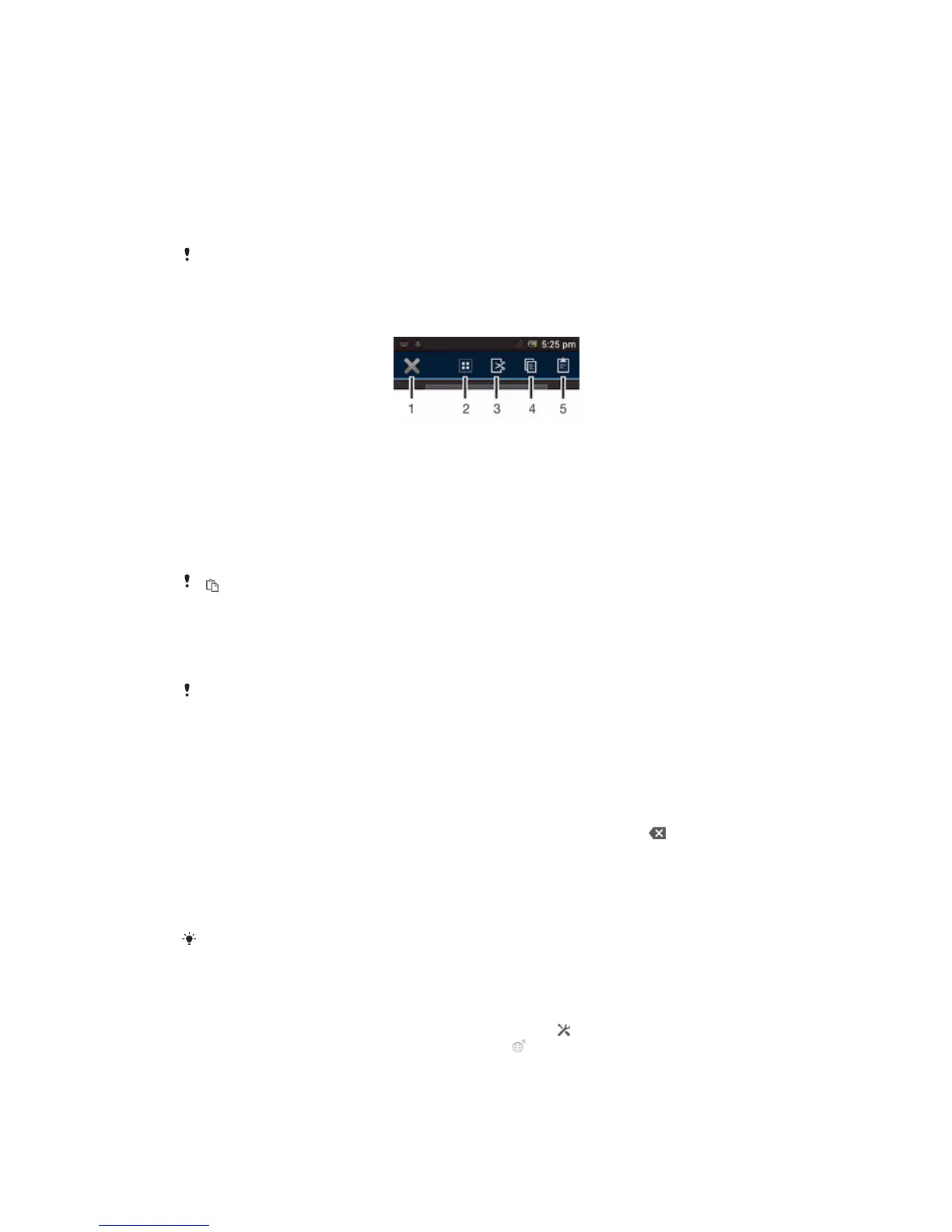
1 When you enter text, touch and hold the text field until an application bar appears.
2 Select the text you want to edit, and then use the application bar to make your
desired changes.
To paste text from the clipboard, you can also hold the text field until Paste appears, then tap
Paste.
Application bar
1 Close the application bar
2 Select all text
3 Cut text
4 Copy text
5 Paste text
only appears when you have text stored on the clipboard.
Using the Gesture input function to write words
You can input text by sliding your finger from letter to letter on the on-screen keyboard.
You can lift your finger between words so that the phone recognizes them.
Gesture input is only available when you use the on-screen keyboard.
To enter text using the Gesture input function
1 When you enter text using the on-screen keyboard, slide your finger from letter to
letter to trace the word you want to write. Lift up your finger when you’ve finished
entering a word.
2 The phone suggests a word based on the letters you have traced. If necessary,
select the correct word in the candidate bar. To view more options, scroll right or
left in the word candidate bar. If you cannot find the desired word, tap once to
delete the entire word. Then try again to trace the word using Gesture input, or
tap each letter to enter the word.
3 If the Space between gestures setting is activated, trace the next word that you
want to enter. If not, tap the space bar and then trace the next word you want to
enter.
To enter joined compound words when the Space between gestures setting is activated, you
may need to slide to enter the first part of the word, then tap each letter to enter the rest of
the word.
To change the Gesture input settings
1 When you enter text using the on-screen keyboard, tap . If you have selected
more than one writing language, touch and hold .
2 Tap Text input settings.
3 Mark or unmark the Gesture input checkbox.
4 If you want to automatically add a space between gestures without having to tap
the space bar each time, mark the Space between gestures checkbox.
25
This is an Internet version of this publication. © Print only for private use.



 To Next Page