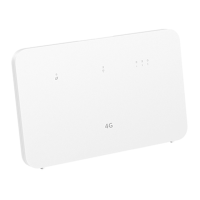
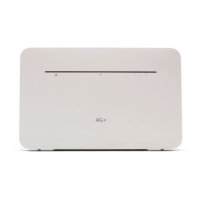
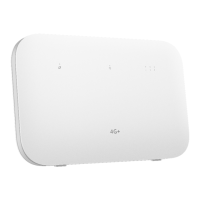
This document provides a quick start guide and detailed information for a wireless router, model B311-922, designed to provide Internet access via a SIM card and distribute it through Wi-Fi and LAN connections.
Function Description
The device serves as a central hub for wireless and wired network connectivity. It integrates a SIM card slot, allowing it to connect to a mobile network (2FF mini-SIM, 3FF micro-SIM, or 4FF nano-SIM are supported, though the diagram shows an adapter for smaller SIMs to fit the larger slot). Once connected to the mobile network, it broadcasts a Wi-Fi signal, enabling various Wi-Fi-enabled devices to access the Internet. Additionally, it features LAN ports for wired connections, allowing devices like computers or switches to connect directly via Ethernet cable. The router also includes an optional landline phone port for telephone connectivity and external antenna ports to enhance signal reception. A power adapter connects the router to a power supply, ensuring continuous operation.
The router's status is indicated by several LED lights: a network status indicator (steady white for connected, steady red for not connected), a Wi-Fi indicator (steady on for enabled, flashing for HiLink pairing), and signal strength indicators (more bars for stronger signal). It also has a power button to turn the device on or off, and a Hi/WPS button for enabling WPS or HiLink connections. A reset button allows users to restore the router to its factory settings.
Usage Features
Getting Started:
- SIM Card Insertion: Begin by inserting a compatible SIM card into the designated slot. The diagram illustrates how different SIM card sizes (mini-SIM, micro-SIM, nano-SIM) can be accommodated, likely with an adapter for smaller SIMs to fit the larger slot.
- Power Connection: Connect the router's power adapter to a power supply. The router will automatically power on and establish an Internet connection.
- Device Connection:
- Wi-Fi: Connect your Wi-Fi-enabled devices (e.g., smartphones, tablets, laptops) to the router's Wi-Fi network. The default Wi-Fi name (SSID) and password are typically found on a nameplate on the router. The guide shows a smartphone interface for connecting to Wi-Fi, displaying the network name (XXXXXX) and password (YYYYYY).
- LAN: For wired connections, use an Ethernet cable to connect a computer or switch to one of the router's LAN ports.
- Management Page Access: To customize settings, such as changing the Wi-Fi name or password, log in to the web-based management page. The default IP address and login password are also on the router's nameplate. Alternatively, a QR code is provided to download a device management app for easier configuration.
Indicators and Buttons:
- Network Status Indicator: Provides visual feedback on the router's connection status to the network (connected/not connected).
- Wi-Fi® Indicator: Shows if Wi-Fi is active and indicates when a HiLink device is detected for pairing.
- Signal Strength Indicator: Displays the strength of the mobile network signal, helping users position the router for optimal reception.
- Power Button: Used for turning the router on or off.
- Hi/WPS Button: Initiates WPS (Wi-Fi Protected Setup) for easy connection of compatible devices or HiLink pairing. A note advises waiting if the Wi-Fi indicator flashes accidentally after pressing this button.
- Reset Button: Allows users to restore the router to its original factory settings by pressing it with a needle-type object until the network status indicator flashes.
- LAN/WAN Port: Functions as a LAN port for connecting local devices or as a WAN port for connecting to a wall-mounted Ethernet port for Internet access.
- Landline Phone Port (Optional): If available, connects to a telephone.
- External Antenna Port: Used to install an external antenna for improved signal reception, which can be beneficial in areas with weak mobile network coverage.
Software Update:
The device supports automatic software updates from SOYEA or the carrier. This feature is enabled by default and can be configured through the web-based management page. Updates use mobile data and require access to the device's unique identifier (SN) and the service provider network ID (PLMN) to check for necessary updates.
Maintenance Features
Cleaning and Storage:
- Dry Environment: Keep the device and its accessories dry during storage, transportation, and operation. Avoid using external heat sources like microwaves or hair dryers to dry the device.
- Temperature Control: Do not expose the device or accessories to extreme heat or cold, as this can interfere with proper function and potentially lead to fire or explosion. Ideal operating temperatures are 0 °C to 40 °C, and storage temperatures are -20 °C to +70 °C.
- Ventilation: Maintain a well-ventilated and cool area away from direct sunlight. Do not cover the device with towels or other objects, or place it in containers with poor heat dissipation. A minimum of 10 cm clearance around the device is recommended for heat dissipation.
- Physical Protection: Avoid collision, trampling, pulling, or excessively bending cables, as this can cause damage and malfunction. Place the device on a stable surface.
- Cleaning Procedure: Before cleaning or maintaining the device, stop using it, close all applications, and disconnect all cables. Use a clean, soft, and dry cloth. Do not use chemical detergents, powders, or other chemical agents (such as alcohol or benzene), as these can damage parts or pose a fire hazard.
Safety Precautions:
- Power Adapter Safety: The power plug is a disconnect device. Ensure the socket-outlet is near the device and easily accessible. Unplug the adapter when not in use. Do not drop or impact the adapter. If the power cable is damaged, stop using it immediately to prevent electric shocks, short circuits, or fire. Avoid touching the power cord or adapter with wet hands.
- Medical Equipment Interference: Follow hospital rules. Some wireless devices may affect pacemakers or hearing aids. Maintain a minimum distance of 15 cm between the device and a pacemaker.
- Flammable/Explosive Environments: Do not use the device where flammables or explosives are stored (e.g., gas stations, oil depots, chemical plants).
- Magnetic Fields: Avoid dusty, damp, dirty environments, and magnetic fields, as these can cause circuit malfunctions. Do not place magnetic stripe cards near the device for extended periods.
- Lightning Protection: During thunderstorms, power off the device and remove all connected cables to protect against lightning strikes.
- Fire Hazards: Keep the device away from heat sources and fire, such as heaters, microwaves, stoves, water heaters, radiators, or candles. Do not place objects like candles or water containers on the device.
- Foreign Objects/Liquids: If any foreign object or liquid enters the device, immediately stop using it, power it off, and remove all cables.
- Overheating: If the device overheats, stop using it or its applications for a while. Prolonged skin exposure to an overheated device can cause low-temperature burn symptoms.
- Antenna: Do not touch the device's antenna, as this may reduce communication quality.
- Children and Pets: Do not allow children or pets to bite or suck the device or accessories, as this may cause damage or explosion.
- Installation Distance: The device should be installed and operated with a minimum distance of 20 cm between the radiator and your body. Maintain good reception by keeping the device at least 25 cm from other metal materials and 30 cm from metal doors and windows.
Disposal and Recycling:
The product and its batteries should be taken to separate waste collection points at the end of their lifespan to ensure proper recycling and environmental protection. Information on hazardous substances and EU regulatory conformance is also provided, emphasizing compliance with REACH, RoHS, and Batteries directives.

 Need help?
 General

 To Next Page