Need help?
Do you have a question about the Soyea B535-333 and is the answer not in the manual?
Indicates the network connection status.
Indicates the status of the Wi-Fi network.
Shows the strength of the network signal.
Button to turn the device on or off.
Button used for WPS connection.
Button to restore the device to factory settings.
Port for connecting to a Local Area Network or Wide Area Network.
Optional port for connecting a landline phone.
Ports for connecting external antennas to improve signal reception.
Attach the socket to the router for stability and signal reception.
Ensure correct SIM card type and insertion.
Connect the power adapter to the router.
Connect computers and landline phones for internet and calls.
Connect to the internet using a wall-mounted Ethernet port.
Install external antennas to improve signal reception.
General precautions for using electronic devices.
Guidelines for use near pacemakers and hearing aids.
Warnings against use in areas with flammables or explosives.
Recommendations for optimal operating conditions.
Precautions to ensure children's safety with the device.
Use only approved accessories to avoid hazards.
Important safety instructions for power adapters.
Compliance with regulations on hazardous substances.
Declaration of conformity with EU directives.
Information related to the Energy-related Products Directive.
Details on operating frequency bands and transmitting power.
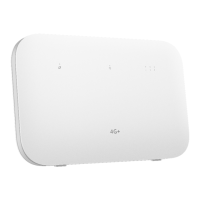
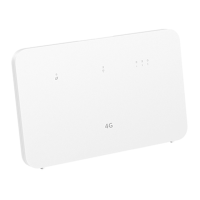
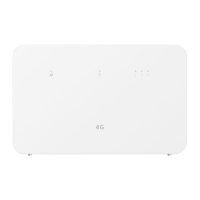
This document provides a quick start guide for a router, detailing its features, setup, and management.
The router serves as a central hub for network connectivity, allowing users to access the internet via a mobile data network. It supports Wi-Fi connectivity for multiple devices like computers and mobile phones, enabling them to access the internet wirelessly. The device also includes physical ports for wired connections, such as LAN/WAN ports for connecting to a computer or an Ethernet network, and an optional landline phone port for making telephone calls. Signal strength indicators provide visual feedback on the quality of the network connection, helping users optimize placement for better reception. The router is designed to be managed through a web-based interface, offering comprehensive control over its settings and features. It also supports external antennas for enhanced signal reception, catering to areas with weaker network coverage.
The router's setup is straightforward, beginning with attaching a socket to keep it upright, which also aids in improving Wi-Fi signal reception. Users must ensure they use the correct SIM card type (mini-SIM, micro-SIM, or nano-SIM) and insert it gently into the designated slot until it clicks. The device is powered by connecting it to a power adapter. Once connected to a network, various indicators light up: the network status indicator turns steady white for a successful connection, and the signal strength indicator shows white bars, with more bars indicating a stronger signal. If the network status indicator is red, it signifies no network connection, prompting users to troubleshoot.
Connecting to the router's Wi-Fi network is done by finding the Wi-Fi network name (SSID) and entering the password, both typically found on a label on the back of the router. The Wi-Fi indicator, when steady, confirms that Wi-Fi is enabled. For security, users are strongly advised to change the default Wi-Fi network name and password via the web-based management page to prevent unauthorized access. The router also supports WPS (Wi-Fi Protected Setup) for easy connection of WPS-enabled devices by pressing the H button.
The web-based management page is the primary interface for managing the router. Users can access it using the default IP address and login password provided on the router's label. It is crucial to change the default login password to prevent unauthorized changes to the router's settings. For added convenience, the router can also be managed using a dedicated device management app, which can be downloaded by scanning a QR code.
Optional configurations include connecting multiple devices. A computer or landline phone can be connected to the router for internet access or telephone calls. The router can also access the internet through an Ethernet port, requiring specific settings to be configured on the web-based management page. External antennas can be installed to improve signal reception, especially in areas with weak signals. If only one antenna is needed, it should be plugged into the designated socket.
To ensure optimal performance and longevity, several maintenance guidelines are provided. Before installing external antennas, the router should be turned off and the power adapter unplugged. External antennas are strictly for indoor use and should not be used during thunderstorms. Only external antennas provided by the carrier should be used.
For troubleshooting, if the network status indicator is red or there's no internet connection, users should first check if the SIM card is correctly inserted. If the issue persists, restoring the router to factory settings and contacting the carrier to check SIM card service status are recommended steps. If internet speed is slow, users should check the signal strength indicator and adjust the router's position for better reception. Adjusting the device's position relative to the router, switching to Wi-Fi 5 GHz (if supported), restarting the router and device, and checking data traffic limits are also suggested.
If the Wi-Fi password or web-based management page login password is forgotten, restoring the router to factory settings allows users to use the default credentials again. If the web-based management page is inaccessible, users should ensure their computer is connected to the router via Ethernet or Wi-Fi, that the computer is set to obtain IP and DNS server addresses automatically, and try restarting their browser or using a different one. Clearing the browser's cache is also recommended if the content on the management page appears outdated. For any other issues, restarting the router, restoring factory settings, or contacting the carrier are the final steps.
The device also supports automatic software updates to provide better service. These updates are obtained from the manufacturer or carrier after connecting to the internet, using mobile data and the device's unique identifier to check for necessary updates. This feature is enabled by default and can be configured through the web-based management page.
Regular cleaning and proper handling are essential for maintenance. The device and its accessories should be kept dry and protected from collision. Exposure to extreme heat or cold, dusty, damp, or dirty environments, and strong magnetic or electric fields should be avoided. During thunderstorms, the device should be powered off and all cables removed. When cleaning, the device should be disconnected from power, and a clean, soft, dry cloth should be used, avoiding chemical detergents. The device should not be dismantled or remanufactured, as this voids the warranty.
 General
| Brand | Soyea |
|---|---|
| Model | B535-333 |
| Type | Network Router |
| Wireless Standards | 802.11a/b/g/n/ac |
| Cellular Network Technology | 4G LTE |
| Frequency Band | 2.4GHz & 5GHz |
| Antenna | 2x External Antennas |
| Power Supply | 12V/1A |
| Ports | 3x LAN, 1x WAN/LAN |
| SIM Card Slot | Yes (Nano SIM) |
| Weight | 325 g |
| Wi-Fi Speed | Up to 1200Mbps (300Mbps on 2.4GHz, 867Mbps on 5GHz) |
| Max Speed | 300 Mbps (2.4 GHz) + 867 Mbps (5 GHz) |

 To Next Page