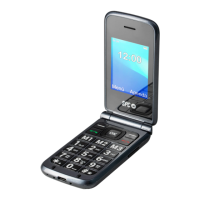
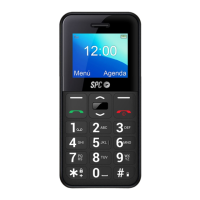
Activate the camera by pressing the navigation key below or by accessing it from the menu: "Menu"
--> "Multimedia" --> "Camera".
Use the numeric keypad to change the camera settings.
•
Up/down navigation keys: press repeatedly to zoom in/out.
•
Key 1: Press repeatedly to change the image size.
•
Key 2: Press repeatedly to change the picture quality.
•
Key 4: Press repeatedly to change the white balance.
•
Key 5: Press repeatedly to activate/deactivate the flash.
•
Key 6: Press repeatedly to set the timer.
•
Key 8: Press to capture.
Once you have taken a screenshot, the photo will be saved automatically. Press "Back" to take a new
screenshot or press "Options/Clear" to delete the screenshot. You can also send it via Bluetooth from
"Options/Send" via Bluetooth.
To take the photo press the 8 key with camera icon
Under "Options" --> "Camera settings", the following camera parameters can be set --> "Camera
settings", the camera parameters can be set:
-
Flash: activate or deactivate with keys M1 and M3
-
Trigger tone (select from 3 sounds or switch off with keys M1 and M3)
-
EV (select from the options available with the M1 and M3 keys)
-
Contrast (select between 3 levels with keys M1 and M3)
-
Anti-flicker (select between 60Hz or 50 HZ with keys M1 and M3)
-
Scene mode (select between Auto or Night with the M1 and M3 keys)
-
Timer (select from the options available with keys M1 and M3)
Under "Options" --> "Photos" you can also access the photos you have taken. --> "Photos" you
can also access the photos you have taken. Once inside the photo,
under "Options", we can access a larger number of options:
-
you can see the capture,
-
send it via Bluetooth,
-
use it as a wallpaper,
-
rename it,
-
remove or
-
see the details of the report.
If you go back to the menu above, other functions you will find under "Options" are:
-
Switch to video
-
Picture settings
o Image size
o Image quality
-
Effects:
o Normal
o Greyscale
o
Cuttlefish


 To Next Page