6875 Freezer/Mill
Page 19 of 42 SPEX® SamplePrep LLC DEC 2015
5.4 Saved Protocols (Cont’d)
The Up/Down yellow arrow key on KEYBOARD allows the user to shift back and forth from upper
case to lower case (the default is upper case). Touch Down arrow to switch to lower case. Or
touch Up arrow to revert to upper case.
Touching the SPACE key advances the cursor one space. Touching the BACK key deletes one
space. The CLEAR key deletes whatever has been entered in the Label Box.
Touch the DONE button to save the name shown in the Label Box. The label will appear as the
name of the program in the SAVED PROTOCOLS screen (Figure 11).
The CANCEL key does not change anything on the screen, but returns the display to the SAVED
PROTOCOLS screen.
To run the newly saved protocol, touch the protocol to highlight (BLUE) the name. Then touch
the LOAD button to send protocol to the CONTROL PANEL screen. Review the parameters and
touch the button to initiate the protocol.
5.4.2 Delete Protocol
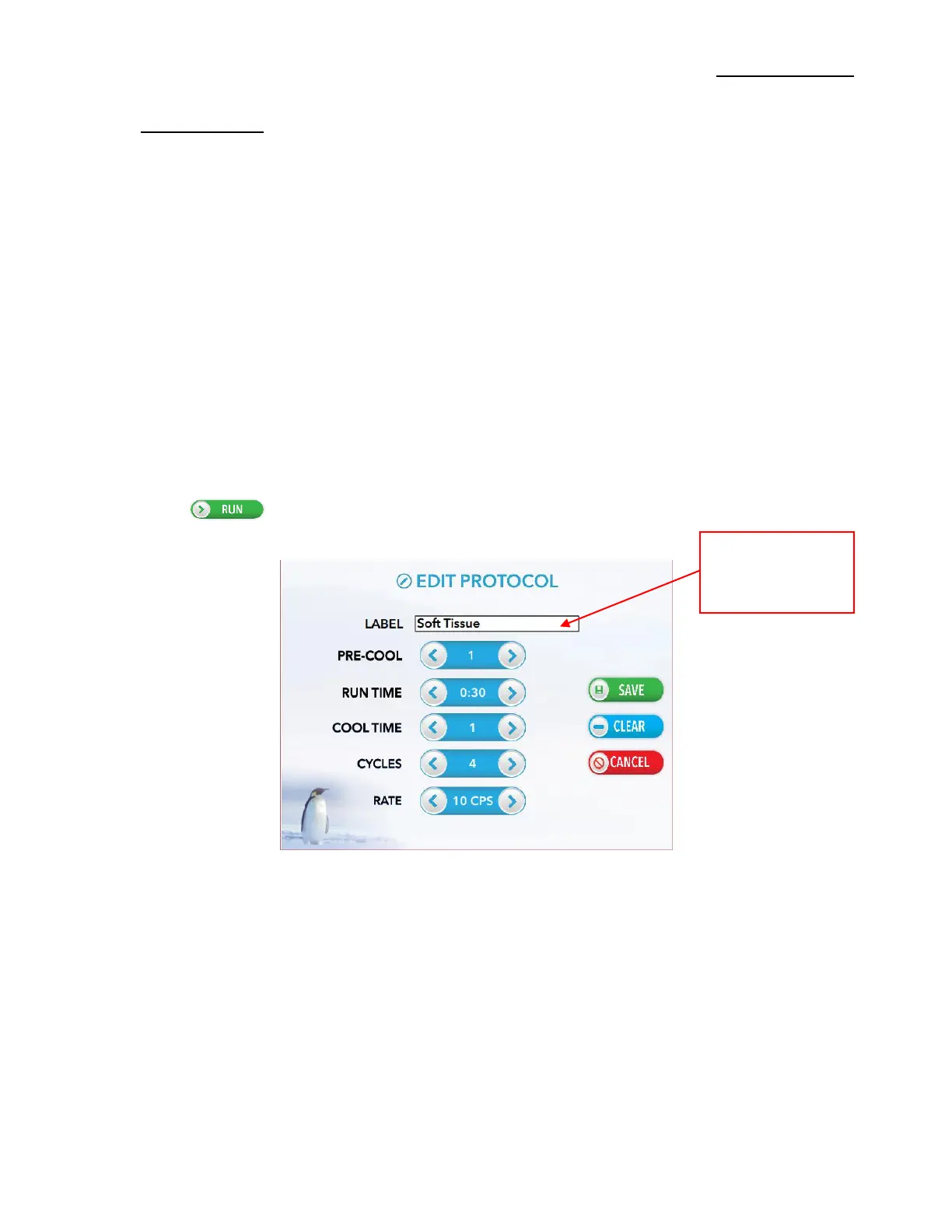
To delete a saved protocol, touch the protocol to highlight (BLUE) the name. Then touch the EDIT
button. From the Edit Protocol screen touch the CLEAR button. A pop-up window opens
confirming to delete this protocol, as displayed in Figure 13. Touch YES to clear or touch NO to
keep the saved protocol. To rescind this action touch CANCEL button. To retain the action, touch
SAVE button. Saving the clear protocol returns the parameters to the default setting (i.e. User
Protocol).
Figure 12 – Edit Protocol Screen
Touch inside the
Label Box to
change name



 To Next Page