6875 Freezer/Mill
Page 32 of 42 SPEX® SamplePrep LLC DEC 2015
8.4 System Settings
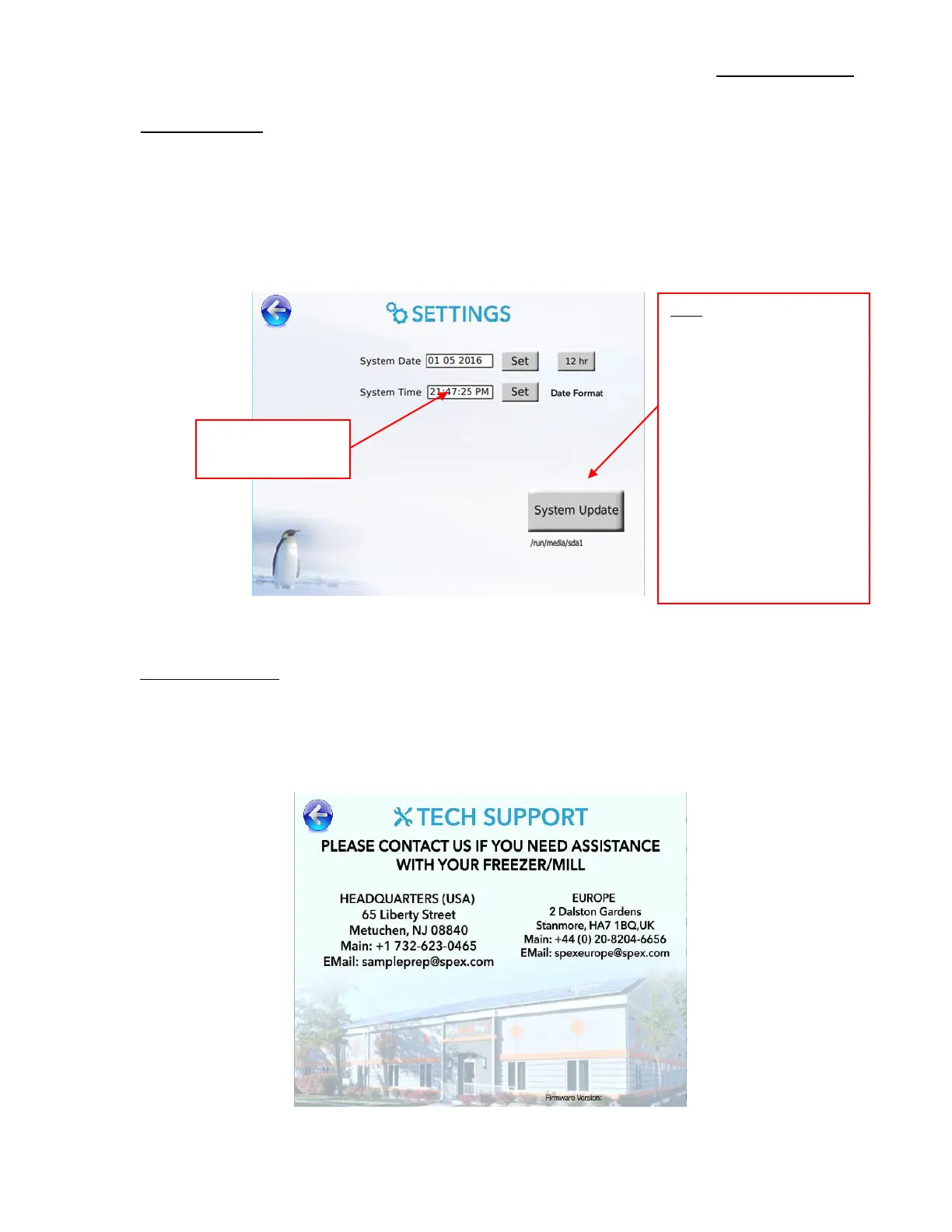
To access the Settings screen touch the Gear Icon. The System can be upgraded, the time display
changed from 12-hour to 24-hour, and Time and Date can be entered or changed, as shown in
Figure 20. Touch window to change settings then touch the SET button to lock in the figure. A
pop-up window opens confirming, Time or Date resets. To return to Resources Screen touch the
back arrow at the top left corner of the screen.
8.5 Technical Support
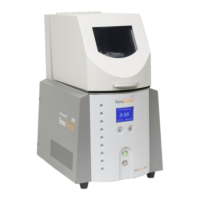
To access the Technical Support screen touch the Tech Support button on the Resources screen.
SPEX contact information for the USA Headquarters and Europe Sales Office is listed on this
screen (Figure 20). To return to Resources screen touch the back arrow button at the top left of
the screen.
Figure 21 - Technical Support Screen
Figure 20 – Settings Screen
Note: System Update button
appears only when an
external flash drive is
connected to the USB Port
(back of controller).
[System updates furnished
only by SPEX, if necessary]
To update system, connect
SPEX flash drive. After unit
detects device, touch button
to upgrade system.
Remove flash drive when
upgrade is complete.



 To Next Page