Need help?
Do you have a question about the Sphero MINI and is the answer not in the manual?
Guidance for parents on Quick Start, account creation, and class code usage for Sphero Mini.
Instructions on how to charge the Sphero Mini robot using the provided Micro USB charging cable.
Steps to connect your Sphero Mini robot to a device using the Sphero Edu or Play app.
Overview of the Sphero Mini Activity Kit and ideas for integrating it into home learning.
Tips for maintaining the Sphero Mini robot, including shock resistance and water avoidance.
Recommended steps and products for cleaning and disinfecting the Sphero Mini robot.
Categorized activities for Sphero Edu, including Draw, Science, Technology & Engineering, Art, and Math.
Categorized activities for Sphero Play, including Beginner, Intermediate, and Advanced levels by control type.
Links to the Sphero Blog, Support page, Community Forum, and Contact Us page for further assistance.
The Sphero Mini is an at-home learning starter kit designed to introduce users to programming, engineering, and computational thinking through interactive play. This guide provides a comprehensive overview of the Sphero Mini robot, its accompanying apps, activity pathways, and essential maintenance tips, making it suitable for learners of all skill levels.
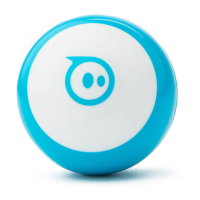
The Sphero Mini is a compact, spherical robot that connects to smart devices via Bluetooth, allowing users to control it through two primary applications: Sphero Edu and Sphero Play. Its core function is to serve as a tangible tool for STEAM (Science, Technology, Engineering, Arts, and Mathematics) education, bringing coding concepts to life through physical interaction.
With the Sphero Edu app, users can program the Mini using various coding interfaces, including Draw, Blocks, and JavaScript. The Draw mode allows beginners to create paths for the Mini to follow, while Blocks introduces more complex programming logic through a drag-and-drop interface. For advanced users, JavaScript offers a text-based coding environment to explore more sophisticated programming. This progression of coding levels makes the Sphero Mini adaptable for different ages and learning stages, from elementary school children to those with some prior coding experience. The Sphero Edu app also provides a platform for accessing and saving activities, fostering a structured learning environment.
The Sphero Play app, on the other hand, focuses on interactive play and driving games. It allows users to drive the Mini in real-time using various control modes like Joystick, Slingshot, Tilt, and Kick. This app transforms the Mini into a fun, remote-controlled toy, offering a more casual and engaging experience that complements the educational aspects of the Sphero Edu app. The games within Sphero Play are designed to be entertaining while subtly reinforcing concepts like spatial awareness, reaction time, and precision control.
The Sphero Mini Activity Kit includes physical components such as rails, pins, and cones, which can be used to create mazes, obstacles, and game setups. These accessories enhance the hands-on learning experience, allowing users to design and test their programs in a physical space. For example, users can program the Mini to navigate a maze, knock down pins in a bowling game, or spin a windmill, providing immediate feedback on their coding efforts.
Getting started with the Sphero Mini involves a few simple steps. First, users need to download either the Sphero Edu or Sphero Play app onto their device (iOS, Android, or Chromebook). For quick access, iOS and Android users can utilize the "Quick Start" option, which allows immediate programming or play without creating an account. However, to save activities and programs, users are encouraged to create a "Home User" account on the Sphero Edu website. Mac and Windows users are required to create an account to use the app. If the robot is used in conjunction with a school, a "Class Code" mode may be available.
Connecting the Sphero Mini to a device is done via Bluetooth. After opening one of the Sphero apps, users select "Connect Robot" from the home page, choose "Sphero Mini" from the list of robot types, and then hold the robot next to the device to establish the connection. The first time a Mini is connected, an automatic firmware update will occur, ensuring the robot is running the latest software.
The activity pathways provided with the kit are structured to guide learners through various STEAM concepts. The kit includes 30 step-by-step activity cards, categorized by focus area (Draw, Science, Technology & Engineering, Art, Math) and skill level (Beginning Block, Intermediate Block). Each card features a QR code that can be scanned with the Sphero Edu or Sphero Play app to load the appropriate code or activity.
For example, in the Sphero Edu cards, "DRAW" activities focus on manual movement, distance, direction, speed, and color. "SCIENCE" activities might involve building a "Battering Ram," while "TECHNOLOGY & ENGINEERING" could include "The Aim Game," "Shifting Gears," or "Street Cleaner." "ART" activities might be "Tunnel of Fun" or "Pop 'N' Block," and "MATH" could involve "Shape Shifter" or "90 Degree Bowling."
The "BEGINNING BLOCK" pathway introduces fundamental programming concepts like Roll, Delay, Sound, Speak, and Main LED control. Activities in this pathway include "Archie Ball" (Science), "Off the Wall" and "Save the Cat" (Technology & Engineering), "Pop 'N' Block" (Art), and "90 Degree Bowling" (Math).
The "INTERMEDIATE BLOCK" pathway delves into more advanced concepts such as Simple Controls (Loops), Sensors, and Comments. Activities here include "Ballecules" (Science), which may require multiple Minis or a golf ball substitute, "Around the Block" and "Capture the Flag" (Technology & Engineering), "Plot Bot" (Art), and "Spin the Windmill" (Math).
The Sphero Play cards offer activities categorized by control type (Joystick, Slingshot, Tilt, Kick) and skill level (Beginner, Intermediate, Advanced). "JOYSTICK" activities include "The Aim Game," "Driver's Ed," "A-Maze Balls," "Get the LED Out," and "Speed Freak." "SLINGSHOT" features "Bowled Over" and "Wrecking Ball." "TILT" includes "Bot & Weave," "Pin Down," "Zombie Run," and "Archie Bumper." "KICK" offers "Goalie Moly." These activities provide a playful way to practice control and navigation skills.
Proper care and maintenance are crucial for the longevity of the Sphero Mini. The robot is designed to be shockproof and can withstand minor impacts, making it durable for active play. However, it is not waterproof, so users should avoid exposing it to liquids.
Charging the Sphero Mini is straightforward. The robot comes with a Micro USB charging cable. To charge, users need to remove the Mini's outer shell to access the small micro USB charging port on the inner robot ball. The cable is then plugged into the port and connected to an AC wall plug.
Sanitizing the Sphero Mini is also important, especially in shared learning environments. The recommended cleaning process involves using disposable disinfecting wipes (such as Lysol or Clorox) or a spray with paper towels and disposable gloves. First, remove the Mini's outer shell and wipe it inside and out. Allow the shell to dry completely before placing it back on the inner robot ball. While wiping the inside, care should be taken to ensure no liquid enters the charging port or any other openings. The outer surface of the Mini should also be wiped down, particularly any areas that hands frequently touch. After cleaning, the Mini should be allowed to dry completely before being plugged back into its charger. This ensures both hygiene and the proper functioning of the device.
For additional support and community engagement, Sphero provides several online resources, including a blog for news and updates, a dedicated support page for troubleshooting, a community forum for peer interaction, and a contact page for direct assistance. These resources ensure that users have access to help and information whenever needed, fostering a supportive learning ecosystem.
 General
| Diameter | 42 mm |
|---|---|
| Weight | 46 g |
| Battery Life | 1 hour |
| Charging Time | 1 hour |
| Connectivity | Bluetooth |
| Sensors | Gyroscope, Accelerometer |
| Play Time | 45 minutes |
| Programmable | Yes |
| Compatibility | iOS & Android |
| Top Speed | 1 m/s |
| LED Colors | RGB |

 To Next Page