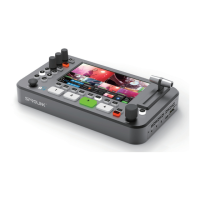
Advanced Features Operation
1. Fast Switching Mode/ T-Bar Switching Mode
Use MENU+SCENE button to enable Fast Switching Mode/ T-Bar Mode.
Fast Swtiching Mode: The transisiton will enabled every time the input channel switched.
T-Bar Switching Mode: The transition will enabled only when AUTO button pushed or T-Bar moved.
2. PTZ Control Operation (eg. PTZ camera IP is 192.168.5.163)
Set R2 and PTZ camera in same network. The default IP of R2 is 192.168.1.150.
a) Push MENU->SYSTEM->NETWORK SETTING->change IP address as 192.168.5.150. Then click Apply to confirm. After change IP need reboot R2.
b) Change PTZ control IP. Push MENU->ADVANCED->PTZ->PTZ IP LIST->DEVICE 1.
Set device 1 IP as 192.168.5.163. and click save.
c) Connect R2 and PTZ camera by lan.
d) You can also connect R2 with router or switcher to connect multiple PTZ cameras.
e) Push PTZ button on R2. Then use knob to control PTZ camera.
f) Left Knob for vertical tilt. Right knob for horizontal pan. Push and rotate left knob for optical zoom.
3. BK Content Upload
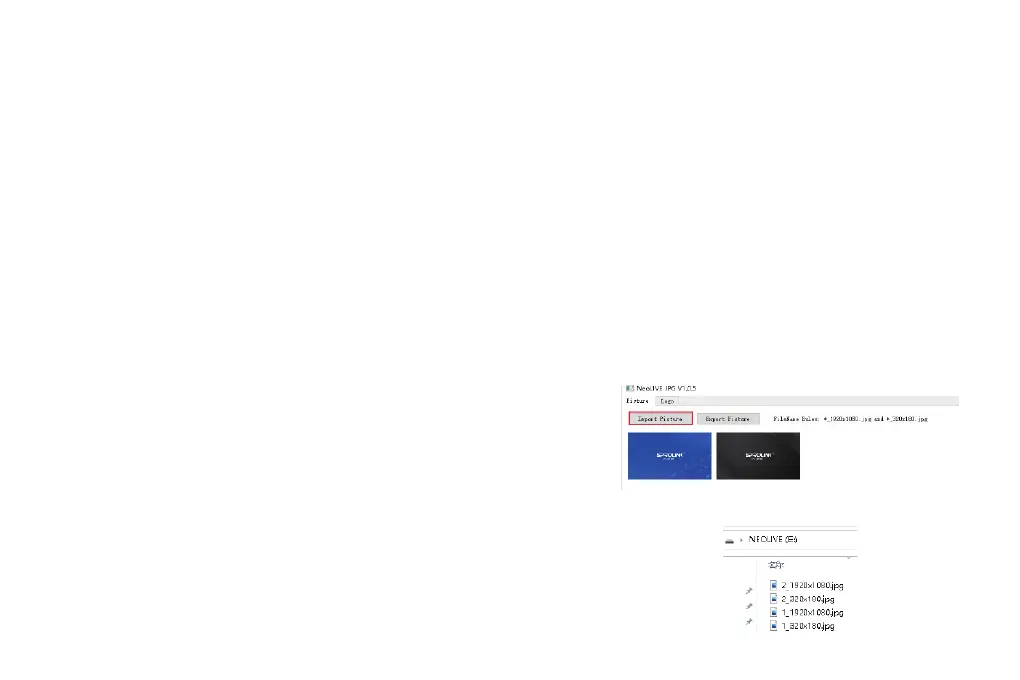
R2 have built-in storage for picture. To upload picture need use USB cable to connect PC with R2 in STILL | CTL port.
a) Use Neolive-JPG tool to create BK file. Import the JPG file to Neolive-JPG tool.
You can double click the picture to delete.
b) After finish import click export the gererated file to load disk or R2 virtual disk directly.
c) Click MENU->Picture Pool->BK1/BK2 to choose the picture file.


 To Previous Page