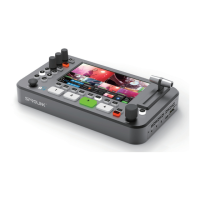
Video Operations
1. Push [SCENE] button and rotate knob to choose a proper default layout for your content.
*If there are no proper default layout, push [A] / [B] button to create layers on PST and do customized configuration. Button lit blue means
Layer ON.
2. Choose signal source and turn the knob to set layer in proper size and position.
*You can also go to menu to do detailed layer configuration.
3. If the layout is complicated please push [MENU] ->[SCENES]->[SAVE TO SCENE] to save current configuration in scene.
*SCENE [1/2/3/4/5/6] button will lit white after saved success.
*You can push [SCENE] button and choose the proper scene number to load preset.
4. After finished the layer configuration, push [EFFECT] button and turn the knob to choose the proper transition effects for current content.
5. Push [AUTO] button to enable switching. The content will display on PGM with transition effects.
Audio Operations
Volume Adjustment
1. Go to [MENU]->[Audio Setting]->[Volume]->[Audio Input Volume] to adjust volume of all input channel volume.
2. You can also adjust the volume of main output channel and headphone monitoring.
Headphone Monitoring
1. Go to [MENU]->[Audio Setting]->[Audio Monitoring], turn the knob to monitor the audio of input channel or main output channel.
AFV Mode
1. When [AFV] button lit blue, the current audio mode is Audio Follow Video.
2. Push CH1/CH2 to turn on the audio for Layer A or Layer B. The button will lit blue when audio is ON.
3. The audio will be switched along with layer content switching.
FIXED Mode
1. When [FIXED] button lit red, the current audio mode is Fixed. The audio channel will not switch along with the switching of video content.
2. Push CH1/CH2 to turn on the audio. The button will lit blue when audio is ON.
3. Long press CH1/CH2 button until button lit white.
4. Push the proper numeric button to arrange input audio for CH1/CH2. You can also turn the volume knob to adjust the volume of
CH1/CH2.


 To Next Page
 Loading...