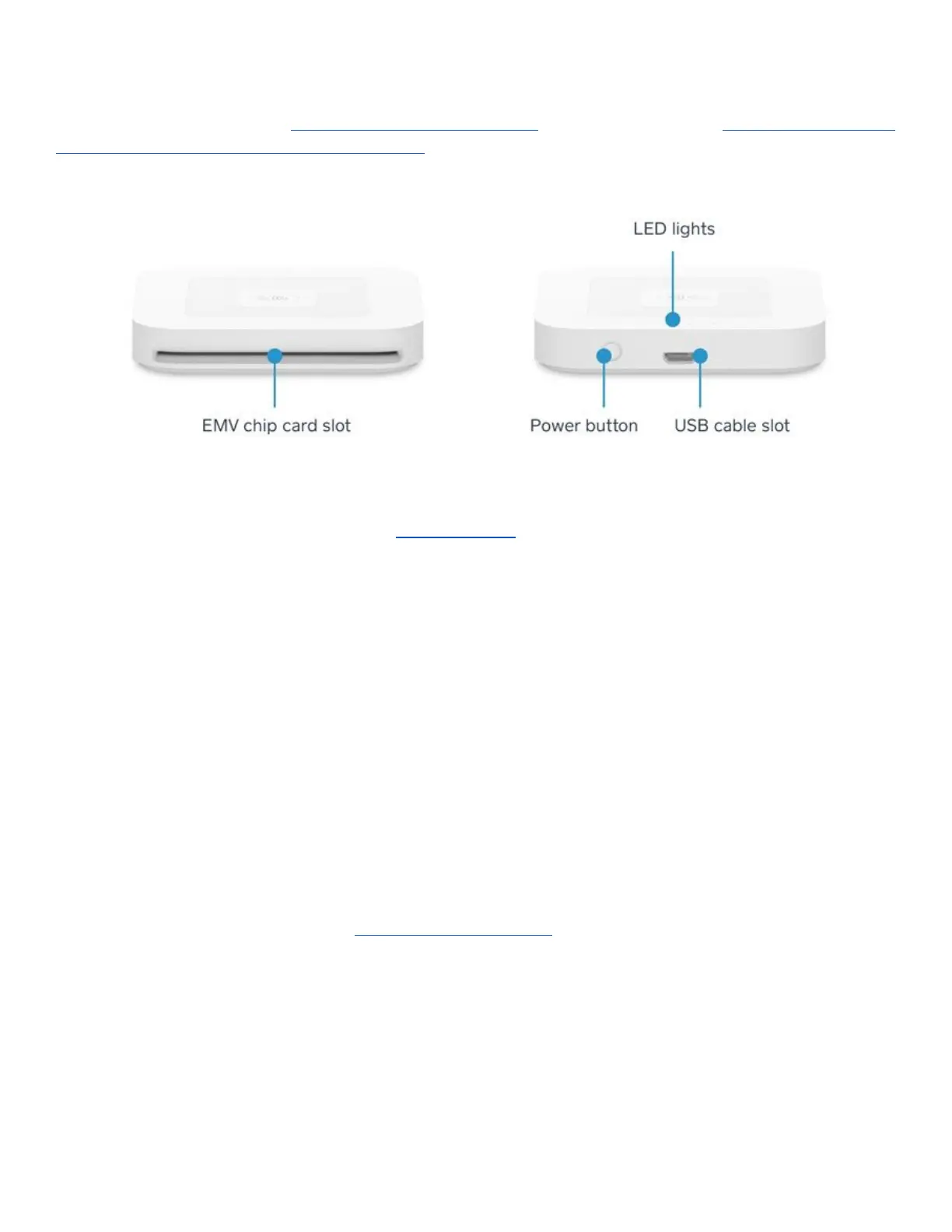
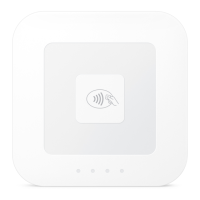
Before setting up your Square Reader for Contactless and Chip, make sure you have a compatible device with
the latest version of the Square Point of Sale app.
For a full overview on setting up your reader, watch this video.
1. Check the Battery of Your Square Reader
For an accurate battery reading, unplug your reader from any power source.
Firmly press and release the button on the reader. Green lights indicate that you’re
charged and ready to go. If you see a single red light, charge up immediately. Once
your reader is on, you don’t need to worry about turning it off. It’ll automatically go
into sleep mode after 2 hours of inactivity. To wake it up from sleep mode, firmly
press the button on the side of the reader.
2. Charge Your Square Reader
Connect one end of the accompanying USB cable to your reader and the other end
to a USB port like a cell phone charger, computer, or car charger.
It will take around 2 hours for a reader with low battery to charge completely.
Note: You can also use the Dock for Square Reader to charge and accept
payments.
3. Wirelessly Connect Your Square Reader
The new reader connects wirelessly with Bluetooth Low Energy (Bluetooth LE). Be
sure you have the latest version of the Square Point of Sale app for your
device–only the latest version supports the contactless and chip card reader.



 To Next Page