Watch this video to learn how to wirelessly connect your reader
Connecting
You’ll need to connect through both your device’s Bluetooth settings and through
the Square Point of Sale app.
To connect your reader:
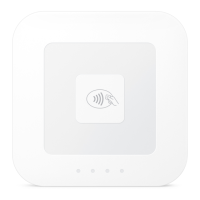
1. Press and release the button on your reader to turn it on.
2. Go to your device settings and make sure Bluetooth is turned on.
3. Open the Square app and tap: Three Horizontal Lines or the down arrow at
the top of the Square Point of Sale app.
4. Tap Settings > Card Readers > “Connect a Reader.” On an iOS device, tap
“Contactless + Chip Reader.”
5. Put your reader into pairing mode by pressing the reader’s button for 3-10
seconds.
6. Remove your finger as soon as you see orange flashing lights. If you see red
flashing lights, you’ve held the button too long and you’ll need to try again
When connected, the reader will be listed as Ready in-app.
Any necessary firmware updates will be automatically installed once the reader has been
connected.
Note: The wireless connection can be lost if the reader and device are more than 3m apart.



 To Next Page