EasyManua.ls Logo

SriHome SH029-V3.0 - User Manual

Default Icon
21 pages
Print Icon
To Next Page IconTo Next Page
Loading...
Add: The 4th Floor of building46, 5th Industrial Park of Huaide Cuigang,
Fuyong Street, Bao’an, Shenzhen, China.
Shenzhen Sricctv Technology Co.,Ltd
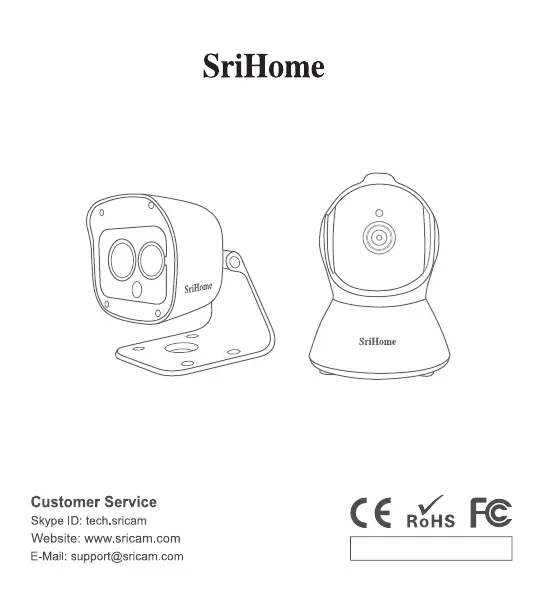
IP Camera
Quick User Manual
EN/ES/IT/FR/DE
SH025 / SH029-V3.0

Questions and Answers

  • J
    Joseph PadillaAug 10, 2025
    What to do if I can't add my SriHome SH029-V3.0 to the app?
    • V
      vasqueztheresaAug 10, 2025
      If you're having trouble adding your SriHome Security Camera to the app, ensure the following: * Before adding the device, listen for continuous 'beep' sounds. If you don't hear them, RESET the device. * Double-check that you're entering the correct Wi-Fi password. * When you hear a 'Bi' sound from the device, click 'Next' in the app.
  • K
    kevin54Aug 20, 2025
    What to do if WiFi QR Connect fails for SriHome SH029-V3.0?
    • B
      Brittany JohnsonAug 20, 2025
      If you are unable to set up your SriHome Security Camera using WiFi QR Connect, try setting up the camera via AP Hotspot Connect instead.
  • J
    James JohnsonAug 29, 2025
    Why does my SriHome Security Camera have a blurred or black screen?
    • K
      Kimberly CampbellAug 29, 2025
      If your SriHome Security Camera is showing a blurred or black screen, try turning off the hardware decode feature in the settings.

Summary

Getting Started and App Setup

SriHome App Installation

Install the SriHome app via Google Play or the iOS App Store by searching or scanning QR codes.

Account Creation and Login

Create a user account and log in to the SriHome application to proceed with setup.

Adding Camera to Network

Connect the camera to your network after powering it on and listening for confirmation sounds.

Device Connection Methods

Setup With LAN Cable

Connect the camera via a LAN cable and follow the on-screen instructions for network setup.

Setup Without LAN Cable

Set up the camera wirelessly using WiFi QR Connect or AP Hotspot Connect methods.

WiFi QR Connect Procedure

Use the WiFi QR Connect feature to add the camera by scanning a QR code displayed on the app.

AP Hotspot Connect Alternative

Connect the camera using AP Hotspot Connect if the WiFi QR Connect method fails.

Troubleshooting and App Interface

Troubleshooting Setup Issues

Solutions for common problems during device setup, including sound prompts and Wi-Fi passwords.

Monitoring Interface Overview

Explains the main features and layout of the camera's live monitoring screen in the app.

App Settings Configuration

Details the various configuration options available within the SriHome app settings.

Advanced Features and Support

Sharing Camera Access

Learn how to share camera access with other users, granting operator or visitor permissions.

Frequently Asked Questions

Answers to common user inquiries regarding camera setup, TF cards, and connectivity issues.

SriHome SH029-V3.0 Specifications

General IconGeneral
Field of View90°
Two-Way AudioYes
StorageMicroSD card (up to 128GB)
IR DistanceUp to 10m
Lens3.6mm
Audio Input/OutputBuilt-in microphone and speaker
Operating Temperature-10°C to 50°C
Motion DetectionYes
Night VisionYes
Wi-Fi ConnectivityIEEE 802.11b/g/n
Pan/Tilt Angle355° pan, 90° tilt

Related product manuals