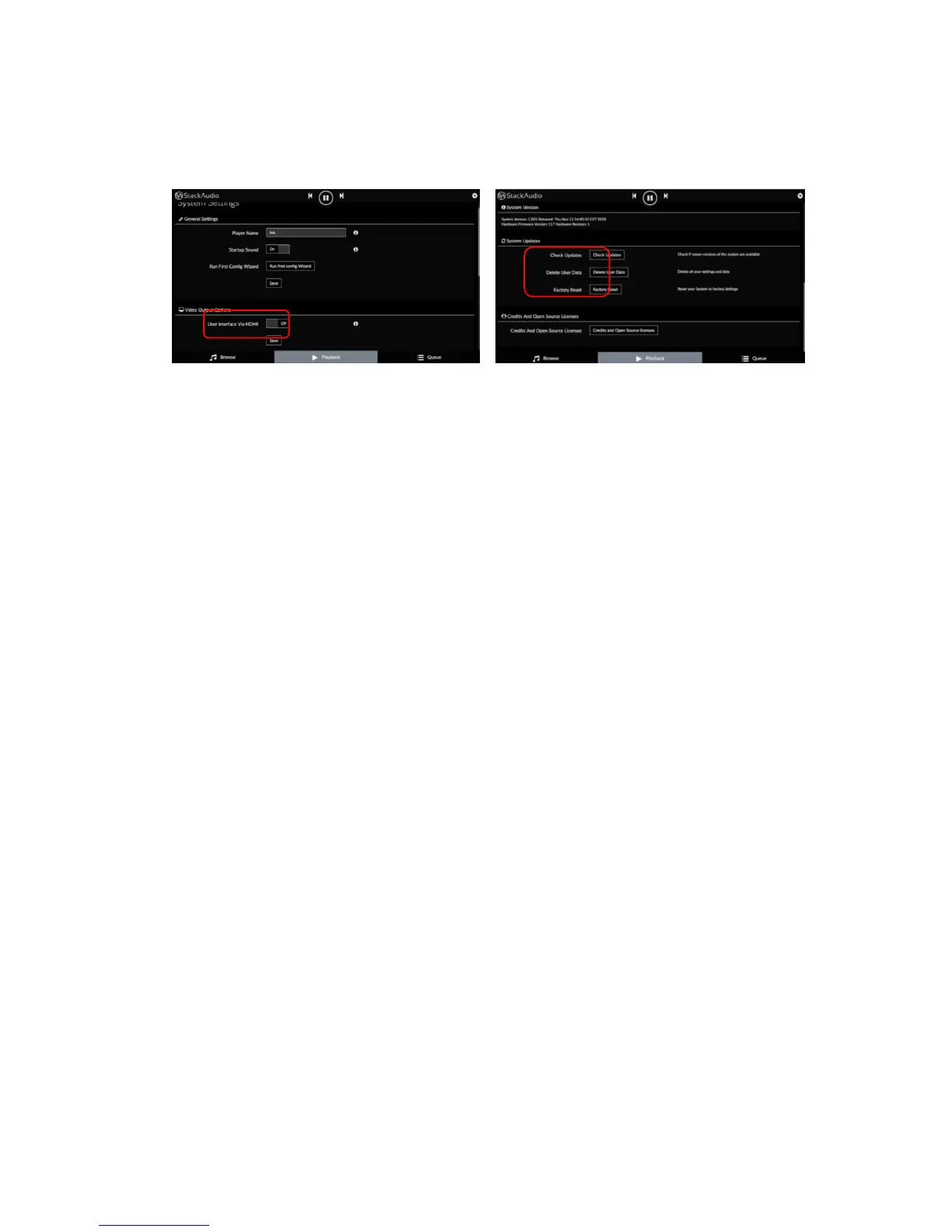
SYSTEM
Adjust general settings including HDMI monitor output, check for software updates
or reset the LINK to factory settings e.g.:
ALARM, SLEEP, SHUTDOWN
You can use these menus to control how the LINK wakes up (a playlist must be set
for this function), time or duration to stop playing or shut down, and power-off or
re-start.
5. Servicing and Maintenance
There are no user-serviceable parts in the LINK. Updates of the installed software
can be downloaded via the SYSTEM menu in the settings.
There is a Boot button on the rear panel (9) which allows experienced users to load
different operating systems onto the Raspberry Pi computer. To activate, press the
Boot button for 5 seconds (requires a needle or similar fine point to access through
the hole) until the red LED (4) on the front panel starts blinking. The LINK can now
be used as a storage device and a new operating system can be installed. To exit
the boot mode, press the USB Detox switch (5) on the front panel. CAUTION: This
will overwrite the installed software. Stack Audio does not take any responsibility for
damage or alterations to the software in the LINK. We are happy to advise how to
reinstall the Link software if needed,
6. Warranty & Liability
The Stack Audio LINK is guaranteed for 3 years from the date of purchase against
defects in manufacture and design.
This warranty applies to the first owner and is not transferrable.
Proof of purchase from Stack Audio or authorised dealers are required to process
the warranty. The serial number found on the base of the LINK must be supplied.
Items must be returned in the original packing with all supplied accessories and
fittings.



 To Next Page