EasyManua.ls Logo

Stack Audio Link - Operation, Control, and Software; Volumio Interface and Control; Accessing Streaming Services; Navigating Music Libraries

Default Icon
14 pages
Print Icon
To Next Page IconTo Next Page
To Previous Page IconTo Previous Page
Loading...
8
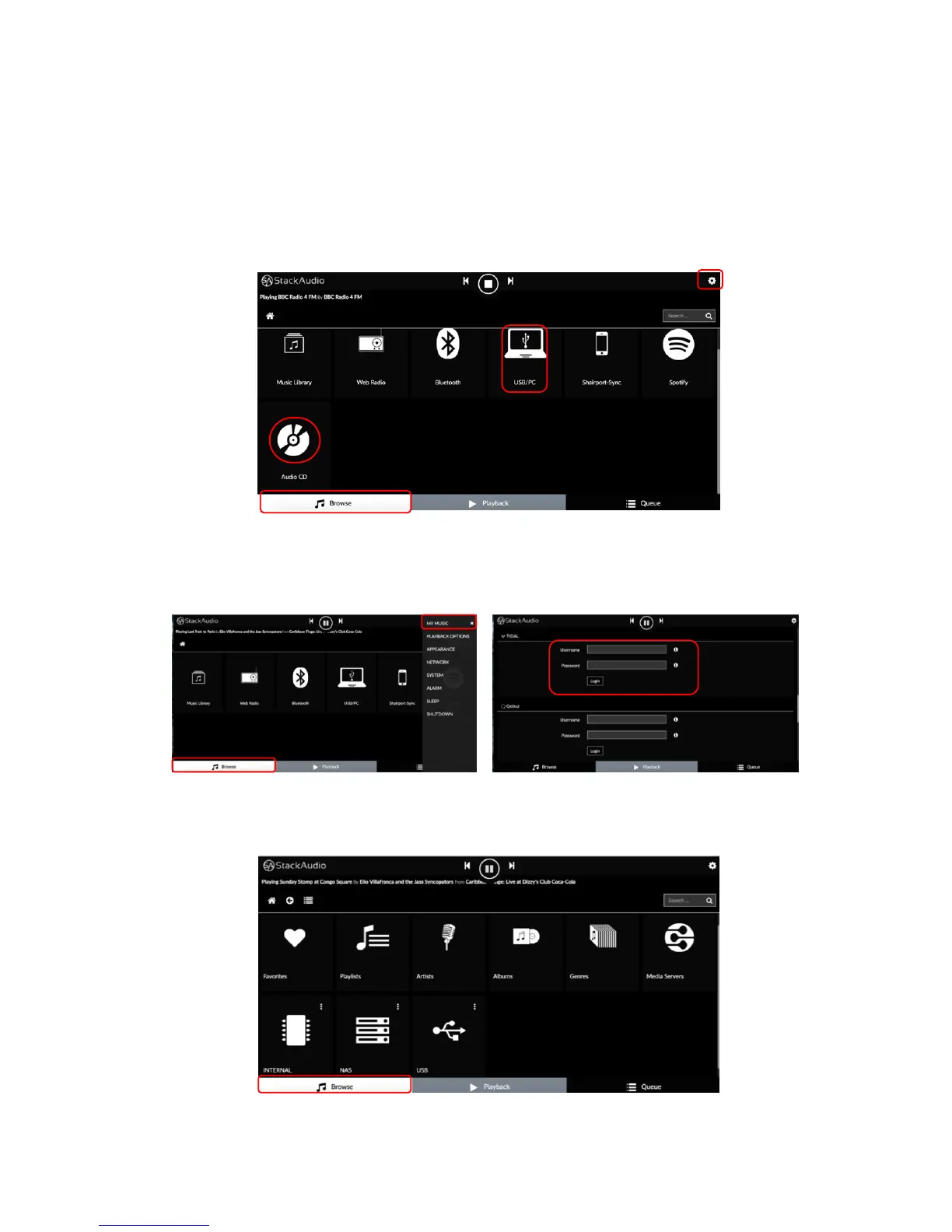
There are 3 main control screens on the interface: browse, playback and queue.
The browse screen lets you select your streaming sources including any connected
external USB devices (Audio CD shown in this illustration). If you have connected a
PC or Laptop via the USB Type B input on the rear panel (14) you should activate
the USB Detox Switch (5) on the front panel for the best sound quality as explained
in the section
connecting to music sources
on page 6.
The MY MUSIC menu from the settings symbol (top right) enables you to login to
Spotify, TIDAL and Qobuz accounts. These appear on the browse screen only after
login has been activated.
Click on one of the high-level menus to open the sub-menu. For example, opening
Music Library shows this:

The browse
screen lets you
select your
streaming
sources
including any
connected
external USB
devices (Audio
CD shown in
this illustration).
U
S
B
D
e
t
o
x
S
w
i
t
c
h
(
5
)
o
n
t
h
e
f
r
o
n
t
p
a
n
e
l
The
browse
screen
lets you
select
your
streaming
sources
including
any
connected
external
USB
devices
(Audio CD
shown in
this
illustration
).
The
bro
wse
scr
een
lets
you
sele
ct
you
r
stre
ami
ng
sou
rce
s
incl
udi
ng
any
con
nec
ted
ext
ern
al
US
B
devi
U
S
B
D
et
ox
S
wi
tc
h
(5
)
o
n
th
e
fr
o
nt
p
a
n
el
U
S