2
Install software Setup printer
The ProLabel Printer only works
with version 10.1.1 or later of the
Stamps.com software. Skip this step
if you are on a supported version.
A. Download
Download the latest version from
www.stamps.com/download
B. Install
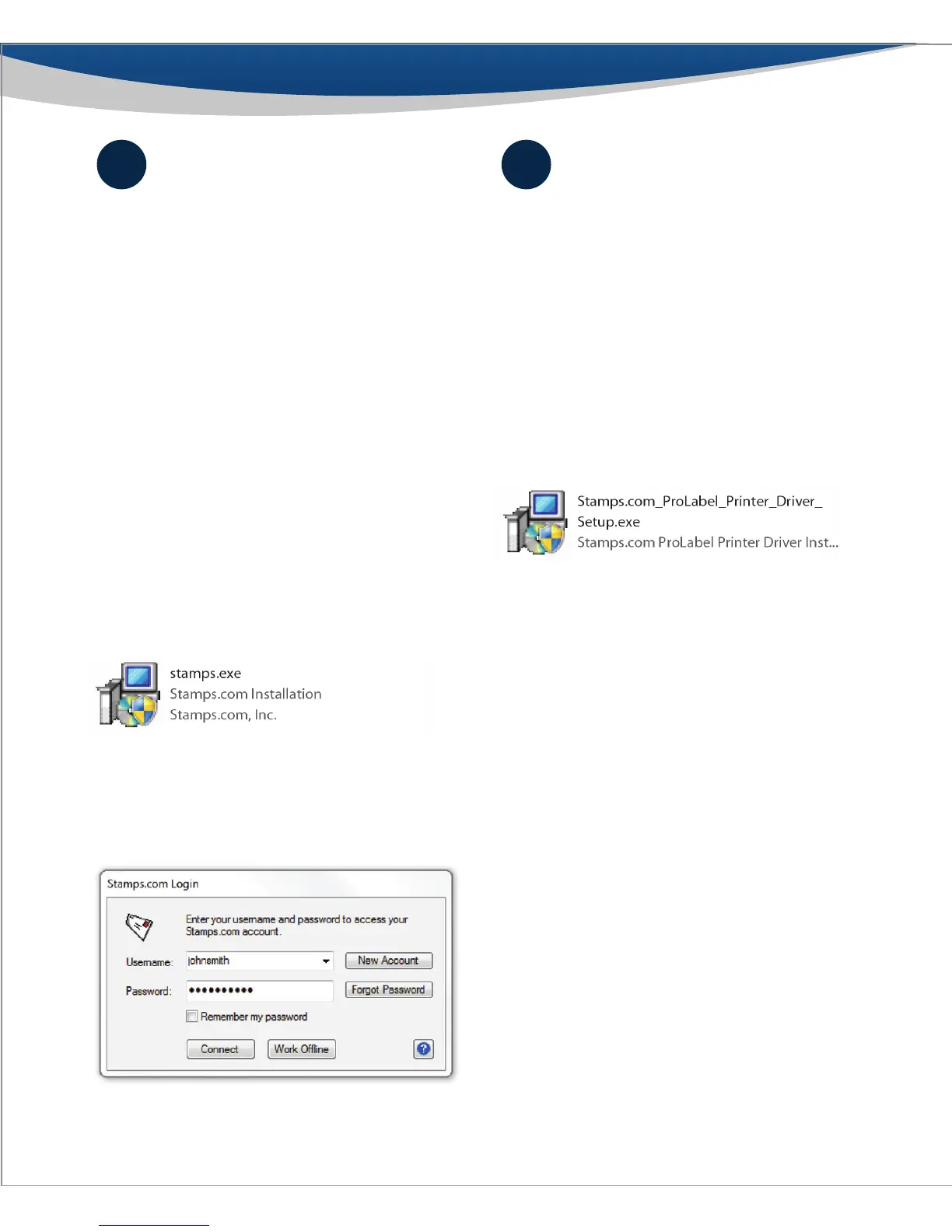
When download is complete, double
click the “Stamps.exe” icon or le to
start the installation, then follow the
install instructions in the setup wizard
to complete installation.
C. Log in
Log in using your username
and password.
A. Install printer driver
Insert the included CD-ROM into your
computer. If installation does not begin
automatically, open Windows Explorer,
and double-click the disk drive icon,
and then double-click the setup wizard
to start the installation. Follow the install
instructions in the setup wizard to
complete installation.
B. Connect printer to computer via USB
Plug the AC adapter into a power outlet and
the printer. Turn on the printer by pushing
the Power button. Plug the USB cable into the
printer and your computer. The lights should
change to Green/Blue once the printer is
synced to the network and ready to print.
C. Connect printer to computer
via Ethernet (Coming in Fall 2013 - for the latest
software driver, go to stamps.com/support)
Follow the directions above for USB for
powering on the device. Once the device
is turned on, rst plug the ethernet to your
computer/internet connection and then
plug the other end into the printer. The lights
should change to Green/Blue once the printer
is synced to the network and ready to print.
1 2



 To Next Page