Standby RSG UK Limited Phone: +44 (0)1543 438800 Email: info@standbyrsg.co.uk Web: www.standbyrsg.co.uk C-10696-A_HW-01/23
When attention matters.
USER GUIDE AEX-ST-DVR-X1
5
2 Display and Operations
The MDVR's operations, including parameter settings, preview, playback, and data
export, can be performed on the CP4 control panel, EasyCheck App for trucks, or the
IE terminal. CP4 supports operations via both the touchscreen and the mouse.
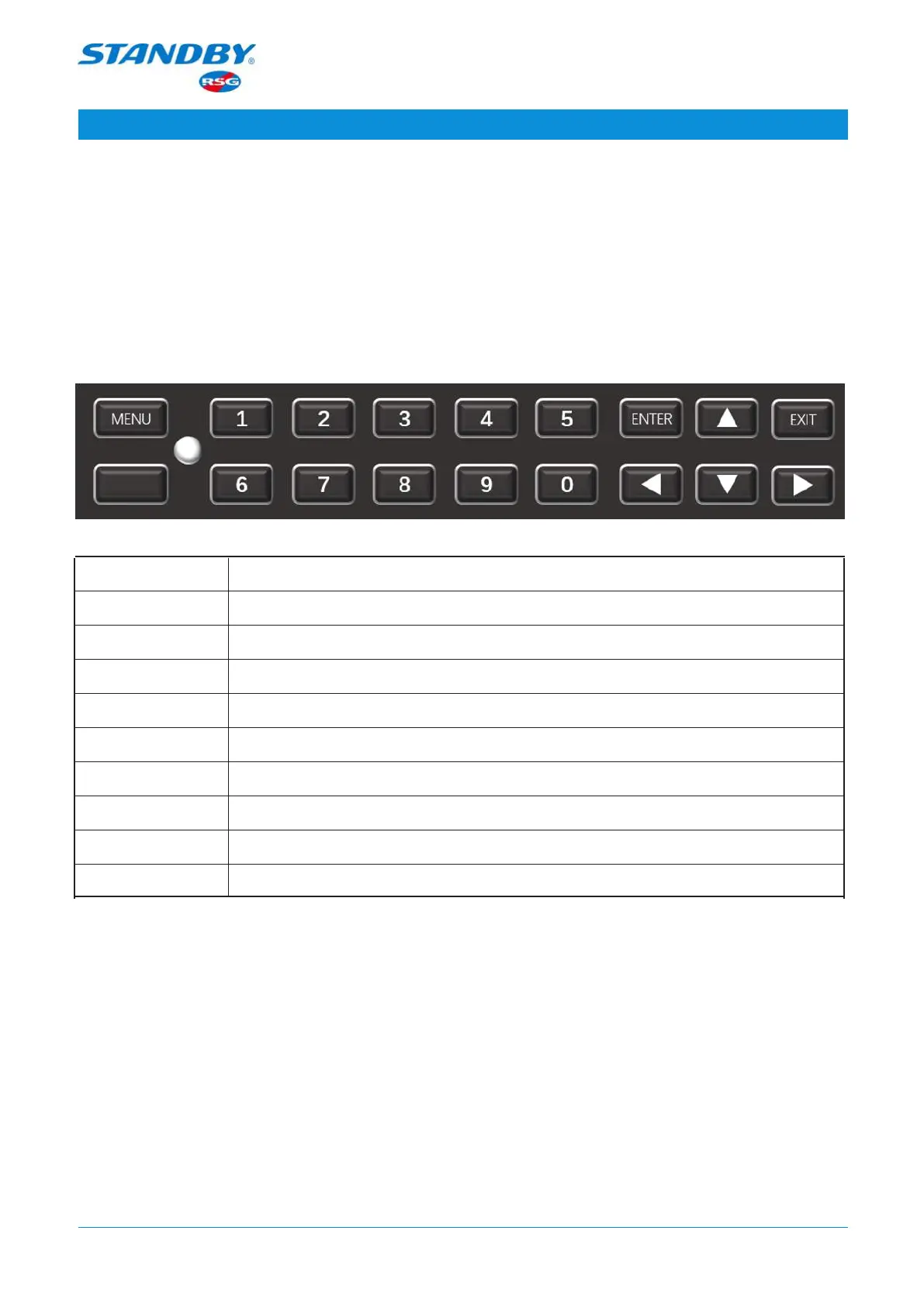
2.1 Control via Buttons
Button Description
Menu If you are not logged in, click the menu button to enter the login
interface; When logged in, click the menu button to enter the setting
interface.
Numerals 1–0 • When on the live view screen, to display channels 1–9, press 1-9;
to display the next channel, press 0.
• Numeral input buttons
Direction Button for selecting directions
OK Button for confirming the selection
Exit Button for exiting the current menu
2.2 Control via a Mouse
Connect a mouse to the USB port to operate on the CP4 panel. There will be a mouse
cursor on the screen after the mouse connection.
• When the device is split into 4/9 screens, double-click the left mouse button to
expand and display only one of the screens;
• To select or perform other operations, click the left mouse button;
• Click the right mouse button to display the bottom menu.



 To Next Page