EasyManua.ls Logo

StarTech.com SV431HDU3A2 - User Manual

StarTech.com SV431HDU3A2
2 pages
Print Icon
To Next Page IconTo Next Page
Loading...
Quick start guide
FR: Guide de l’utilisateur - fr.startech.com
DE: Bedienungsanleitung - de.startech.com
ES: Guía del usuario - es.startech.com
NL: Gebruiksaanwijzing - nl.startech.com
PT: Guia do usuário - pt.startech.com
IT: Guida per l’uso - it.startech.com
Manual Revision: 04/22/2016
For the latest information, technical specications, and support for
this product, please visit www.startech.com/SV431HDU3A2.
Packaging contents
1 x 4-port HDMI® KVM switch
4 x rubber feet
1 x universal power adapter (NA/EU/UK/AU)
1 x quick start guide
System requirements
Host computer with a USB 2.0 or USB 3.0 port
Computer system equipped with an HDMI port
Display device (for example, monitor, TV, and so on) equipped with
an HDMI port
USB keyboard and mouse support
The maximum resolution for this KVM switch is 1920x1080.
Note: To obtain the maximum USB throughout, you must use a
computer with a USB 3.0 port.
System requirements are subject to change. For the latest
requirements, please visit www.startech.com/SV431HDU3A2.
SV431HDU3A2
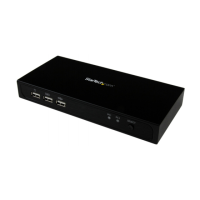
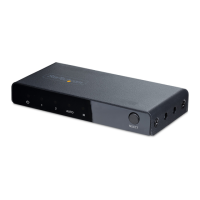
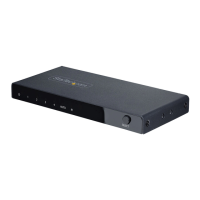
4-Port KVM Switch for HDMI Computers - USB 3.0
*actual product may vary from photos
About USB 3.0 and USB 3.1 Gen 1
USB 3.0 is also known as USB 3.1 Gen 1. This connectivity standard
oers speeds up to 5 Gbps.
Product diagram
Front view
Port selection/link LEDs
Port selection buttons
Power button
Console USB
keyboard and
mouse port
USB 3.0 ports
Rear view
Console HDMI
connector
PC connection
ports
PC USB ports
PC audio port
(x4)
USB 3.0 port
Power input
port
Console USB
keyboard and
mouse ports
Console audio
port
Connect the console to the KVM switch
1. Turn o your computer and any devices or peripherals that are
connected to it (for example, printers, external hard drives, and so
on).
2. Connect a monitor to the Console HDMI connector on the KVM
switch.
3. Connect a USB keyboard and mouse to the Console USB
keyboard and mouse ports on the KVM switch.
4. If necessary, connect speakers or a headset to the Console audio
port on the KVM switch.
Attach the rubber feet
To ax the rubber feet to the bottom of the KVM switch, peel o the
backing on each rubber foot and stick the feet to the bottom of the
KVM switch in the indicated areas.
Connect computers to the KVM switch
You can connect up to four computers to the KVM switch.
1. Connect a male-to-male HDMI cable from the port on the
computer to one of the numbered PC connection ports on the
KVM switch.
2. Connect a USB A to B cable from the USB port on the computer to
the corresponding numbered PC USB port on the KVM switch.
3. If youre using audio, connect a set of audio cables from the
speaker port on your computer to the corresponding PC audio
port on the KVM switch.
4. Repeat steps 2 and 3 for any additional computers that you want
to connect to the KVM switch.
5. Connect the keyboard and mouse that you want to share
between computers to the Console USB keyboard and mouse
ports.
Note: If you want to use USB 3.1 Gen 1 peripherals between all of the
connected computers, make sure that the peripherals are connected
to the USB 3.0 ports on the KVM switch.
6. Connect the universal power adapter from a wall outlet to the
power input port on the KVM switch.

Question and Answer IconNeed help?

Do you have a question about the StarTech.com SV431HDU3A2 and is the answer not in the manual?

Overview

This document describes the StarTech.com 4-Port KVM Switch for HDMI Computers - USB 3.0 (SV431HDU3A2), a device designed to allow a single console (monitor, keyboard, mouse, and optional audio) to control up to four HDMI-equipped computers.

Function Description

The SV431HDU3A2 is a KVM (Keyboard, Video, Mouse) switch that enables users to share a single HDMI display, a USB keyboard, a USB mouse, and optional audio peripherals among four different computers. This eliminates the need for multiple sets of peripherals, saving space and reducing clutter. The switch supports USB 3.0 connectivity, ensuring high-speed data transfer for connected peripherals.

Important Technical Specifications

  • Ports:
    • Console Side:
      • 1 x HDMI connector (for monitor)
      • 2 x USB keyboard and mouse ports (Type A)
      • 1 x Audio port (3.5mm jack)
    • Computer Side (for each of 4 computers):
      • 1 x HDMI connection port
      • 1 x PC USB port (Type B)
      • 1 x PC Audio port (3.5mm jack)
    • Front Panel:
      • 2 x USB 3.0 ports (Type A) for shared peripherals
    • Power:
      • 1 x Power input port (DC 9-12V)
  • Maximum Resolution: 1920x1080.
  • USB Standard: Supports USB 3.0 (also known as USB 3.1 Gen 1), offering speeds up to 5 Gbps. For maximum USB throughput, connected computers should have a USB 3.0 port.
  • System Requirements:
    • Host computer with a USB 2.0 or USB 3.0 port.
    • Computer system equipped with an HDMI port.
    • Display device (monitor, TV, etc.) equipped with an HDMI port.
    • USB keyboard and mouse support.
  • Power: Requires a universal power adapter (NA/EU/UK/AU) which is included.
  • LED Indicators:
    • Port Selection/Link LEDs (4):
      • Illuminated green: Port is active and the connected computer is turned on.
      • Illuminated red: The computer connected to the port is currently selected.
    • Power LED (1):
      • Illuminated: The KVM switch is turned on.

Usage Features

  • Easy Setup: The device is designed for straightforward connection. Users connect their console peripherals (monitor, keyboard, mouse, audio) to the KVM switch, and then connect each computer to the corresponding KVM ports (HDMI, USB, audio). The universal power adapter is then connected.
  • Port Selection: Computers can be switched using the numbered port selection buttons located on the front panel of the KVM switch. Hotkey commands are also available for port selection and AutoScan functionality, detailed in the full product manual.
  • USB 3.0 Peripheral Sharing: The two front-panel USB 3.0 ports allow high-speed peripherals (e.g., external hard drives, webcams) to be shared among all connected computers.
  • Driverless Operation: No specific drivers are required for the KVM switch itself, as it utilizes generic USB drivers supported by most operating systems for keyboard and mouse functionality.
  • LED Status Indicators: The front panel features LEDs that clearly indicate the status of each port (active/on, selected) and the power status of the KVM switch, providing immediate visual feedback to the user.
  • Troubleshooting Guidance: The manual provides specific troubleshooting steps for PC users experiencing issues, suggesting adjustments to BIOS settings such as "HALT ON ERROR," "PNP OS INSTALLED," and "USB IRQ" to ensure proper functionality.
  • Active Video Adapter Recommendation: If using a video adapter with the KVM switch, an active video adapter is recommended to avoid potential performance issues. Users are advised to check with the manufacturer to determine if their video adapter is active.

Maintenance Features

  • Rubber Feet: The KVM switch comes with four rubber feet that can be affixed to the bottom of the unit. These feet help to stabilize the device and prevent it from sliding on surfaces, contributing to its longevity and maintaining a neat setup.
  • Online Support: StarTech.com provides comprehensive online support, including technical specifications, documentation, and downloads, accessible via their website (www.startech.com/SV431HDU3A2). This ensures users have access to the latest information and assistance.
  • Lifetime Technical Support: StarTech.com offers lifetime technical support, allowing users to get help with their product by visiting their support website for online tools, documentation, and downloads.
  • Two-Year Warranty: The product is backed by a two-year warranty, covering defects in materials and workmanship from the initial date of purchase. This warranty allows for repair or replacement of the product at StarTech.com's discretion, covering parts and labor costs. It explicitly excludes defects or damages arising from misuse, abuse, alteration, or normal wear and tear. This provides assurance regarding the product's quality and reliability.

StarTech.com SV431HDU3A2 Specifications

General IconGeneral
BrandStarTech.com
ModelSV431HDU3A2
CategorySwitch
LanguageEnglish

Related product manuals