
 Need help?
Do you have a question about the StarTech.com SV231DPDDUA2 and is the answer not in the manual?
Details the FCC compliance for the digital device, ensuring reasonable protection against harmful interference.
Explains the use of third-party trademarks for illustrative purposes and acknowledges ownership.
Provides information on accessing lifetime technical support and online resources.
Outlines the product's two-year warranty coverage and limitations.
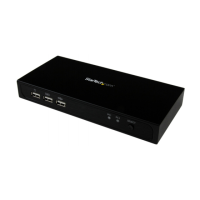
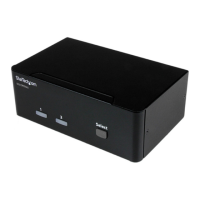
Illustrates the front and back views of the KVM switch, labeling all ports and controls.
Lists all items included in the KVM switch package.
Specifies the necessary hardware and software requirements for using the KVM switch.
Step-by-step guide for connecting console peripherals like monitors, mouse, and keyboard.
Instructions for connecting one or two computers to the KVM switch using DisplayPort and USB.
Explains the meaning of the LED indicators on the KVM switch for status indication.
Describes how to switch between connected computers using the select button.
Details how to use keyboard shortcuts to control the KVM switch.
Instructions to enable or disable the KVM switch's hotkey functionality.
How to select a computer using hotkey commands.
Steps to control audio switching independently from computer selection.
Describes alternative keyboard shortcuts for selecting computers.
Suggests BIOS configuration changes to resolve potential PC-related issues with the KVM.
Solutions for wireless mouse and keyboard connectivity problems with the KVM switch.
Recommendations for using gaming peripherals with the KVM switch.
Guidance on using converters for displays with different video connectors.
Resolves issues with keys repeating due to improper connection or Windows settings.
Steps to correctly configure monitor order in Windows for proper mouse cursor movement.
 General
| IP control | No |
|---|---|
| Audio support | Yes |
| Maximum resolution | 3840 x 2160 pixels |
| Certification | CE, FCC, REACH, TAA |
| Product color | Black |
| Rack mounting | - |
| Console ports | 3.5mm headphone, 3.5mm mic, DisplayPort, USB A |
| USB connector type | USB Type-A |
| Console USB ports quantity | 4 |
| Number of microphone inputs | 3 |
| Number of computers controlled | 2 |
| Input current | 1.5 A |
| Output current | 0.6 A |
| Output voltage | 12 V |
| Compatible power plug types | AU, EU, UK, US |
| Storage temperature (T-T) | 20 - 60 °C |
| Operating temperature (T-T) | 0 - 40 °C |
| Operating relative humidity (H-H) | 0 - 80 % |
| Package depth | 249 mm |
| Package width | 186 mm |
| Package height | 97 mm |
| Package weight | 1200 g |
| Sustainability certificates | RoHS |
| Harmonized System (HS) code | 85176200 |
 Weight and Dimensions
| Depth | 58 mm |
|---|---|
| Width | 161 mm |
| Height | 100 mm |
| Weight | 734 g |





 To Next Page