7
MANUAL/AUTO ADJUSTMENT (Radio)
• Manual
Adjustment: Press
“
” or “ ”
to scan the radio channels up or down.
• Auto
Adjustment: Press and hold
“
” or “ ”
for 3-5 seconds to scan the radio channels
automatically; when a radio channel has been found, scanning will stop and the programme found
will play automatically
.
• Browsing/APS (Automatic Program Saving)
Press the “APS” button (for 5 seconds respectively) to browse the radio channels of the frequency;
when the desired channel is found, press this button again to play the programme.
Press and hold the “APS” button for 3 seconds to enable the automatic saving function, and the
radio starts scanning and saves automatically from the bottom frequency.
RDS (Radio Data System):
Press " PTY " – press NEXT " V " or PREV "
"to choose your favourite PTY (Programme Type).
Press "
TA " to receive Traffic Announcement information. If a signal is weak, press " AF “
(Alternative Frequencies) to automatically search for a frequency list of the different RDS stations, and
the Jukebox will switch to the RDS station of the same frequency with the strongest signal.
1. PLAYING A DISC
• In the Main Menu, select Disc Mode
and insert a disc into the DVD/CD SLOT, ensuring the
label is facing upwards.
The disc will start playing automatically.
• If in another mode, and you wish to play a disc already in the slot (do not insert another disc), just
press the “
” (home) button on the panel or return to the Main Menu and switch to Disc Mode
to play the inserted disc, the screen will display “Reading disc”.
EJECT KEY
In Disc Mode, press the “
” button to eject the disc; if the disc is not removed within 10 seconds, it
will go back into the slot again but will not play; switch to DVD mode and play the disc.
Notes:
If you do not insert the disc into the slot, the “
” key will not function. Wait for about 10
seconds or press the scroll up key to return to the panel.
While playing a DVD, touch the LCD screen and the control panel will appear.
FAST FORWARD/REVERSE
• On the playing interface, press the “
” button to fast forward, and press the “
” button at the
point you wish to start playback.
• On the playing interface, press the “ ” button to play fast reverse, and press the “ ” button
at the point you wish to start playback.
• Press the “ ” button repeatedly: FF X2 *FF X4 *FF X8 *FF X20 *Play
• Press the “ ” button repeatedly: FR x2 *FR x4 *FR x8 *FR x20 *Play
• Press the “
” or “
” to go to the previous or next track .
TRACK PLA
YING
• Press “Menu playing” in the upper right-hand corner of the touch screen to enter the menu and
select the track you wish to play.
• Press the number keys 0-9 on the remote control to play.
AUDIO SELECTION
• While reading a disc, press the Sound Channel Switch key in the upper right-hand corner of the
touch screen or press the “AUDIO” key (the disc should integrate this function).
MP4/MP3 PLAYING
• You can save your favourite MP3/MP4 music in any folder in USB/SD Card, and the folder name
will show on the display during playback.
• The player goes back to FM mode when the USB/SD device is removed.
• The MP4 Maximum Resolution is 800 x 480.
• It is not guaranteed that all files can be played.
3. AUX IN MODE
• Click “
” to enter the AUX in mode or press the “MODE” key on the Remote control to switch
the playing source to
AUX mode.
• Simply plug the red and white connectors at one end of the cable to the red and white Aux-in Jacks
on the back of your unit. The other end of the cable will plug into the Audio Output Jack on the
external component. For more information on connection to the external component, see the
owner’s manual for that component.
Note: In AUX-IN mode, there will be no output signal from Video.
4. AUX OUT MODE
• This device provides one line video output terminal, and two lines audio output terminals.
• You can connect the VIDEO-OUT to a TV video input jack.
• Using the Audio Output will allow you to run the audio from your unit into a home stereo system,
television or other stereo source. To make this connection, you will need standard RCA cables.
Plug the red and white connectors at one end of the cable into the red and white Audio Output jacks
on the back of the unit. The other end of the cable will plug into the Aux Input jacks of your selected
component. For more information on connecting to the external component, see the owner’s manual
for that component.
Note: You can still watch and listen to your unit when using the Video/Audio Output feature.
5. USB DEVICE & SD/MMC CARD PLAYBACK
When you insert the USB device (MP3 player, USB disk, etc.) or SD/MMC card (none supplied) into
the corresponding slot, the player starts playing the files automatically.
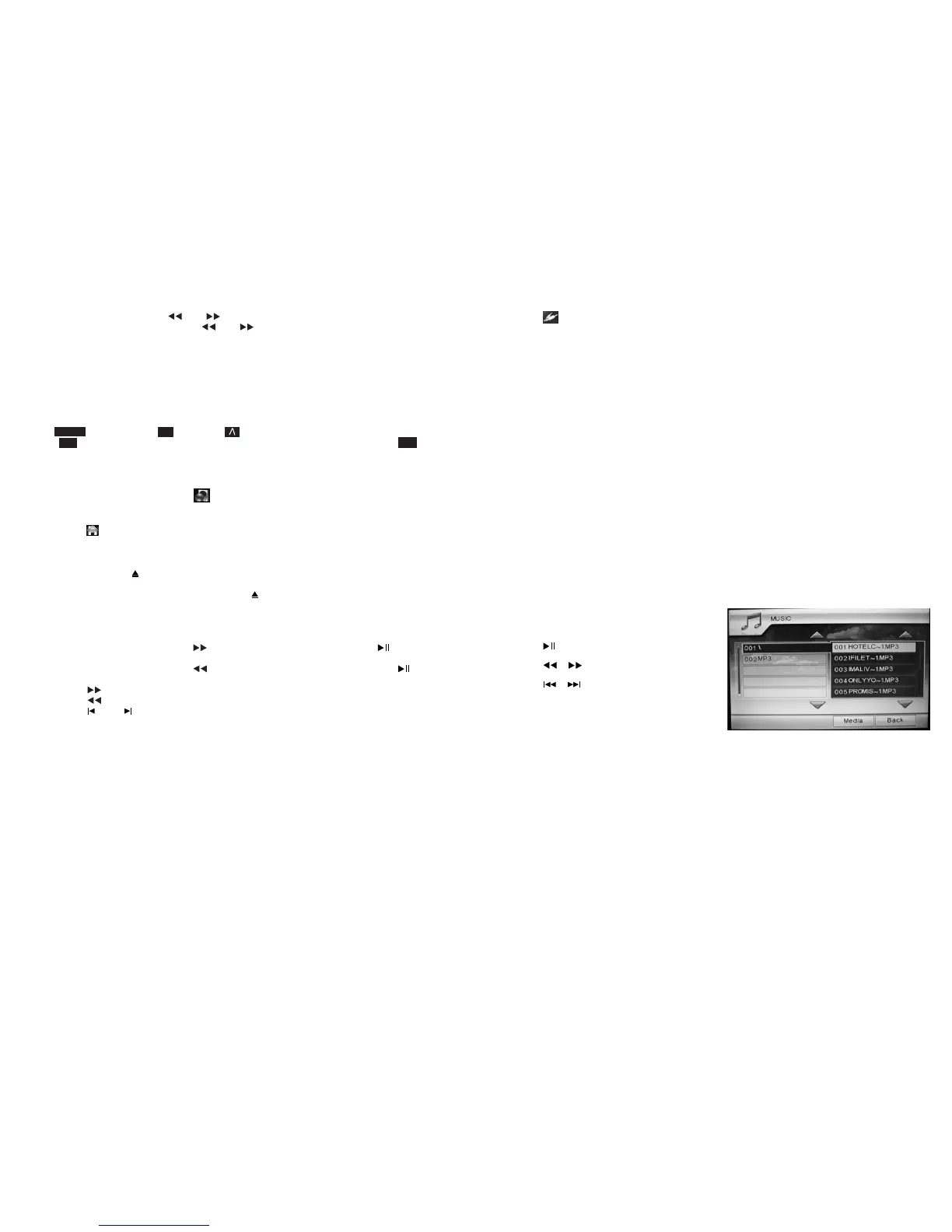
Return to the Main Menu, click USB, SD/MMC or press the MODE key on the remote control to play
the files on the USB device or the Memory card. The playing interface is shown below:
• Click “Media” to select the MP4 or MP3 file.
• Click “Back” to return to the Main Menu.
When playing a file:
• Click “
” to pause/play the file.
• Click “
”“
” to fast forward/reverse.
• Click “
”“
” to play the next/previous track.
• Click “Stop” to stop playback.
• Click “Repeat” to select the play mode.
• Click “Back” to return to the previous menu.
Notes:
Not all USB/SD devices generally on sale are guaranteed to work with this unit, due to the way they
are manufactured. It is not guaranteed all files will play
.
8


 To Previous Page
 Loading...