1
2
Vehicle Unit Download
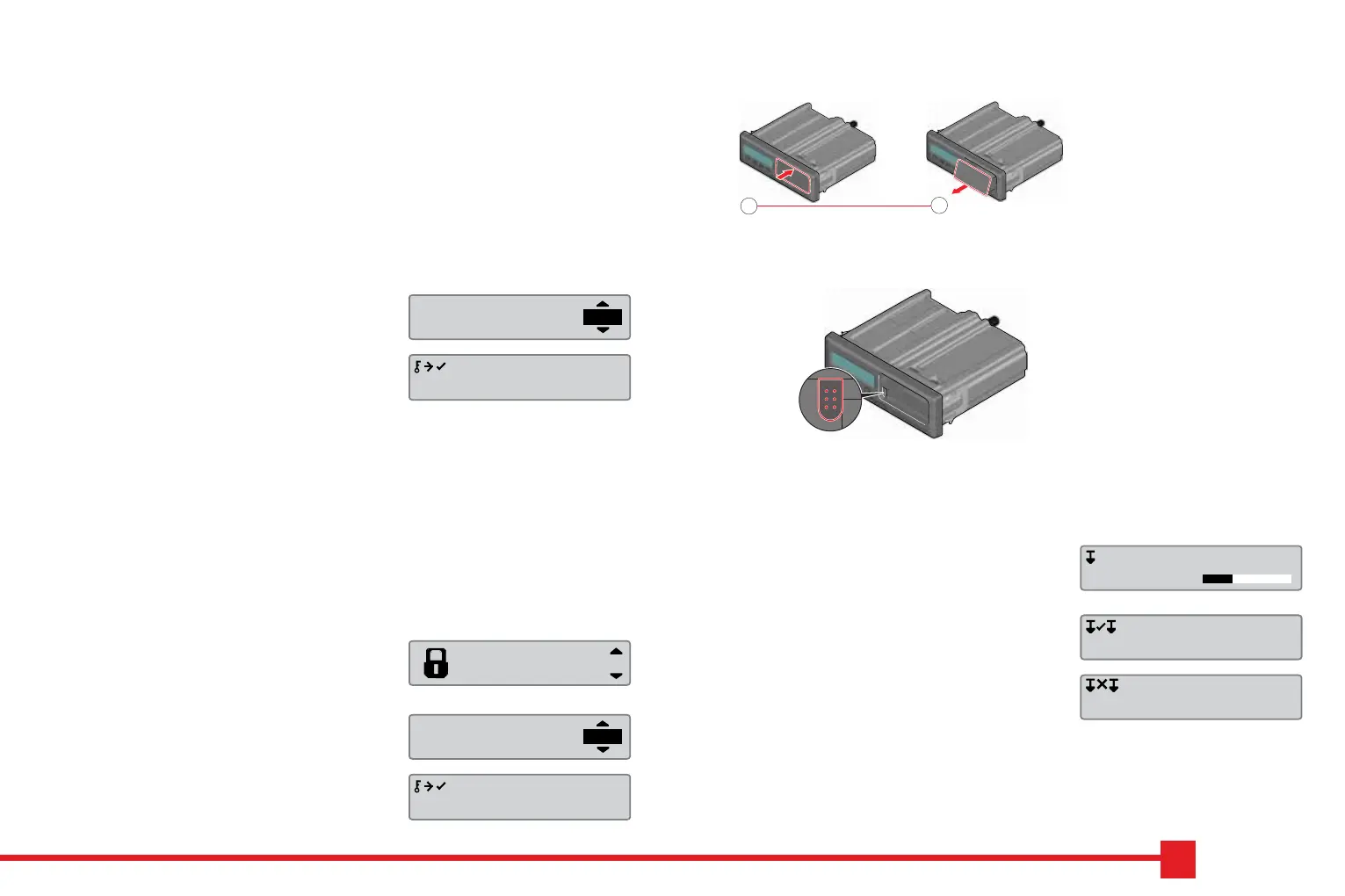
1. Remove the printer cassee.
2. Aach the download equipment to the
tachograph through the 6-pin download
connector.
3. Download the data according to the instruc-
on on the downloading equipment. Ensure
that the ignion is ON when starng the
download.
4. The following message will be displayed
indicang that the tachograph downloading
is acve.
5. When the downloading is completed, the
following message will be displayed.
6. If the downloading process fails, the follow-
ing message will be displayed. Check the
connecons and downloading equipment.
For further informaon, see the Driver &
Company Manual (Company Mode).
Company lock-in
In order to prevent unauthorized persons from accessing the tachograph data, a
lock-in should be performed before start using the tachograph.
1. Insert a company card in either of the
tachograph trays. The tachograph asks if a
Company Lock shall be acvated if there is
none for this company.
2. Press the OK buon to enter the tachograph
menu.
Select COMP LOCKS and press OK.
3. Select YES and press OK to perform the
lock-in.
4. The following message will be displayed.
YES
Company
lock-in
Lock-in
complete
Downloading
busy
Download
complete
Download
failed
Company lock-out
A lock-out (unlock) must be performed before transferring the tachograph to
another company/owner. Otherwise, there is a risk geng the next users data
recorded on current company. If the lock-out is forgoen the data will not be
locked-out unl the next company performs a lock-in. To secure your data, you
should download your data before performing a lock-out.
1. Insert a company card in either of the tacho-
graph trays. The tachograph automacally
enters the company mode of operaon.
2. Press the OK buon to enter the tachograph
menu.
Select COMP LOCKS and press OK.
3. Select YES and press OK to perform the lock-
out.
4. The following message will be displayed.
YES
COMP LOCKS
Company
lock-out
Lock-out
complete



 To Previous Page