7
System informations:
eth IP Addr :
eth MAC Addr :
Hostname :
serial number :
fw version:
temperature :
FAN speed :
192.168.1.172
b8:27:eb:70:2b:2c
isp_cu
ISP/N200200001
4.0r0
35°C
50%
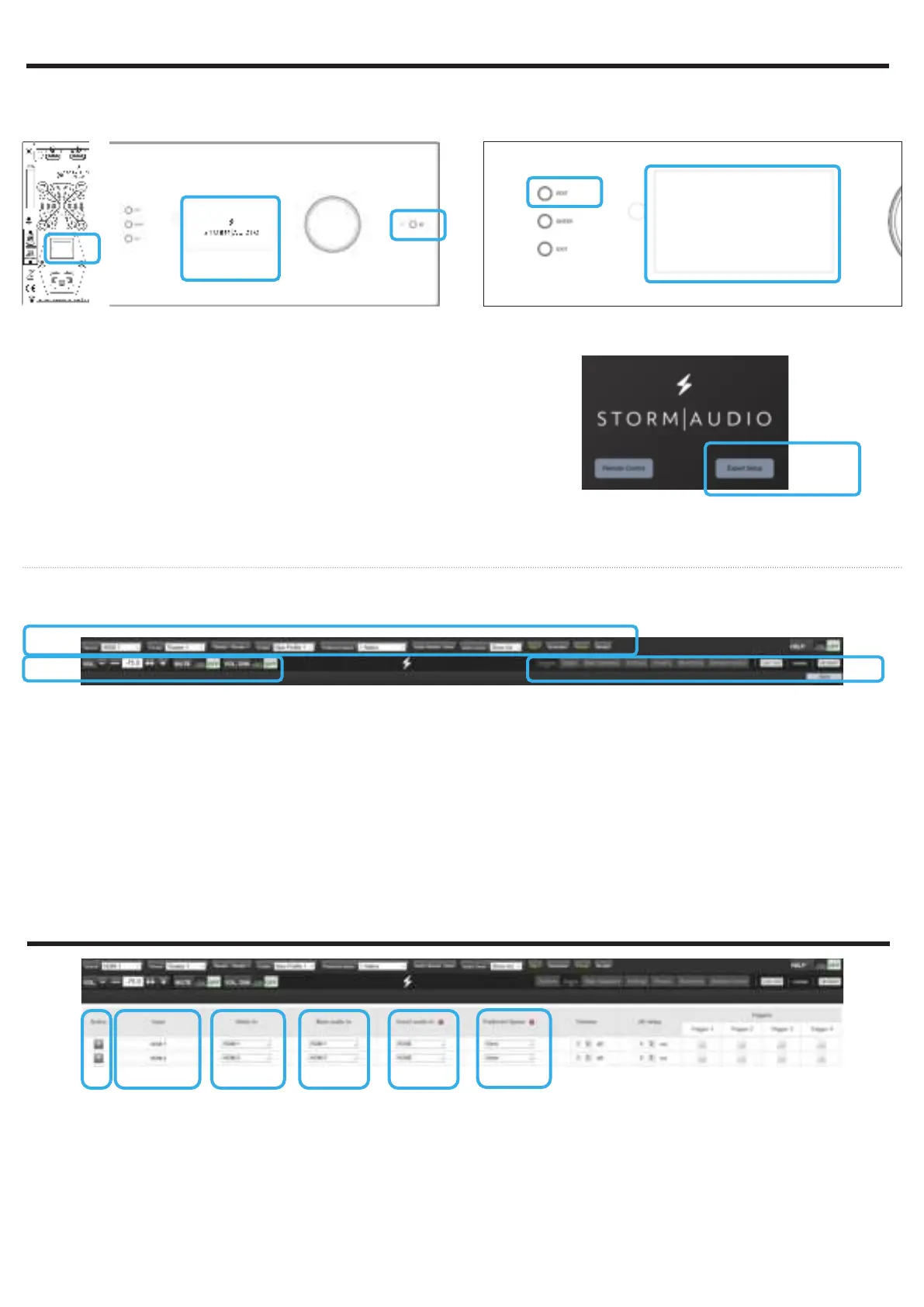
1. Turn the Main Switch to ON (I) in the back panel.
2. Display will show the logo StormAudio for few
seconds and will enter Sleep Mode.
3. When in Sleep Mode, press the Power Button. Unit
will start. Wait until the LED is stable green.
4. Press the EDIT button for 4s.
5. System informations will be shown, take note of
the IP address of the unit. Note that your router
must be in DHCP to allow the ISP to get an address
allocated.
1
2
3
5
4
6. Open your Web Browser in your laptop and enter
the IP address in the URL area.
Press and hold EDIT to reset the network conguration
The Home page will be shown, select Expert Setup.
You will be prompted for password, use : installer.
6
First time access
Web User Interface description
1
2
3
Following Expert Setup selection and password
validation, you will reach the first tab of the Web User
Interface (WebUI) called System. On top of each page
of the WebUI, there will be persistent access to:
1. Some key remote control commands of the unit,
such as Source or Preset selection.
2. The Volume control and its related features,
including MUTE and DIM (20dB decrease by
default).
3. The configuration tabs with each dedicated
to a specific part of the product configuration
amongst them: System, Inputs, Speakers, Settings
and Presets. It also provide Remote Control and
Monitoring page access.
Select the «Inputs» tab to proceed with the Inputs
Configuration.
1 2 3 4 5 6
1. Unused inputs should be turned to N (No) to not
appear in the Remote Control.
2. Default names are given to the inputs. You can
use it unchanged or edit it to your preference.
3. Select which HDMI video input must be activated
when the input is selected.
4. Select where the audio should come from for the
defined input.
5. Select where the audio should come from for the
defined input when selected as Zone2 input in the
Remote Control.
6. Choose to force a Preferred Upmix mode when
selecting the Input.
Note: check Owner Manual for the other settings.
3 - WEB USER INTERFACE ACCESS
4 - INPUTS CONFIGURATION



 To Next Page