EasyManua.ls Logo

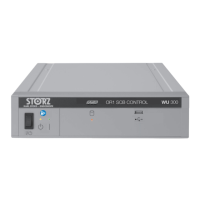
Storz OR1 SCB CONTROL - User Manual

Storz OR1 SCB CONTROL
60 pages
Print Icon
To Next Page IconTo Next Page
Loading...
Instructions for use
OR1 SCB CONTROL
Rel. 3.0
en

Table of Contents

Other manuals for Storz OR1 SCB CONTROL

Questions and Answers

  • A
    Andrea CherryAug 13, 2025
    What to do if devices connected with Interface Control or Control do not log on in Storz OR1 SCB CONTROL?
    • A
      Adam HallAug 13, 2025
      If the devices connected with Interface Control or Control do not log on, it might be due to several reasons. Check if the RS232 cable is connected to the correct RS232 socket of the Interface Control or ACC Control; if not, use the correct RS232 socket. An incompatible software in the external device could also be the cause, in this case, have the software installed by the manufacturer. Finally, the RS232 cable itself might be incorrect or faulty, try replacing or inserting the cable.
  • R
    rebecca51Aug 16, 2025
    Why is the SCB computer switched off for safety reasons in Storz Medical Equipment?
    • B
      Brenda MillerAug 16, 2025
      If the SCB computer is switched off for safety reasons, it could be due to an incorrect or faulty SCB cable. Try replacing or inserting the cable. It could also be due to an open SCB cable, in that case remove the cable.
  • M
    Malik RichardsonAug 20, 2025
    What to do if Storz Medical Equipment device does not log itself on?
    • A
      Annette WilsonAug 20, 2025
      If the device does not log itself on, the SCB or LAN cable connection might be interrupted. Replace or plug in the SCB or LAN cable. Another reason could be that the KARL STORZ certificate for HIVE connection has expired or is not installed. Install or update the KARL STORZ HIVE certificate to resolve this.
  • N
    Nicholas WardAug 25, 2025
    What to do if touch screen cannot be used in Storz Medical Equipment?
    • G
      grant56Aug 25, 2025
      If the touch screen cannot be used on the Storz Medical Equipment, the cable might be faulty, replace the cable. Alternatively, the cable might be connected to the wrong RS232 port. Connect the cable as per the connection diagram.
  • M
    Mary HunterAug 27, 2025
    What to do if touch screen cannot be used on Storz Controller?
    • T
      Timothy RichardsAug 27, 2025
      If the touch screen on your Storz Controller is not working, it might be due to a faulty cable or the cable being connected to the wrong RS232 port. Try replacing the cable or connecting it as shown in the connection diagram.
  • H
    heatherhicksAug 31, 2025
    Why Storz Controller devices connected with Interface Control or Control do not log on?
    • D
      dustin80Aug 31, 2025
      If devices connected with Interface Control or Control are not logging onto your Storz Controller, it could be due to several reasons: * The RS232 cable might be connected to the incorrect RS232 socket of Interface Control or ACC Control. Ensure you are using the correct RS232 socket. * The external device might have incompatible software. Have the software installed by the manufacturer. * The RS232 cable could be incorrect or faulty. Try replacing or re-inserting the cable.
  • J
    Jorge KramerSep 4, 2025
    What to do if OR1 SCB CONTROL computer is switched off for safety reasons in Storz Controller?
    • M
      Michael HutchinsonSep 4, 2025
      If the OR1 SCB CONTROL computer is switched off for safety reasons on your Storz Controller, the issue might be related to the SCB cable. Specifically, it could be an incorrect or faulty SCB cable, or the cable might be open. Try replacing or inserting the SCB cable. If the cable is open, remove it.
  • J
    Jason BishopSep 8, 2025
    Why Storz Controller device does not log itself on?
    • T
      Tammy HarveySep 8, 2025
      If your Storz Controller device isn't logging on automatically, it might be due to an interrupted SCB or LAN cable connection. Try replacing or plugging in the SCB or LAN cable. Another possibility is that the KARL STORZ certificate for HIVE connection has expired or is not installed. In this case, install or update the KARL STORZ HIVE certificate.

Summary

General Information

1.1 Read the instructions for use

Follow instructions to prevent injury or damage.

1.2 Read the instructions for use of compatible products

Follow instructions for compatible products to prevent injury or damage.

1.3 Scope

Defines the product name and item number for this instruction manual.

1.4 Other applicable documents

Lists related documents that are part of the product and must be observed.

1.5 General signs and symbols

Explains the meaning of signs and symbols used in the document.

1.6 Description of warning messages

Explains the levels of danger used for warnings: WARNING, CAUTION, NOTICE.

Normal Use

2.1 Intended purpose

Describes the function of the SCB device control for central display and remote control.

2.2 Indications

Specifies suitability for diagnostic and therapeutic procedures compatible with the product.

2.3 Contraindications

Lists conditions where the device is not compatible with the planned procedure.

2.4 Target user populations

Identifies users qualified to operate the medical device.

2.5 Patient groups

States that there are no restrictions in terms of patient groups for this product.

Safety and Warning

3.1 Serious incidents

Defines a serious incident and the required manufacturer/authority notification.

3.2 Correct handling and product testing

Details safe handling, checking for damage, and proper disposal of the product.

3.3 Product not clean

Warns about infection risk from uncleaned products and reprocessing requirements.

3.4 Combination with other components

Explains risks of unauthorized components and compliance with medical electrical standards.

3.5 Risks from electric current

Covers improper power supply, installation, and live parts hazards.

3.6 Damage due to ingress of liquid in electrical components

Warns about short circuits and injuries from liquid ingress.

3.7 Risk of explosion and fire

Highlights risks associated with explosive anesthetic gases and sparks.

3.8 Observing ambient conditions

Emphasizes importance of suitable conditions for storage, transport, and operation.

3.9 Electromagnetic interference

Discusses EMC precautions, risks from other devices, and RF communication equipment.

Product Description

4.1 Technical description

Details SCB as a communication interface for central display and control of connected devices.

4.2 Device overview

Provides a diagram and labels for the SCB front panel components.

4.3 Possible combinations

Lists compatible touch screen models and their item numbers for use with SCB.

4.4 Technical data

Provides specifications for power supply, housing, and device components.

4.5.1 Symbols on the packaging

Explains symbols used on product packaging for identification and handling.

4.5.2 Symbols on the device

Explains symbols found on the device itself for operation and status.

4.5.3 Symbols on the type plate

Details symbols found on the device's type plate, including regulatory marks.

4.6 Ambient conditions

Specifies temperature, humidity, and air pressure for storage, transport, and operation.

Preparation

5.1 Unpacking the product

Provides steps for safely unpacking the product and checking for damage.

5.2 Setting up the product

Details instructions for safe setup, including ventilation and placement.

Operation

6.1 Switching on the product

Guides the user through powering on the SCB and logging in.

6.2 User interface

Introduces SCB user interface elements like messages, menu bar, and device list.

6.2.1 Icons on the user interface

Explains the function of various icons used on the SCB user interface.

6.3 Equipment list

Details the list of connected devices and how their status is indicated.

6.4 Checking the functioning of the user interface

Provides steps to verify the proper operation of the graphic user interface.

6.5 Widgets (compact menus)

Explains widgets for a compressed view of connected device functions.

6.5.1 Hiding and displaying widgets

Describes how to show or hide widgets using the Overview button.

6.5.2 Setting the set value

Explains how to set values for device functions using widget buttons.

6.6 Opening presets

Explains how to save and load device settings using presets.

6.7 Messages

Describes how messages are displayed based on priority and how to resolve them.

6.7.1 Information

Explains information messages shown in white font in the header.

6.7.2 Warnings

Details different levels of warnings (High, Medium, Low) and their implications.

6.8 Setting equipment to standby

Guides on how to put connected devices into standby mode.

6.9 Switching off the product

Provides the correct procedure for shutting down the SCB software and product.

Equipment

7.1 Equipment overview

Lists all equipment controllable by the SCB, including software names and item numbers.

7.2 Equipment views

Describes how other functions are available for devices and how they are displayed.

7.2.1 Camera systems

Details how settings for camera systems are changed via SCB interface.

7.2.2 Light sources

Shows interface views for controlling various light sources via SCB.

7.2.3 Insufflators

Displays interface views for controlling insufflators like ENDOFLATOR 40 and 50.

7.2.4 Pumps

Shows interface views for controlling various pumps like ARTHROPUMP POWER.

7.2.5 Motor systems

Shows interface views for controlling motor systems like UNIDRIVES III.

7.2.5.1 Non-supported functions

Explains that SCB does not support all motor system functions and displays messages.

7.2.6 HF equipment

Introduces HF devices and their specific widgets like Info and Pop-up widgets.

7.2.6.1 Widgets

Details the Info widget and Pop-up widget for HF devices.

7.2.6.2 AUTOCON III 300 and AUTOCON III 400

Shows interface views for AUTOCON III 300 and 400, including presets.

7.2.6.3 BOWA ARC 400

Displays the interface view for BOWA ARC 400, including standard and bipolar modes.

7.2.6.4 Valleylab Force FX

Shows the interface for Valleylab Force FX, detailing CUT and COAG modes.

7.2.6.5 COVIDIEN Force Triad

Explains SCB support for COVIDIEN ForceTriad and unsupported functions.

7.2.6.6 Erbe VIO 3

Displays the interface for Erbe VIO 3, including Bipolar and Monopolar settings.

7.2.7 Smoke extraction systems

Notes S-PILOT cannot be set to standby; its standby signal indicates deactivation.

7.2.8 Operating lights and OR camera systems

Explains control panels for lighting and camera systems, prioritizing device controls.

7.2.8.1 Universal OR-Light, OR-Light Cam

Details controlling lighting systems and special functions via SCB.

7.2.8.2 KLS MARTIN marLED

Describes connecting and controlling KLS MARTIN marLED lights, noting variLUX limitation.

7.2.9 Operating tables

Provides an overview of operating tables controllable by SCB and adjustment options.

7.2.9.1 Operating the OR table

Warns about patient falling risk and dictates moving the table within the operator's view.

Maintenance, Servicing, Repairs, and Disposal

8.1 Maintaining the product

States that maintenance must be performed by KARL STORZ authorized personnel.

8.1.1 Maintenance

Lists maintenance intervals: safety test annually, battery replacement every 4 years.

8.2 Repairs to the product

Specifies that repairs must be done by KARL STORZ or authorized companies.

8.3 Disposing of the product

Provides guidance on proper disposal according to WEEE directive and local regulations.

Accessories and Spare Parts

9.1 Accessories

Lists available accessories and their order numbers for the SCB system.

Errors and Messages

10.1 General faults

Describes a general malfunction message and the need for restarting SCB.

10.2 Troubleshooting

Provides a table of common faults, their possible causes, and recommended actions.

Electromagnetic Compatibility

11.1 General information on the operating environment

Specifies suitable healthcare environments and potential issues in residential areas.

11.2 Cables

Lists compliant cables and warns about using non-specified cables for immunity.

11.3 Table 1 - Compliance level for immunity tests

Details compliance levels for ESD, fast transients, surges, and voltage variations.

11.4 Table 2 - Test levels for proximity fields from HF wireless communications equipment

Lists test levels for proximity fields from various HF wireless communication equipment.

11.5 Table 3 - Test levels for radiated and conducted immunity tests

Provides test levels for radiated and conducted immunity tests for HF equipment.

11.6 Table 4 - Emission class and group

Specifies emission classes and electromagnetic environment guidelines for the product.

11.7 Table 5 - Recommended separation distances between portable and mobile HF communications equipment and the product

Recommends minimum separation distances for HF equipment based on transmitter power.

Subsidiaries

12 Subsidiaries

Lists KARL STORZ SE & Co. KG subsidiaries worldwide with contact information.

Storz OR1 SCB CONTROL Specifications

General IconGeneral
ModelOR1 SCB CONTROL
CategoryMedical Equipment
Power Supply100-240 V AC, 50/60 Hz
ManufacturerStorz
TypeControl unit
Operating Temperature10°C to 40°C
Storage Temperature-20°C to 60°C
Humidity30% to 75% non-condensing

Related product manuals