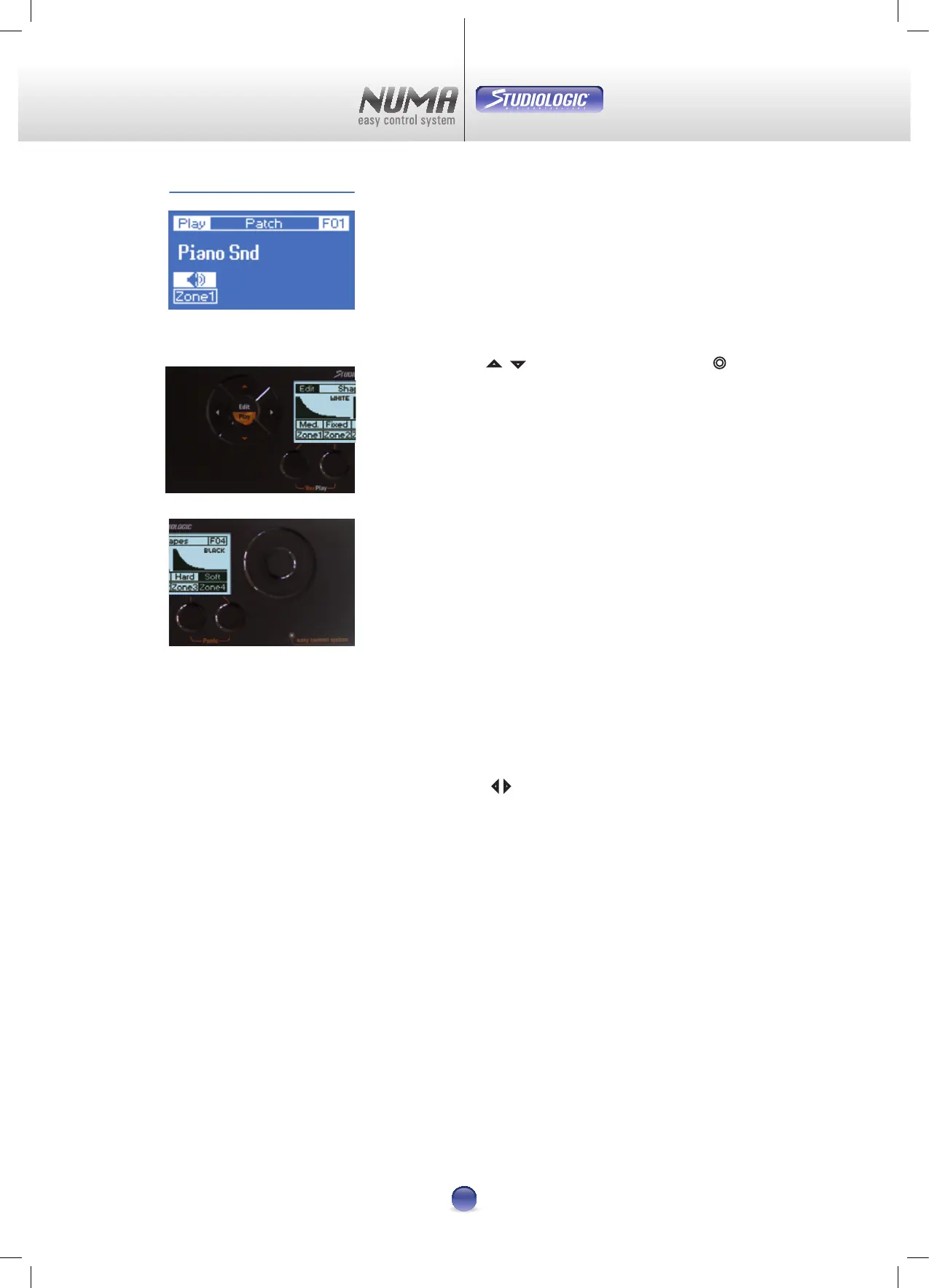
After power-up (Image 2) the NUMA automatically loads a
patch in Play Mode. This patch is the last one used in a saved
Edit-Mode (page 13).
Play-Mode: Possible changes
Loading Patches
Using the pads
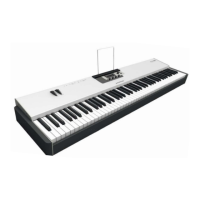
5 6 (Image 3a) or the Virtual Dial ¢
(Image 3b) you can select single Patches. The sequence is in
numerical order, Factory-Patches (F01 up to F05) are followed
by User-Patches (001 up to 064). Only already used patches
are displayed. This prevents you from searching through not
used patches.
Note: Patches are immediately active, no need for an extra
conrmation!
Factory-Patches cannot be erased.
Zones On/O
Control Keys
u
-
x
can be used for direct access to Zone On/
O. The corresponding state is illustrated through an active
(on) or cancelled (o) loudspeaker.
Image 4 shows:
Play Mode
Factory-Patch F04
Zone 2 o
Zone 3 o
Quick-Edit of Patches (Live-Edit)
The arrow pads
34 give you access to the basic parameters
of a patch and the particular zones.
The following parameters can be changed:
Patch Midi
Choosing the MIDI-Channel (1-16)
Patch Program
Choosing the Program (0-127)
Patch Volume
Adjusting the volume (0-127)
Patch Transpose
Adjusting the pitch (-24 bis +24)
All settings are separate for each zone and are only eective
for the active patch.
Note: Changes made in Play-Mode are not saved!
Permanent changes can only be made in Edit Mode.
N
N
N
N
N
N
N
Play Mode
Image 2
Image 3a
Image 3b



 To Next Page