SECTI ON 1 .
Introduction:
Wh y a n d h o w d o w e u s e M I DI Co n t r o l l e r s? Wh a t a r e Z o n e s ? Use s a n d A p p l i c a t i o n s.
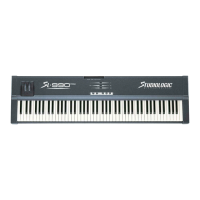
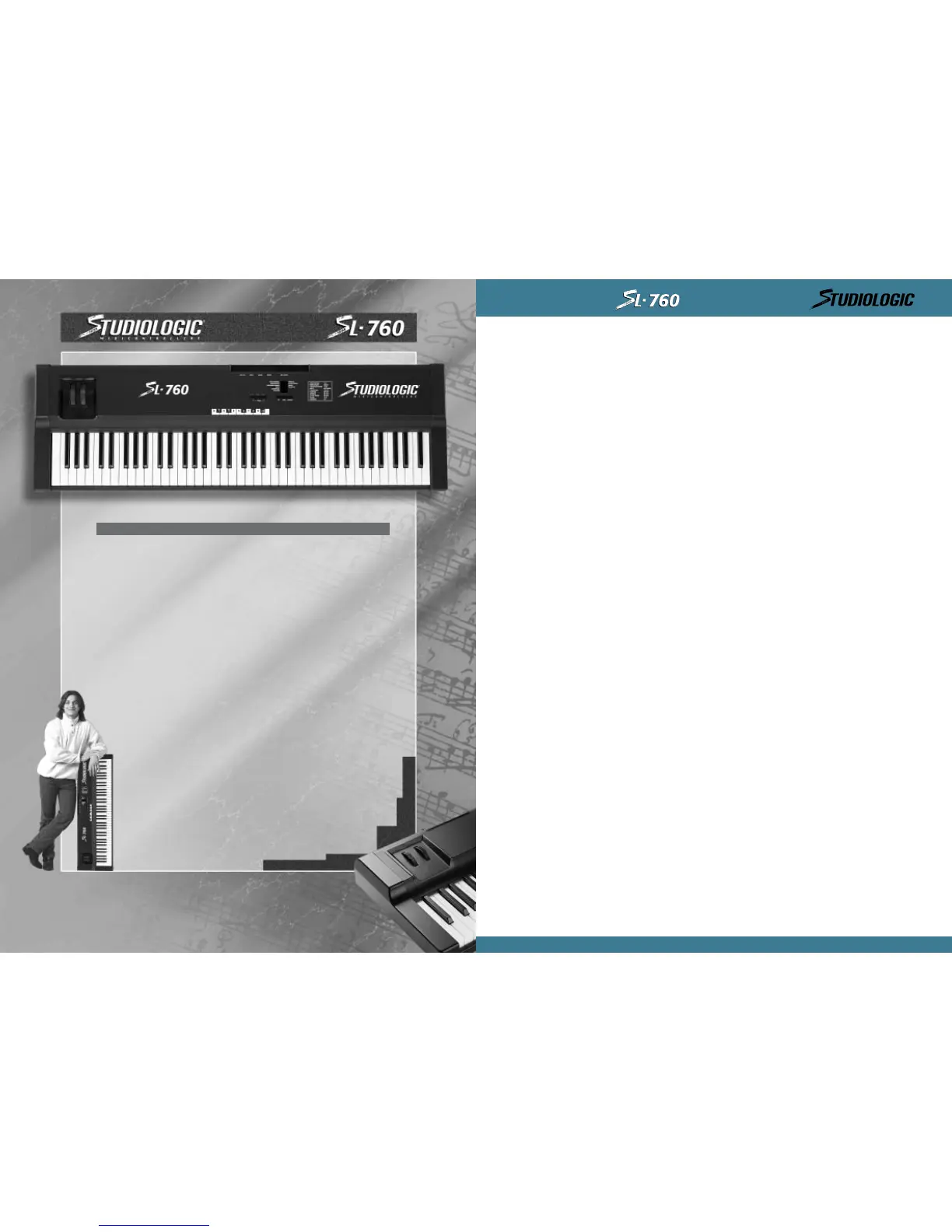
Co n g r a t u l a t i o n s o n y o u r n ew p u r c h a s e o f t h e SL - 7 6 0 St u d i o L o g i c Ma s t e r Co n t r o l l e r b y FATA R.
In this manual we will explain the concepts and techniques of using Master MIDI Controllers
to greatly expand your flexibility, creativity, control and productivity in your live or studio
keyboard set up. Whet her you are usi ng one mult i-t imbral sound module or a rack f ul l of t hem,
this Master Controller Keyboard and all the other Studio Logic Controllers by FATAR will grea-
tly expand your professional and creative abilities.
Th e c o n c ep t o f a c o n t r o l l e r i s t o c e n t r al i ze y o u r ac c e ss i b i l i t y t o y o u r MI DI mo d u l e s. I t g i v es
you a central poi nt of control over your slave modules in a given set up.
Have you ever t ried t o li ne up pat ches in your sound modules so t hat when you select ed a
patch on your keyboard your other sound modules called up the right pat ch? Ever tried to
locate a patch position to write over a sound that you hopefully won't need later? Tired of
bending down to squint and see the display and program a module at t he bot t om of your rack?
Al l of t hese scenar ios ar e great l y reduced when usi ng a Mast er Cont rol l er.
Th e c o n c ep t o f ZONES, SPL I TS a n d L AYERS i s as f o l l o w s:
A ZONE consi st s of a speci f i ed range of keys on your keyboard. That range of not es i s assi gned
paramet er messages t hat are communicat ed to your slave module(s), t his reduces t he need t o
wri t e and st ore pat ches on your module. These paramet ers may consi st of t he followi ng i nfor-
mation: patch number, volume setting, velocity curve, transposition value, pedal enable,
wheel s enable, et c.... When a pat ch is select ed on your Mast er Cont rol ler all of thi s i nforma-
tion is sent to your modules instantly. The Studio Logic SL-760 Master Controller by FATAR has
four (4) completely independent zones, meaning each zone can t ransmit all of its own infor-
mation on any given MIDI channel. The range of notes in each zone can be setup to be adja-
cent to anot her ZONES range of not es ( one ZONE ends, going up t he keyboard, as anot her
ZONE st ar t s) o r a ssi g n e d t o o v e r l ap e a ch o t h er o r a n y p ar t of e ac h o t h er ' s r a n ge s. Th u s w e
introduce the concept of LAYERS and SPLITS.
A SPLI T i s when one ZONE's r ange of not es ends and anot her ZONE's begi ns. A si mpl e exam-
ple would be Bass in the left hand and Piano in t he right hand. A ZONE's range of not es can
be any amount of consecut ive notes regardless of where another ZONE's not es begin. When
two or more ZONE's range of notes overlap we call this a LAYER.
LAYERS are t he way we can bui l d f at lush pat ches usi ng t he ful l pot ent i al of what your synt hs
and modules have to off er. Let 's say we have a bi g pop bal lad that needs your speci al t ouch?
We want t o creat e a " Pad Piano" sound t o cover t he song. Assign each ZONE t o cover t he ent i -
re keyboard's range of not es. Usi ng t he t hree ZONES, assign each of them t o pl ay a di fferent
patch: (1) dark rich Electric Piano, (2) bright ringy Electric Piano, (3) slow at t ack String Pad
wi th t he rel ease rat e up sl ight l y. I f one or more pat ches are not i n t he same oct ave as t he
others i t 's easy to fix. Go to that ZONE's t ranspose feature and move it up or down 12 steps
to line it up properly with the others. Something sounds a little mushy when playing Piano
parts using t he SUSTAIN PEDAL? Try going to the ZONE for the "non Piano" sound and expe-
riment with disabling the SUSTAIN PEDAL for that zone. Within moments you should have a
deep, ri ch, rat her large and musically usef ul soundi ng pat ch t o use on your bal lad.
Are you begi nni ng t o see t he possi bi l i t i es here? Please st ep i nsi de t he manual and we'l l t ake
you through the simple yet versat i le features of the Studio Logic 760 Mast er Cont roller by
FATAR.
INSTRUCTIONS MANUAL
9
EN GL I SH
SECT I ON 1 . 9
SECT I ON 2 . 10
• The keyboard 10
• The wheels 10
• The zones 10
SECT I ON 3 . 11
• Power Input 11
• Power Switch 11
• Sustain pedal 11
• Volume pedal 11
• MIDI Out connections 12
SECT I ON 4 . 12
• Zone select 12
• Up, Down, Enter/Edit 12
• 10 Key Pad; (H) (-) (On) (Off) 12
• MIDI Channel 13
• Bank Select 13
• Program Change 13
• Split 13
• Transpose 13
• Sustain 13
• Wheels 14
• Aftertouch 14
• Shape 14
• Velocity 15
• 10 Key Pad; (H) (-) (On) (Off) 15
SECT I ON 5 . 16
• Default settings 16
• General reset 16
• General programming information 16
• Applications uses and user tips 16
• The zones 16
• The big layer 17
• The split 17
• Another split? 17
• A f ew t i ps i n cl uded f or your consi derat i on 17
SECT I ON 6 . 18
• Blank Patch Parameter Chart 18
• Blank Patch Parameter Chart 19
• Global velocity courves 20
• Programs General MIDI 21
SECT I ON 7 . 22
• Trouble shooting guide 22
INDEX


 To Next Page
 Loading...