GL OB A L V EL OCI T Y CU R V E : Th i s VELOCI TY CU RVE se t t i n g i s a g l o b al o n e, m ea n i n g i t af f e c t s
the dynamic response of the entire keyboard across all (3) ZONES. There are 8 global settings
to choose from. Again, these setting are accessed while in the EDIT mode.
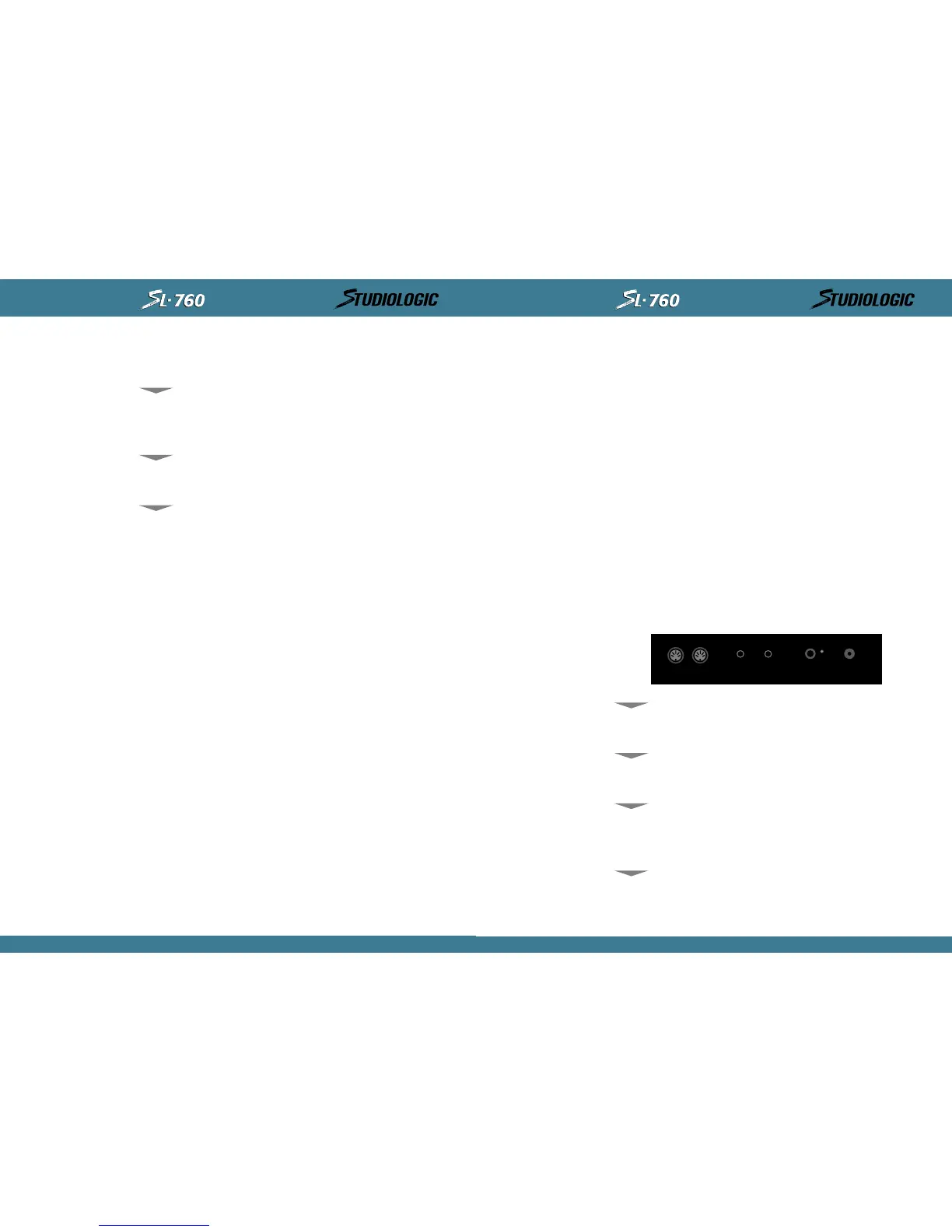
SU STAI N P EDA L : Th e St ud i o L o g i c SL- 7 6 0 h a s a c o n n e ct i o n j ac k o n t h e r e ar p a n e l f o r a
SU STA I N PEDA L i n p u t . T h e V P- 2 6 b y Fa t a r i s r e c o m m e n d e d .
VOLUME PEDAL: Th e St u d i o Lo g i c SL- 7 6 0 h a s a c o n n e c t i o n j a c k o n t h e r e a r p a n e l f o r a s t a n -
dard VOLUME PEDAL i n p u t .
POWER I NPU T: Th e St u d i o Lo g i c SL - 7 6 0 h a s a c o n n e c t i o n j ac k o n t h e r e a r p an e l f o r t h e su p -
pli ed POWER SUPPLY i nput .
MEMORY STORAGE: Th e St ud i o Lo g i c SL- 7 6 0 w i l l r e me mb e r a l l o f y o u r p r e s et i n f o r m at i o n w h en
powered down. All programmed set t i ngs are t ransmit t ed when t he uni t i s powered up. There
is no need to store edited information, simply exiting the edit mode causes the information
to be stored.
SECTI ON 3 .
Re a r Pa n e l Co n n e c t i o n s a n d Fe a t u r e s :
Poweri ng up, Connecti ng Pedals and hooki ng up with your ot her gear.
Th e St u d i o L o g i c SL- 7 6 0 h a s a co n n e c t i o n j a ck o n t h e r e ar p a n el f o r t h e A C POWER SUPPLY
INPUT. The AC adapter POWER SUPPLY supplied with this unit is a positive tip 9V DC with a
mi ni mum cur rent of 200 mA.
Th e St u d i o Lo g i c SL - 7 6 0 h as i t s POWER SWI TCH l o c a t e d o n t h e b a c k p a n el n e x t t o t h e POWER
SU PP LY I N P U T. Th e r e i s a l s o a r e d L ED t o i n d i c a t e t h e u n i t i s o n . U p o n p o w e r i n g u p t h e k e y -
board all preset data i s t ransmit t ed out t hrough t he MI DI OUT connect i ons.
Th e St u d i o Lo g i c SL- 7 6 0 h as a c o n n e c t i o n j a c k o n t h e r e ar p a n e l f o r a SUSTA I N PEDA L i n p u t .
Th i s j ac k w i l l f u n c t i o n p r o p e r l y w i t h e i t h e r t y p e o f " n o r ma l l y c l o s ed " o r " n o r ma l l y o p e n "
SU STA I N PEDA L S. U p o n p o w e r i n g u p t h e St u d i o L o g i c SL - 7 6 0 w i l l r e c o g n i z e w h i c h e v e r t y p e o f
pedal i s present ly connected t o t he keyboard, regardless of pol arit y (e.g. PS100 or VFP1). Not e:
SU STA I N PEDA L m u s t b e p l u g g e d i n p r i o r t o p o w e r i n g u p t o p r o p e r l y s e n s e p o l a r i t y .
Th e St u d i o L o g i c SL- 7 6 0 h a s a c o n n e ct i o n j ac k o n t h e r e a r p a n el f o r a s t a n d a r d VOLU ME PEDA L
input that uses a stereo or balanced jack (e.g. VP-26 by Fatar). This volume control will chan-
ge the volume equally across all four ZONES simultaneously.
POWER I NPUT
POWER SWI TCH
SU STAI N PED AL
VOLUME PEDAL
INSTRUCTIONS MANUAL
11
EN GL I SH
MIDI OUTPUTS
2
SUSTAIN VOLUME
POWER
9V DC 0,2 A
1
SECTI ON 2 .
Fe a t u r e s :
A gui ded t our t hrough t he St udi o Logi c 760' s Cont rol s and Feat ures.
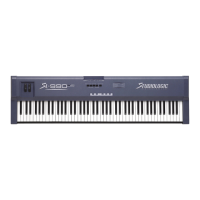
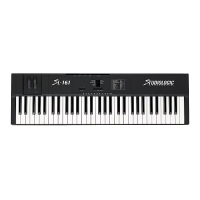
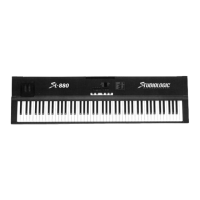
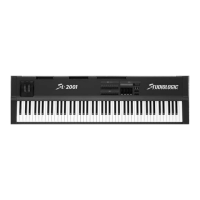
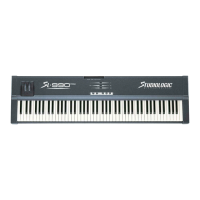
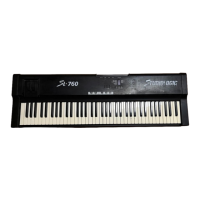
Th e St u d i o Lo g i c 7 6 0 h a s a 7 6 k e y FATAR s emi - w e i g h t e d p i a n o a c t i o n . I t i s a n e w, i mp r o v e d
versi on of t he classic FATAR acti on. I t i s an ext remely musical feeli ng piano styl e acti on t hat
has a very dynamic yet quick response to it . The velocit y sensit ive action can be modified wi th
several VELOCI TY CURVE response set t i ngs t hat wi l l be di scussed l at er i n t hi s manual . The 76
key act ion of the SL- 760 wi l l t ransmi t channel AFTERTOUCH on all ZONES.
Th e PI TCH a n d MODUL ATI ON WHEEL S a r e t h e st a n d ar d s t y l e , h o w e v er , t h ey a r e ma d e w i t h a
new rubberi zed t ext ure. They have been designed t o gi ve t he pl ayer a more sol id t act i le sen-
sat i on duri ng per for mi ng and progr ammi ng f or a more musi cal response.
Th e SL- 7 6 0 h as ( 3 ) t h r e e i n de p en d e n t ZONES w i t h e ac h o f t h e m c ap a b l e of b e i n g a ss i g n e d
to any range of keys across the SL-760's keyboard. As discussed in the introduction to this
manual , t he ZONES are t he heart of creat i ng musi cally usef ul Layers and Spl it s. Each of t he ( 3)
ZONES co n si s t s o f :
1. ZONE ENABLE/ DISABLE BUTTON: Locat ed on t he f ront panel above t he keyboard i t sel f .
Th e se ar e u se d t o t u r n t h e ZONES o n a n d o f f i n PERFORMAN CE mo d e. Ea c h sw i t c h f u n c t i o n s
independently of each other. In other words, you can have any combination of ZONES on or
off at any point by accessing these ZONE switches.
Wh i l e i n EDI T m o d e, t h e ZONE BUT TO NS a r e u s e d t o se l e c t t h e d e s i r e d ZONE t o b e e d i t e d . Wh i l e
edi t i ng, onl y one ZONE at a t ime can be sel ect ed and t he but t ons now t oggl e on and of f as
you select each ZONE SWI TCH for edit i ng.
2. MIDI CHANNEL SELECT: Wh i l e i n E DI T m o d e e a c h Z O NE c a n b e s e t t o t r a n s m i t o n a n y o f
the 16 MIDI channels available. Only one MIDI channel can be transmitted at a time per ZONE.
3. BANK SELECT: Af t er sel ect i ng a MI DI channel t o t ransmi t on, and whi l e i n EDI T mode, you
can ini ti at e or select BANK Changes. The commands are di ff erent dependi ng on t he ext ernal
sound modul e you are accessi ng. More on BANK SELECT lat er i n t hi s manual .
4. PROGRAM CHANGE: Pat ch sel ect ion can be made for each ZONE whi le i n t he EDI T mode.
Each ZON E c a n b e s et t o s el e c t ( s en d ) p a t c h c h a n g es 1 t o 1 2 8 ( s o m e m a n u f a c t u r er s u se a n u mb e -
ring scheme 0 to 127, so you may need to add (1) to each patch# to achieve t he desired result s).
5. SPLIT or KEY NOTE RANGE: Th i s e d i t f u n c t i o n a l l o ws y o u t o s el e c t t h e r a n g e o f a c t i v e n o t es
(keys) for each ZONE. The ZONES are completely independent of each other and their split
points can overlap t hus creat i ng LAYERS.
6 .TRANSPOSE: Ea c h ZON E c a n b e s e t t o t r a n s p o s e i t s k e y r a n g e u p o r d o w n 2 4 s e m i t o n e s . I n
ot her words, up or down 2 octaves from t he synth module's ori gi nal setting.
7 .SUSTAI N PEDAL ENABLE / DISABLE SELECT: You can set each ZONE t o respond or not
respond t o sust ai n pedal i nformat i on. Thi s i s done i n t he EDI T mode for each ZONE.
8. WHEELS ENABLE / DISABLE SELECT: You can set each ZONE t o respond or not respond to
PI TCH a n d MODU LATI ON WHEEL i n f o r m at i o n . Th i s i s do n e i n t h e EDI T mo d e f o r e a ch ZONE.
9. AFTERTOUCH ENABLE / DISABLE SELECT: You can set each ZONE t o respond or not respond
CH A N N E L A FTERTOU CH i n f o r m a t i o n . Th i s i s d o n e i n t h e ED I T m o d e f o r e a c h ZO N E.
10. SHAPE: Ve locity curve settings specific to each ZONE. These setting will alter the way
velocit y i nformat ion from the keyboard wil l be transmi t t ed to the receiving MI DI channel.
Th e r e a r e 8 p r ese t v el o ci t y c u r v e s t o c h o o s e f r o m t h at v a r y t h e d y n a mi c r e sp o n s e o f t h e k e y -
board. Again, t hese set t i ngs are speci fi c t o each ZONE and are accessed while i n t he EDIT
mode.
TH E KEYBOARD
TH E WH EEL S
TH E ZON ES
10
INSTRUCTIONS MANUAL


 To Next Page
 Loading...