SECTION 2.
Features:
A guided tour through the Studio Logic 880's Controls and Features, j
THE KEYBOARD ^P
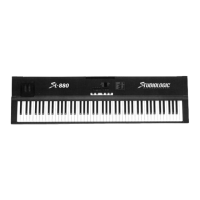
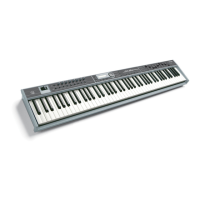
The
Studio
Logic 880 has a 88 key
FATAR
semi-weighted
piano
action.
It
is
a
new,
improved
'
version
of
the
classic
FATAR
action.
It
is
an extremely
musical
feeling
piano
style
action
that
has a very dynamic yet quick response to it. The velocity sensitive action can be modified with
several
VELOCITY
CURVE
response
settings
that
will
be discussed
later
in
this
manual.
The
88
key
action
of
the
SL-880
will
transmit
channel
AFTERTOUCH
on
all
ZONES.
THE WHEELS ^
The PITCH and MODULATION WHEELS are the standard style, however, they are made with a
new rubberized
texture.
They have been designed
to
give
the
player
a
more
solid
tactile
sen-
J
sation during performing and programming for a more musical response. \
THE ZONES ^
The SL-880 has
(3)
three
independent
ZONES
with
each
of
them
capable
of
being
assigned
to any range of keys across the SL-880's keyboard. As discussed in the introduction to this
manual,
the
ZONES
are
the
heart
of
creating
musically
useful
Layers and
Splits.
Each
of
the
(3)
ZONES consists of:
1. ZONE ENABLE/DISABLE BUTTON: Located on the front panel above the keyboard itself.
These are used
to
turn
the
ZONES
on and
off
in
PERFORMANCE
mode.
Each
switch
functions
independently of each other. In other words, you can have any combination of ZONES on or
off
at
any
point
by accessing these
ZONE
switches.
While
in
EDIT mode,
the
ZONE BUTTONS
are used
to
select
the
desired
ZONE
to
be
edited.
While
editing,
only
one
ZONE
at
a
time
can be selected and
the
buttons
now
toggle
on and
off
as
you
select
each
ZONE
SWITCH
for
editing.
2.
MIDI
CHANNEL
SELECT:
While
in
EDIT mode each
ZONE
can be
set
to
transmit
on any
of
the
16
MIDI
channels
available.
Only one
MIDI
channel
can be
transmitted
at
a
time
per
ZONE.
3.
BANK
SELECT:
After
selecting
a
MIDI
channel
to
transmit
on,
and
while
in
EDIT
mode,
you
can
initiate
or select
BANK
Changes. The commands are
different
depending
on
the
external
sound
module
you
are accessing. More on
BANK
SELECT
later
in
this
manual.
4. PROGRAM CHANGE: Patch selection can be made for each ZONE while in the EDIT mode.
Each ZONE can be set to select (send) patch changes 1 to 128 (some manufacturers use a numbe-
ring scheme 0 to 127, so you may need to add (1) to each patchtt to achieve the desired results).
5.
SPLIT or
KEY
NOTE
RANGE:
This
edit
function
allows
you
to
select
the
range
of
active
notes
(keys)
for
each
ZONE.
The
ZONES
are
completely
independent
of
each
other
and
their
split
points can overlap thus creating LAYERS.
6 .TRANSPOSE: Each ZONE can be set to transpose its key range up or down 24 semitones. In
other words, up or down 2 octaves from the synth module's original setting.
7 .SUSTAIN PEDAL ENABLE / DISABLE SELECT: You can set each ZONE to respond or not
respond
to
sustain
pedal
information.
This
is
done
in
the
EDIT mode
for
each
ZONE.
8. WHEELS ENABLE / DISABLE SELECT: You can set each ZONE to respond or not respond to
PITCH and MODULATION WHEEL information. This is done in the EDIT mode for each ZONE.
9. AFTERTOUCH ENABLE / DISABLE SELECT: You can set each ZONE to respond or not respond
CHANNEL AFTERTOUCH information. This is done in the EDIT mode for each ZONE.
10.
SHAPE:
Velocity
curve
settings
specific
to
each
ZONE.
These
setting
will
alter
the
way
velocity
information
from
the
keyboard
will
be
transmitted
to
the
receiving
MIDI
channel.
There are 8 preset velocity curves to choose from that vary the dynamic response of the key-
board. Again, these settings are specific to each ZONE and are accessed while in the EDIT
mode.



 To Next Page