User's Manual
51
APPENDIX
The RS-232 Port and Ethernet Port
The TGR-3 has a rear panel
RS-232 Serial communication port.
This allows the FLASH memory to
be upgraded to the latest software by
connecting to a PC.
The TGR-3 software may be updat-
ed to refi ne operational details and to
include new features. Downloadable
updates will be posted on our website:
www.sunfi re.com.
The port can also connect to the se-
rial port of a Home Theater Controller,
to operate the TGR-3 remotely.
Communications
Serial RS-232, 9600 Baud, 8-N-1
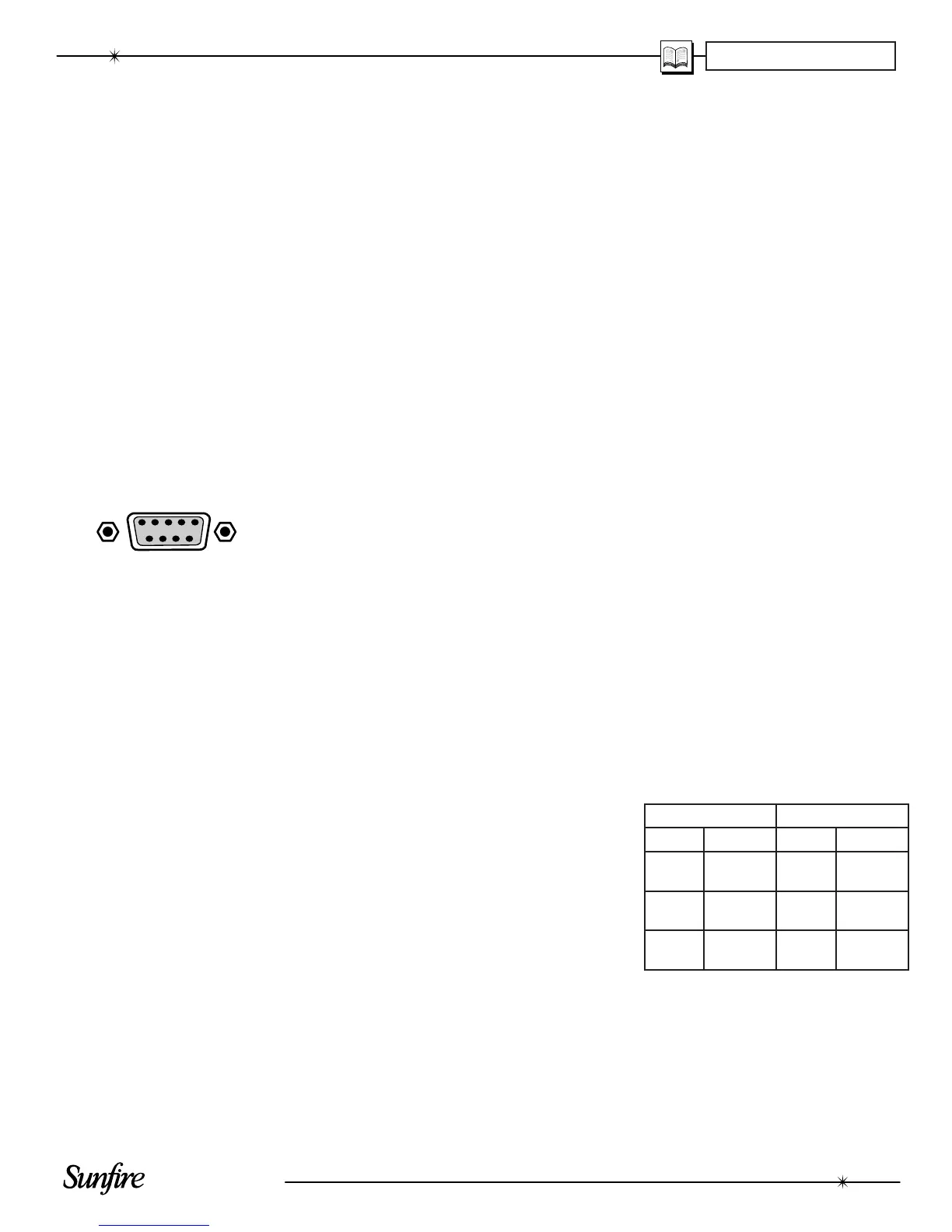
DB-9 Wiring
PINS 1, 6 and 4 are joined together
in ter nal ly
PINS 7 and 8 are joined together
in ter nal ly
PIN 2- Data from TGR-3 to controller
(TGR-3 transmit)
PIN 3- Data from controller to TGR-3
(TGR-3 receive)
PIN 5- Ground/Common
PIN 9- No connection
The RS-232 connector is female.
Serial Cable
To connect the TGR-3 port to a
computer, you will need a "straight-
through" serial cable. This has con-
nector pins at one end connected
directly to the pins of the connector at
the other end. For example, pin 1 at
one end connects to pin 1 at the other
end, pin 2 connects to pin 2, pin 3 to
pin 3 and so on.
These common cables are avail-
able from most computer stores (or
from Radio Shack as # 26-117). It
should be 9-pin male at one end,
to fi t into the TGR-3 and normally
9-pin female at the other, to fi t into
your computer's serial port (COM1 or
COM2).
Update Procedure
1. The current version level of the
software running your TGR-3
can be found by looking at the
Version Level OSD menu. This
is under the Software OSD
menu (see page 37).
2. Downloadable updates are on
our website www.sunfi re.com.
If the website fi le is newer than
your current version, follow the
website directions and down-
load the new fi le onto your
computer's hard drive.
3. Record your calibration, preset
stations or other settings on
page 57. In most cases, the
upgrade will not affect any of
these settings, but it is good to
record them just in case.
4. Turn off your computer and the
TGR-3. Position them close
enough so that they can be
easily connected using your
serial cable. If you have a lap-
top computer, then it may be
easier to bring that close to the
TGR-3. Otherwise, you need
to disconnect the TGR-3 and
move it close to your computer.
5. Connect the TGR-3 RS-232
port to the corresponding serial
port on your computer.
6. Turn on the TGR-3 and your
computer.
7. Find the fi le you downloaded in
step 2, and run the program.
8. In AUTO mode, the software
will look for an active serial
connection and upload the new
fi le. The TGR-3 display will
show the status.
9. When the fi le transfer is com-
plete, press the Power switch
on the TGR-3 front panel. This
completes the upgrade.
10. Turn off your computer and the
TGR-3, and disconnect the se-
rial cable.
External Control
The RS-232 port also allows the
TGR-3 to be controlled externally by
Home Theater controllers and com-
put ers.
Serial command set
Note for programmers and develop-
ers: Contact Sunfi re Technical Sup-
port, or our website www.sunfi re.com
for a list of serial commands.
Ethernet Port
This Ethernet port is a Lantronix
Xport 10/100T TCP/IP with con-
fi gurable IP address, and security.
It uses a simple ascii command
set to control the TGR-3. An
embedded webpage is included
for PC control, and monitoring via
TCP/IP Link.
Two LEDs in the Ethernet jack,
indicate the connection status as
shown:
LEFT LED RIGHT LED
Color Meaning Color Meaning
Off No Link Off No
Activity
Amber 10 Mbps Amber Half
Duplex
Green 100
Mbps
Green Full
Duplex


 To Next Page