CHAPTER
TWO
INSTALL THE RASPBERRY PI OS
In this chapter, we firstly learn to write the Raspberry Pi OS to your Micro SD card. You can check the complete tutorial
on the official website of the Raspberry Pi: https://projects.raspberrypi.org/en/projects/raspberry-pi-setting-up.
Note: If you have already done it, you can skip this chapter.
Required Components
1 * Micro SD Card 1 * Personal Computer
1 * Micro SD Card Reader
Step 1
Raspberry Pi have developed a graphical SD card writing tool that works on Mac OS, Ubuntu 18.04 and Windows,
and is the easiest option for most users as it will download the image and install it automatically to the SD card.
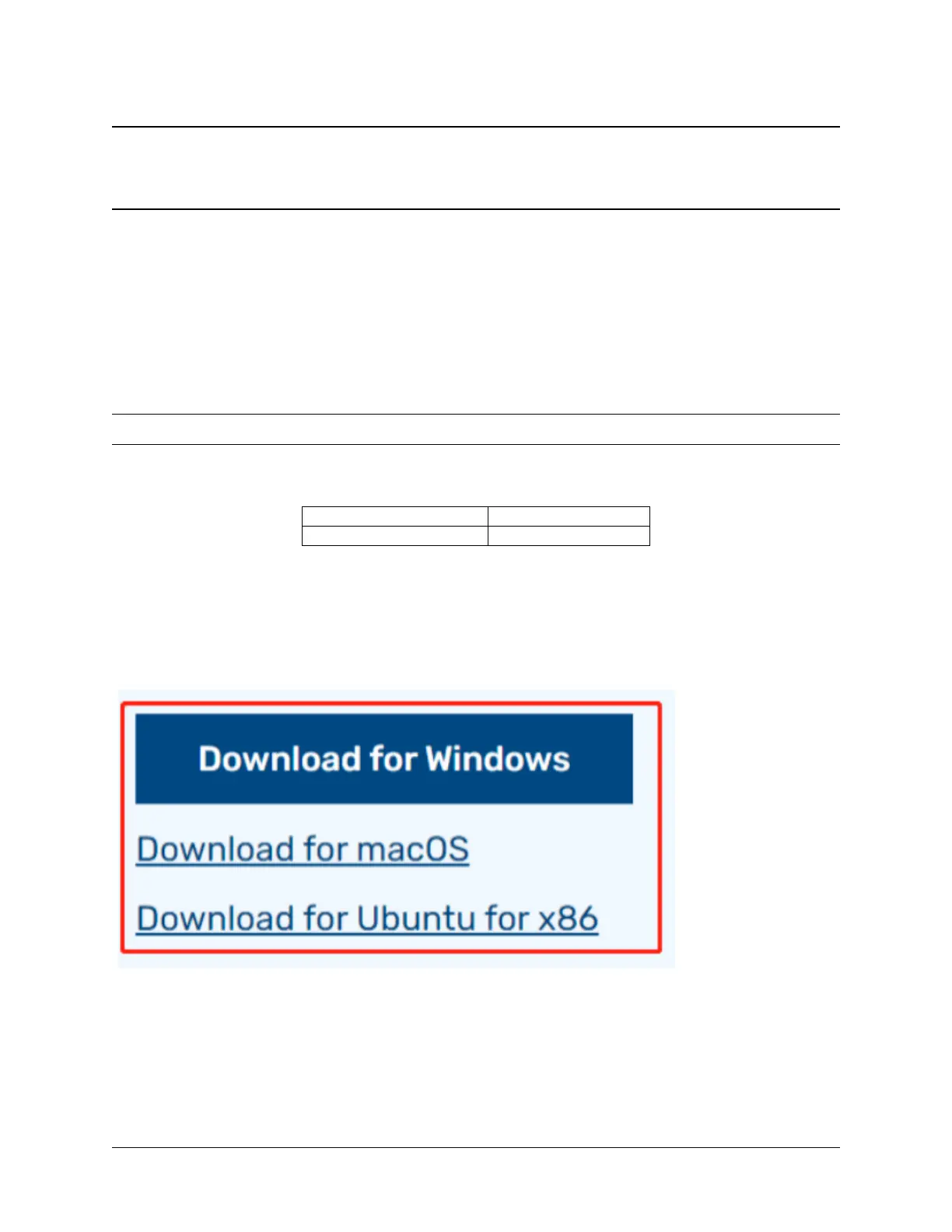
Visit the download page: https://www.raspberrypi.org/software/. Click on the link for the Raspberry Pi Imager that
matches your operating system, when the download finishes, click it to launch the installer.
Step 2
When you launch the installer, your operating system may try to block you from running it. For example, on Windows
I receive the following message:
If this pops up, click on More info and then Run anyway, then follow the instructions to install the Raspberry Pi
Imager.
5


 To Next Page