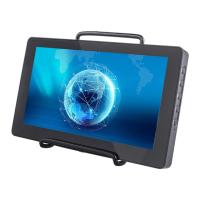
TS7-Pro 7-inch Touch Screen
For more styles, you can refer to Official Demo.
5.4.6 Start the Home Assistant Service at Boot
Normally, Docker is self-starting after booting by default, which also means that after you install Home Assistant, you
can use it as long as you start the Raspberry Pi.
You can use the following command to view the boot list. The docker.service should be in the enabled state.
sudo systemctl list-unit-files | grep enable
To turn off Docker’s self-startup, please enter the following command:
sudo systemctl disable docker.service
To enable Docker’s self-startup, please enter the following command:
sudo systemctl enable docker.service
5.4.7 Enter the Home Assisant Page at Boot
Experience the full-screen self-boot interface first. Please close the already open Home Assistant URL and run
chromium-browser --start-fullscreen "http://localhost:8123".
If you want to automatically display the Home Assistant interface in full screen after booting, then do the following.
1. Go to the autostart folder.
cd /home/pi/.config/autostart/
Note: If the autostart folder does not exist, you need to create a new one.
sudo mkdir -p /home/pi/.config/autostart/
2. Create chrome_start_fullscreen.desktop file.
sudo nano chrome_start_fullscreen.desktop
3. Edit the chrome_start_fullscreen.desktop file as follows.
[Desktop Entry]
Type = Application
Exec = chromium-browser --start-fullscreen "http://localhost:8123"
Save and exit: Ctrl + X, Y, Enter.
Note: If you want to cancel the full-screen self-start, comment out the contents of the .desktop file (by “#” )and
restart the Raspberry Pi.
cd /home/pi/.config/autostart/
sudo nano chrome_start_fullscreen.desktop
100 Chapter 5. PROJECTS AND ACTIVITIES



 To Next Page