52
Step 3 A warning window will pop up, and click Confirm to continue the reset all settings operation.
- - End
Restoring the factory settings refers to restoring all modified settings to the factory
state and will not clear the data.
7.10.3 Remote Maintenance
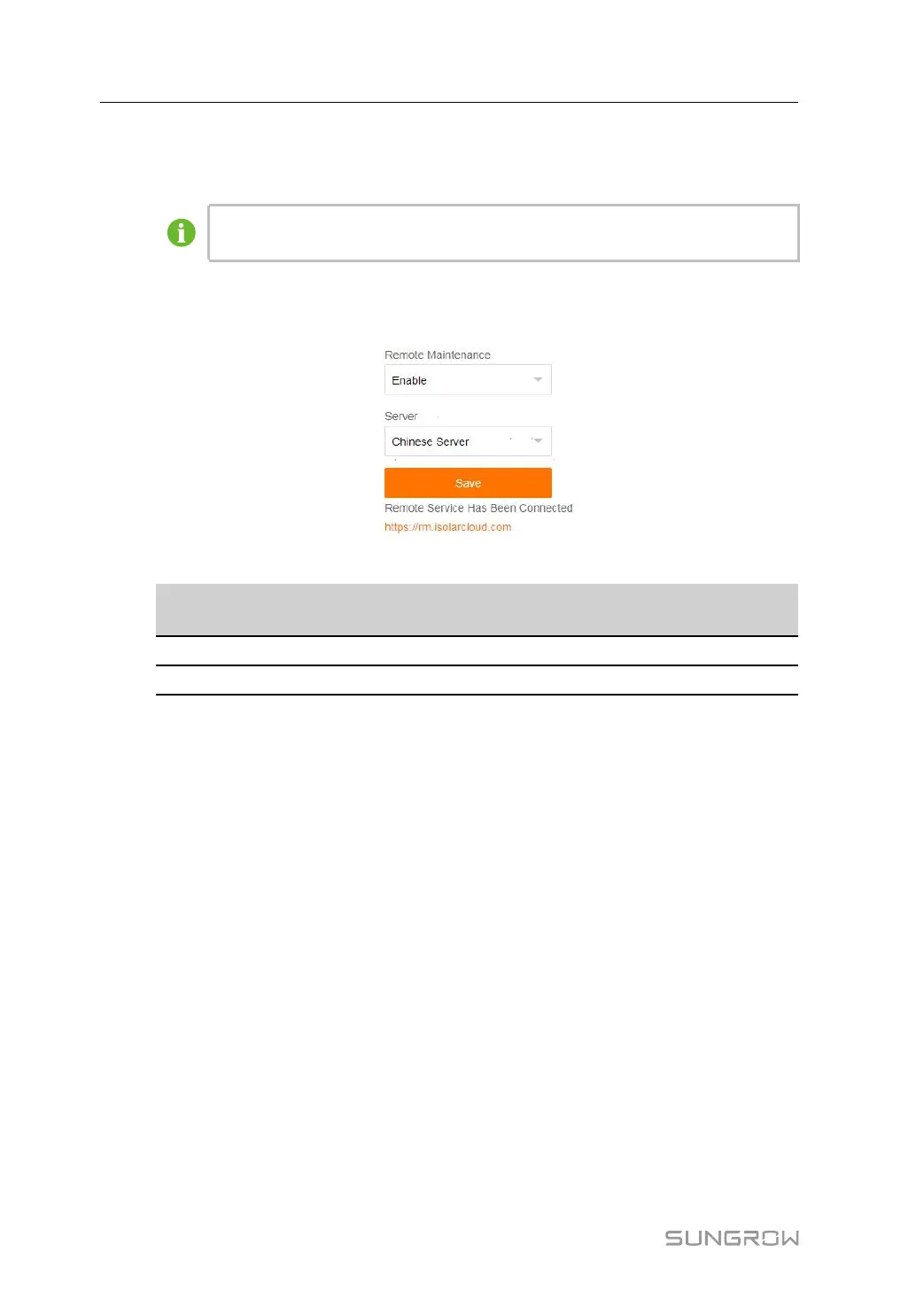
Step 1 Click “System→Remote Maintenance” to enter the corresponding interface.
table 7-3 Parameter description
Remote maintenance switch
state
Description
Disable
Not allow for remote maintenance on the Logger1000
Enable
Allow for remote maintenance on the Logger1000
Step 2 The server address is bound to the iSolarCloud forwarding Modbus ID. If you need to change
it, please modify the iSolarCloud server. Refer to the chapter "7.10.6 iSolarCloud".
Step 3 Click Save to enter the Remote Access interface.
Step 4 Enter the login password and click Confirm.
Step 5 Access information is saved in the following two ways.
• Click Copy remote access information, and save the access information locally after
successful copying.
• Enter the email address and click Send to send the access information to the email
address.
Step 6 Enter the access link in the URL field to enter the Remote Maintenance interface. Enter the
device S/N and password, and click Login to perform remote maintenance.
- - End
7 WEB Interface User Manual



 To Next Page