EasyManua.ls Logo

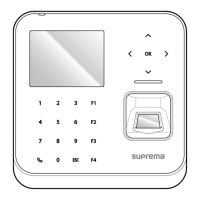
suprema BioLite N2 - User Manual

suprema BioLite N2
42 pages
Print Icon
To Next Page IconTo Next Page
Loading...
Version 1.14
English
EN 102.00.BLN2 V1.14A
BioLite N2
USER GUIDE

Questions and Answers

  • G
    Gary HuntAug 14, 2025
    Why is fingerprint authentication not working on my Suprema IP Access Controller?
    • J
      Jason ChristianAug 14, 2025
      Fingerprint authentication might fail due to several reasons: * Your finger or the fingerprint sensor may be dirty (sweat, water, or dust). Clean both. * Your finger or the sensor might be too wet. Wipe them with a dry towel and try again. * Your finger might be too dry. Blow on your finger and try again.
  • T
    Thomas ReedAug 17, 2025
    What to do if fingerprint authentication is not smooth on Suprema IP Access Controllers?
    • J
      jeffersonnathanAug 18, 2025
      If fingerprint authentication is not working smoothly, consider the following: 1. Review the fingerprint enrollment process and re-enroll your fingerprint. 2. If you have a cut on your finger, the device might misread your fingerprint. 3. If many fingerprints are enrolled, adjust the Matching Timeout and try again. 4. Authentication rates vary between fingerprints due to unique characteristics. 5. Try enrolling a different finger.
  • C
    christine28Aug 21, 2025
    What to do if I lost my PIN for Suprema IP Access Controllers?
    • A
      anna41Aug 21, 2025
      If you've lost your PIN: * For a normal user PIN, ask the administrator to provide it, then enter it again. * If you've lost the Admin PIN, contact the installation company for assistance.
  • D
    donaldcampbellAug 25, 2025
    What to do if I enter my PIN but cannot open the door using suprema BioLite N2 IP Access Controllers?
    • N
      Nicole ColemanAug 26, 2025
      If entering your PIN doesn't open the door, please check the following: * Make sure you're entering the correct, registered PIN. * If you have changed the PIN recently, ensure you are using the latest one. * If you can't recall the PIN, ask the administrator for assistance and re-enter the provided PIN.
  • A
    Andrew PetersAug 29, 2025
    Why has the time become incorrect on my Suprema IP Access Controller?
    • K
      Katherine LopezAug 29, 2025
      The time may be incorrect because the built-in battery in BioLite N2 might have died due to a prolonged power outage. To correct the time, refer to Date & Time settings.
  • T
    Tracy DunnSep 1, 2025
    What to do if the Suprema IP Access Controller does not operate when power is supplied?
    • J
      James GeorgeSep 1, 2025
      If the device isn't working even with power supplied: * The device might not operate if the terminal and bracket are too far apart due to the temper switch. * Check the adapter or the power cable to ensure they are functioning correctly.
  • C
    Christina FrancisSep 5, 2025
    What to do if the door cannot be locked when closing on Suprema IP Access Controllers?
    • N
      Nicole FrancoSep 5, 2025
      The electric lock may be malfunctioning. Contact the installation company for an inspection.
  • T
    Tracy KellySep 9, 2025
    How to regain access to Admin mode on suprema BioLite N2 IP Access Controllers after losing the Admin PIN?
    • M
      Melinda RyanSep 9, 2025
      Access permission in BioLite N2 is granted by the administrator, so only they can access the Admin menu. If you have lost the Admin PIN, contact the installation company.

Summary

Safety Instructions

Safety Icons and Warnings

Defines warning, caution, and note symbols used in the manual for safety information.

Introduction

Enrolling Fingerprints for Authentication

Guides users through the process of registering fingerprints for authentication on the device.

Admin Menu Access

User Management

Adding and Registering Users

Details the process of adding new users, including ID, name, fingerprint, card, and PIN.

Editing User Information

Describes how to search for and edit existing user details like card, fingerprint, PIN, and level.

Bulk User Deletion

Provides a method to erase all registered user data from the device at once.

Authentication Settings

Configuring Authentication Modes

Sets the schedule for various authentication methods: Fingerprint, Card, ID, and T&A.

Fine-Tuning Fingerprint Authentication

Configures fingerprint authentication parameters like security level, timeout, and sensor sensitivity.

Device Configuration and Management

Network Setup and Connectivity

TCP;IP, Server, and DNS Configuration

Configure TCP/IP parameters, IP address, DHCP, DNS, and server connection details.

Managing Event Logs

Troubleshooting Common Issues

Problem Resolution Guide

Addresses common problems related to Power, PIN, Fingerprint, Door Lock, Time, and Admin Access.

suprema BioLite N2 Specifications

General IconGeneral
TypeBasic access control reader
Interface-
RFID readerYes
Sensor typeOptical sensor
Log capacity1000000
Product colorBlack
RFID frequency13.56 MHz
Number of users10 user(s)
Recommended usageOutdoor
Access code readerNo
Authentication typeAccess chip/card, Biometric
Number of templates3
Keypad number of keys14
Verification (1:1) time10000 s
Access chip/card reader typeContactless
International Protection (IP) codeIP65, IP67
RS-485 ports1
PC connectionRS-485
Ethernet LAN data rates10, 100 Mbit/s
Flash memory4 GB
Processor frequency1200 MHz
Display typeTFT-LCD
Display diagonal1.77 \
DC voltage range12 - 12 V
Storage temperature (T-T)-40 - 70 °C
Operating temperature (T-T)-20 - 50 °C
Storage relative humidity (H-H)0 - 90 %
Operating relative humidity (H-H)0 - 80 %
Weight and Dimensions IconWeight and Dimensions
Depth44 mm
Width58 mm
Height190 mm
Weight255 g
Mounting bracket weight57 g

Related product manuals