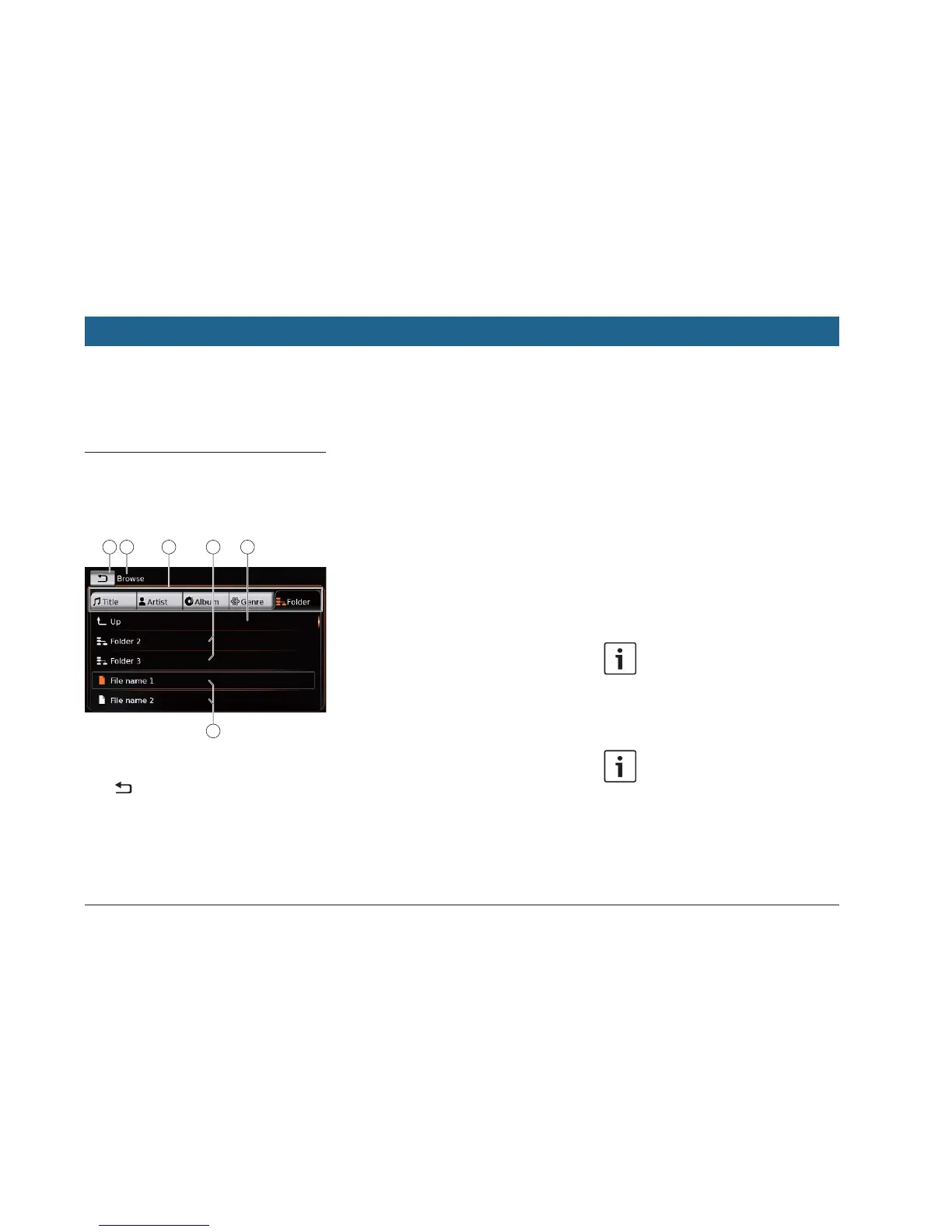
You will find the following information and con-
trols in the browser display:
W button: Close media browser
X Browse mode indication
Y Main categories (here: Folder)
Z Subcategories (here: Folders)
[ up button: Return to parent category
\ Titles/files
In the browser display you can select media
according to various categories, such as artist,
album or genre.
The main categories are:
f Title:
Select a title from all the available titles. All
titles of the media source are subsequently
played.
f Artist:
Select a title from all of the artist’s titles or
from one of the artist’s albums. Only the titles
of the artist or album are subsequently
played.
f Album:
Select a title from an available album. Only
the titles of the album are subsequently
played.
f Genre:
Select a title from an album of the genre or
from the album of a particular artist. Only the
titles of the album are subsequently played.
f Folder:
Choose a title in the folder structure of the
media source. Only the titles contained in the
same folder are subsequently played.
f Playlist:
Choose a title in a playlist. Only the titles
contained in the same playlist are subse-
quently played.
f Audiobook:
Select a chapter from an available audio-
book. Only the chapters of the selected
audiobook are subsequently played.
f Podcast:
Select an episode from an available podcast.
Only the episodes of the selected podcast
are subsequently played.
f Video:
Select an episode from an available video.
Only the episodes of the selected video are
subsequently played.
6.5.2 Selecting titles
f Tap the desired main category Y.
The corresponding list items are displayed.
Note:
To scroll through the main categories,
touch the tab row.
f Tap the desired subcategory, if applicable
Z.
Notes:
f To scroll through list items, touch
the list area and swipe up or down.
f A subcategory can contain further
subcategories.
To return to a parent category, tap
up [.
Playing media


 To Next Page