20170724 We reserve the right to alter specifications.
GLOBAL
11
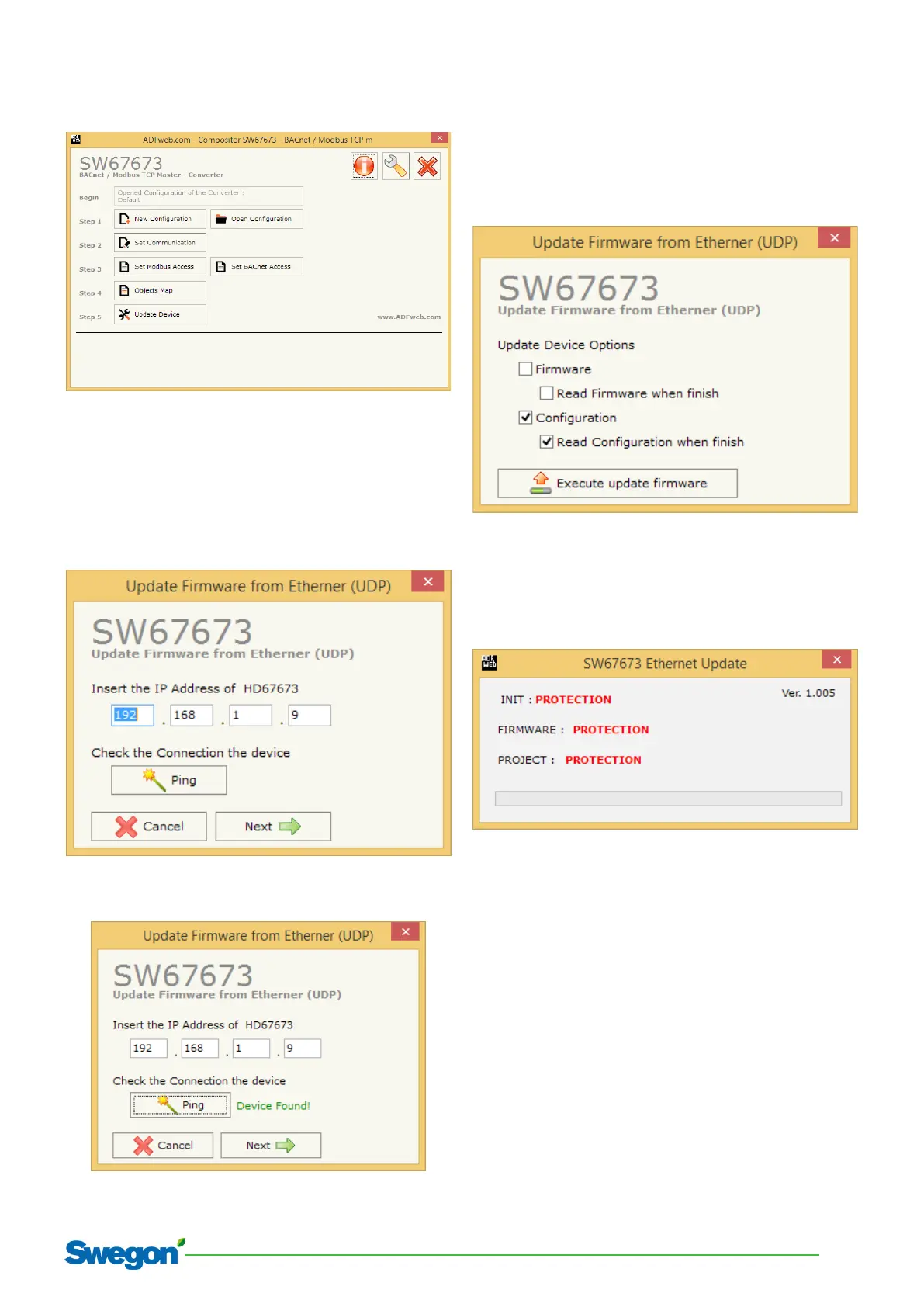
2. Press the button “Open Configuration” (on Step 1 row)
and then choose the folder corresponding to the desired
project for downloading.
3. Press the button “Update Device” (step 5). The fol-
lowing dialog box will appear where there is no need to
change anything (the IP address may be different from
the picture, according to the one configured in the pro-
ject).
4. Press the button “Ping”, then the text “Device Found”
will appear:
5. Press the button “Next”, the following dialog box will
appear where only “Configuration” and “Read the con-
figuration when finish” must be checked:
6. Press the button “Execute update firmware”.
7. The status update window will appear to show the
evolution of the downloading.
8. If error message, do the verifications as described in
step 9:


 To Next Page
 Loading...