interface of the computer, it should automatically be
recognised, and drivers for it installed in the system.
Usually, this requires the operating system CD.
After the drivers are installed, the USB recording and
playback peripherals should be listed in the audio
device list.
To hear signal played though the playback device, turn
the Computer and Monitor level controls up. Also,
make sure the digital level control in the computer
is up. To record something, apply the signal to one
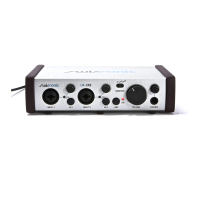
of the USB Studio’s inputs, turn its level up, press
the rec/mon switch, turn the Record level control
up and record. The signal presence should be seen on
the led bar.
If the computer doesn’t recognise the unit properly,
first make sure the connections are secure, and that
the operating system supports the USB audio devices
(Windows 98, 2000 and Mac System 9 do). Then,
with both the computer and the USB Studio on,
disconnect the USB cable at one end, wait a few
seconds and plug it back in. Changing the USB topology
(e.g. plugging the unit directly in an USB port on the
computer rather that in an external hub) may help is
some cases.
The drivers sometimes default to a low sample rate
(like 22,05 kHz). Although USB Studio supports the
lower sample rates, the loss in sound quality is impor-
tant. We recommend that you use only 44,1 or 48kHz.
13


 To Next Page
 Loading...