16
*1 Color space
The default color space parameter is automatic. It will automatically dispay based on the input
signal recognized color sapce. If the signal can not recognize the correct color space, user should
manually adjust the color space to correctly display.
*2 Source Scan
When set to “Yes”, after turn on the monitor, the signal will be inspected and follow the sequence
of “SDI→HDMI→SDI”
For example: if channel is selected to SDI, SDI-IN has no input, and HDMI has input. When turn
on the monitor, after automatic inspection, SDI has no recognized signal, and HDMI has recognized
signal, then the input signal will be HDMI.
When set to “No”, update model will not be supported.
*3 Logo
When powered on, the screen will display SWIT logo.
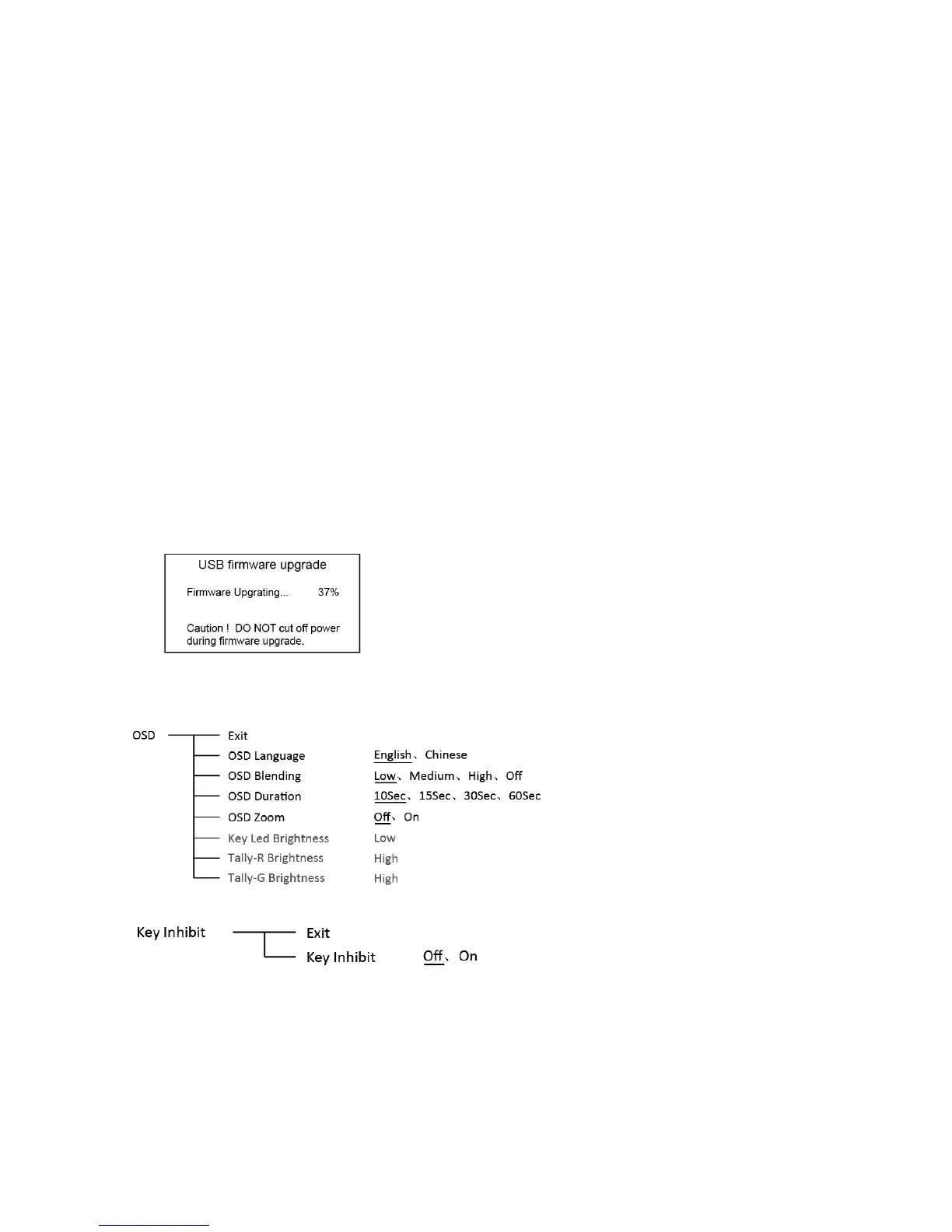
*4.*5 Update Driver/ Kernel
⑴ Open the power supply, plug the U disk with upgrading programma into the Micro USB port on
the side of the monitor;
⑵ Press “MENU” rotary knob, open the main menu, enter the “system” submenu, select
“Driver/Kernel”;
⑶ Set the parameter to “Yes”, and press “MENU” rotary knob to begin upgrading;
⑷ While upgrading, there will be a prograss bar dispaying on the screen (Note: Do not power off
when upgrading);
⑸ After upgraded, the monitor will automatically reboot.
12. OSD
13. Key Inhibit
When the “Key inhibit” is set to “on”, there is no response when all the buttons except ” MENU” is
pressed, the sreen will be displayed as ” Key Inhibit”.
User can set “Key inhibit” to off under the “Key inhibit” submenu, restore the function of all keys.


 To Next Page
 Loading...