EasyManua.ls Logo

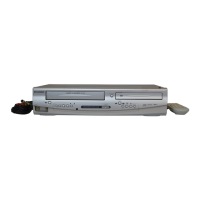
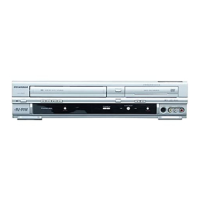
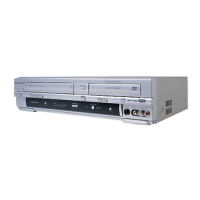
Sylvania DVC800C - User Manual

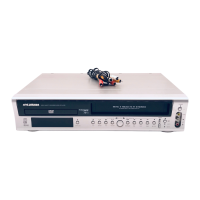
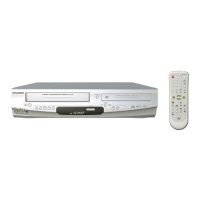
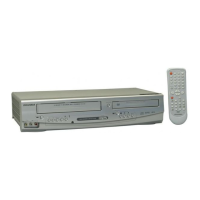
Sylvania DVC800C
48 pages
Print Icon
To Next Page IconTo Next Page
Loading...
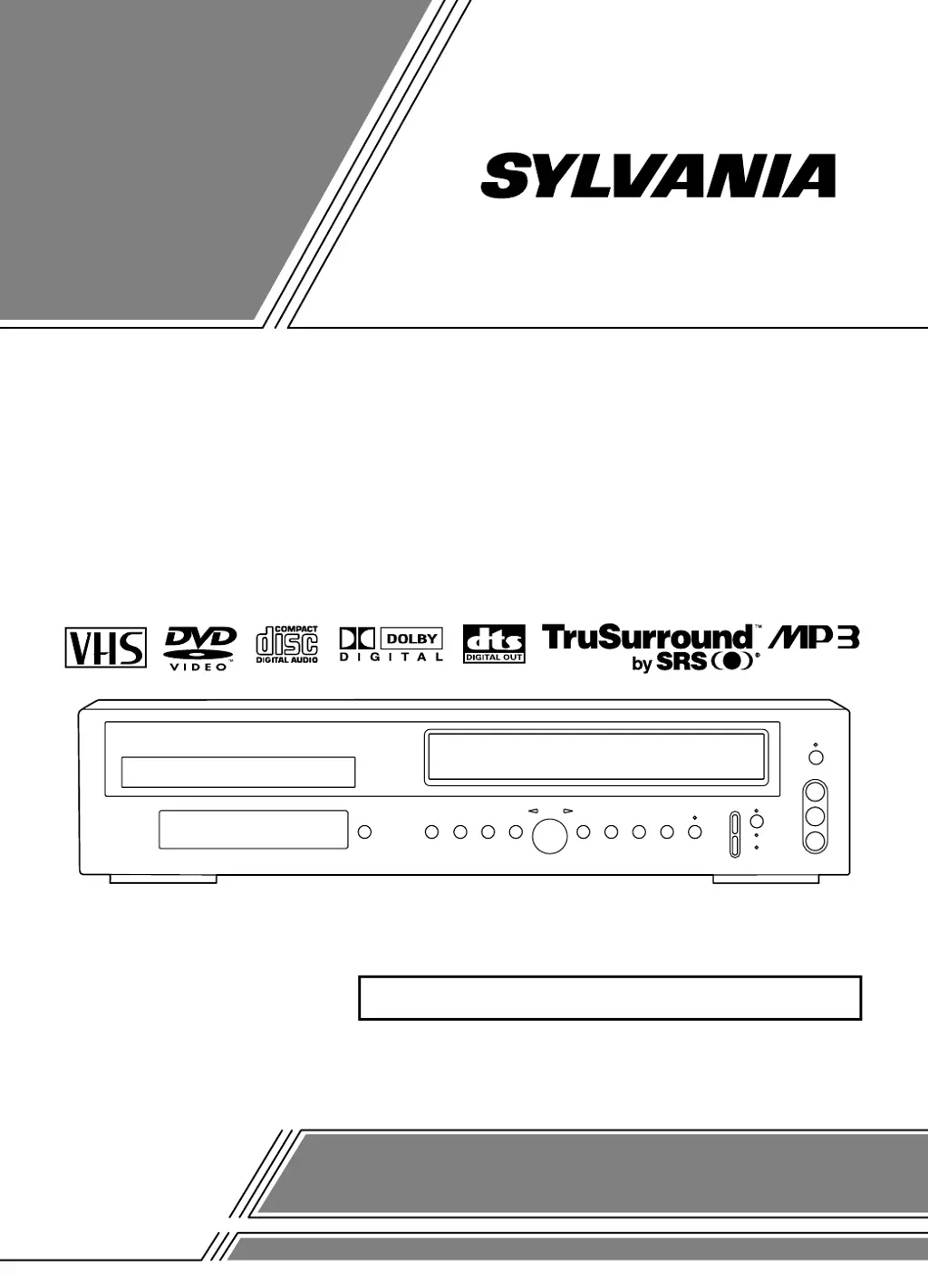
OWNER’S
MANUAL
If you need additional assistance for set-up or operating
after reading owner’s manual, please call
TOLL FREE : 1
-
800
-
968-3429
Please read before using this equipment.
INSTRUCCIONES EN ESPAÑOL INCLUIDAS.
DVD PLAYER with VIDEO CASSETTE RECORDER
DVC800C

Table of Contents

Questions and Answers

  • H
    Heather TranSep 3, 2025
    What to do if Sylvania DVC800C cannot go into Record mode?
    • A
      April CarterSep 3, 2025
      If your Sylvania DVD VCR Combo cannot enter Record mode, ensure the tape has a safety tab; if it's missing, cover the hole with cellophane tape. Also, confirm the player is in VCR mode by pressing the VCR button on the remote control until the green VCR OUTPUT light is lit.
  • K
    Karen BrownSep 1, 2025
    What to do if Sylvania DVC800C DVD VCR Combo playback picture is partially noisy?
    • H
      Holly BruceSep 2, 2025
      If the playback picture on your Sylvania DVD VCR Combo is partially noisy, adjust the tracking control for a better picture by pressing the CHANNEL button on the DVD/VCR.
  • A
    amy48Aug 30, 2025
    Why Sylvania DVC800C DVD VCR Combo timer recording is impossible?
    • S
      Sandra WilliamsAug 31, 2025
      If timer recording is not working on your Sylvania DVD VCR Combo, first ensure that the timer recording is set correctly. Also, make sure the power is off and that the DVD/VCR clock is set correctly.
  • C
    Christopher ShawAug 29, 2025
    How to fix no sound on Sylvania DVC800C DVD VCR Combo?
    • S
      Sarah RobinsonAug 29, 2025
      If you are experiencing no sound with your Sylvania DVD VCR Combo, ensure the audio cables are firmly connected. Verify that the power to the audio component is on. Check and correct the audio output settings on the DVD VCR Combo and the input settings on your audio component.
  • B
    Bryan JenkinsAug 27, 2025
    Why Sylvania DVC800C TV programs cannot be seen normally?
    • R
      rachel15Aug 27, 2025
      If TV programs are not displaying correctly on your Sylvania DVD VCR Combo, try the following: * Double-check the ANT. IN and ANT. OUT connections. * Press the VCR/TV button so that the VCR/TV indicator on the DVD/VCR disappears. * Press the VCR button on the remote control to put it in the VCR mode. Check if the green VCR OUTPUT light is lit. Then, set it to the TV position by pressing the VCR/TV button until the VCR/TV light goes off.
  • T
    timothyburkeAug 26, 2025
    Why Sylvania DVD VCR Combo has no power?
    • W
      wglennAug 26, 2025
      If your Sylvania DVD VCR Combo has no power, ensure the power plug is securely connected to an AC outlet and that the power is turned on.
  • A
    Andrew ArmstrongAug 25, 2025
    Why Sylvania DVC800C disc cannot be played?
    • F
      franklinjeremiahAug 25, 2025
      If your Sylvania DVD VCR Combo cannot play a disc, make sure that you have inserted a disc into the player. If a disc is already inserted, try cleaning it. Ensure the disc is placed correctly, with the label side up. Also, check if the parental lock is enabled; if so, cancel it or change the control level.
  • J
    Jill DorseyAug 22, 2025
    What to do if Sylvania DVC800C DVD VCR Combo has no picture?
    • E
      Erica DillonAug 23, 2025
      If there is no picture on your Sylvania DVD VCR Combo, check that the video cables are firmly connected. Also, make sure you have inserted a correct video disc that is compatible with the player. Press the DVD button on the remote control and check if the DVD OUTPUT Light is lit, and then try other DVD feature buttons.

Summary

Laser Safety Information

Important Safeguards

Recycling Note

Copyright Information

Supplied Accessories

Symbols Used in Manual

Product Features

DVD Mode Features

Details playback modes, menus, and special functions for DVD discs.

Safety and Precautions

Installation Location Precautions

Guidelines for safely and optimally positioning the DVD/VCR unit.

Electrical Shock and Fire Hazards

Warnings and actions to avoid electrical shock and fire risks.

Moisture Condensation Warning

Advice on preventing condensation damage when moving the unit.

Disc Information

Playable Discs

Lists the types of discs compatible with the DVD/VCR for playback.

Disc Types and Data Organization

Explains how data is organized on DVD, Audio CD, and MP3 discs.

Controls and Functions Overview

Front Panel Controls Overview

Identifies and describes buttons and lights on the front of the DVD/VCR.

Remote Control Functions Overview

Details the buttons and their functions on the provided remote control.

Loading the Batteries

VCR;DVD Switching

Switching to VCR Mode

Instructions on how to select the VCR output mode.

Switching to DVD Mode

Instructions on how to select the DVD output mode.

Hookups and Connections

DVD;VCR to TV Connection

Steps for connecting the DVD/VCR unit to a television set.

Connecting to a Standard TV

Details on connecting the DVD/VCR to a TV using A/V or coaxial cables.

Connecting to TVs with S-Video or Component Video

Guides for connecting to TVs with advanced video input jacks for better picture quality.

Connecting to Component Video Inputs

Connecting to Amplifier with Digital Inputs

Connecting to Dolby Digital or DTS Decoder

Connecting to Analog Audio System

Setup Procedures

Automatic Channel Set Up

Guides automatic scanning and memorization of available TV channels.

Preset Channels Again

Steps to re-scan and preset TV channels if needed.

Add or Delete Channels Manually

Clock Set Up

Playback Functions

Normal Playback

Basic steps for playing a prerecorded video tape.

Pause, Still, and Slow Motion Playback

How to pause, freeze, and play tapes in slow motion.

Auto Repeat Playback

Instructions for setting the tape to play continuously.

Playback Search Functions

Picture Search

How to skip or repeat scenes during tape playback.

Index Search

How to access recorded sections using an index signal.

Time Search

How to fast forward or rewind to a specific point in time.

Recording Functions

Viewing and Recording Same Program

How to record a program while simultaneously viewing another.

OTR (One Touch Recording)

Simple method to start recording with a specified duration.

Timer Recording Setup

Guide for setting up automatic recordings for specific dates and times.

Special Features

Copying a Video Tape

Instructions and diagram for dubbing video tapes.

MTS System for Recording

How to set and record MTS broadcast signals for stereo or SAP audio.

Auto Rewind

Real Time Tape Counter

Disc Playback

Playing a DVD Video or Audio CD

Steps to insert and start playback of DVD or Audio CD discs.

Using the DVD Menus

How to navigate and use DVD disc menus for selection.

Using the Title Menu

Pausing Playback or Displaying Still Picture

Resuming Playback From Stop Point

Stepping Through Frames

Fast Forward;Reverse and Slow Motion

Starting from Desired Track (CD)

Playing Desired Title or Chapter (DVD)

Starting from Desired Time Count

Marker Function for Playback

Random Playback (Audio CD)

Repeat Playback Options

A-B Repeat Playback

Program Playback (Audio CD)

Zoom Playback Function

MP3 Disc Playback

Changing On-Screen Display for MP3 Playback

How to view track and playback information during MP3 disc playback.

Playing Desired Track from MP3 Disc

Program Playback for MP3 Discs

Random Playback for MP3 Discs

Settings and Configuration

Changing Audio Language or Sound Mode

How to select audio language and sound modes for DVDs and CDs.

Changing Subtitle Language

Changing Camera Angle (Multi-Angle)

Changing On-Screen Display

Black Level Settings

TruSurround Settings

Setup Item Configuration

Language Settings Configuration

How to configure language preferences for audio, subtitles, and menus.

Display Settings Adjustment

Audio Settings Configuration

Parental Lock Setup

Language Code List

Troubleshooting Guide

Handling Precautions and Maintenance

Servicing, Cabinet Cleaning, and Laser Pickup

Instructions for maintenance, cleaning of exterior, and laser pickup unit.

Auto Head Cleaning and Disc Handling

Information on head cleaning features and proper disc handling.

Specifications

Sylvania DVC800C Specifications

General IconGeneral
TypeDVD VCR Combo
BrandSylvania
ModelDVC800C
Video FormatNTSC
Recording FormatsVHS
Video OutputComposite, S-Video
Audio OutputStereo RCA
Remote ControlYes
Progressive ScanNo
Playback FormatsDVD, CD, CD-R, CD-RW, VHS

Related product manuals