EasyManua.ls Logo

Sylvania SDVD1187 - User Manual

Sylvania SDVD1187
36 pages
Print Icon
To Next Page IconTo Next Page
Loading...
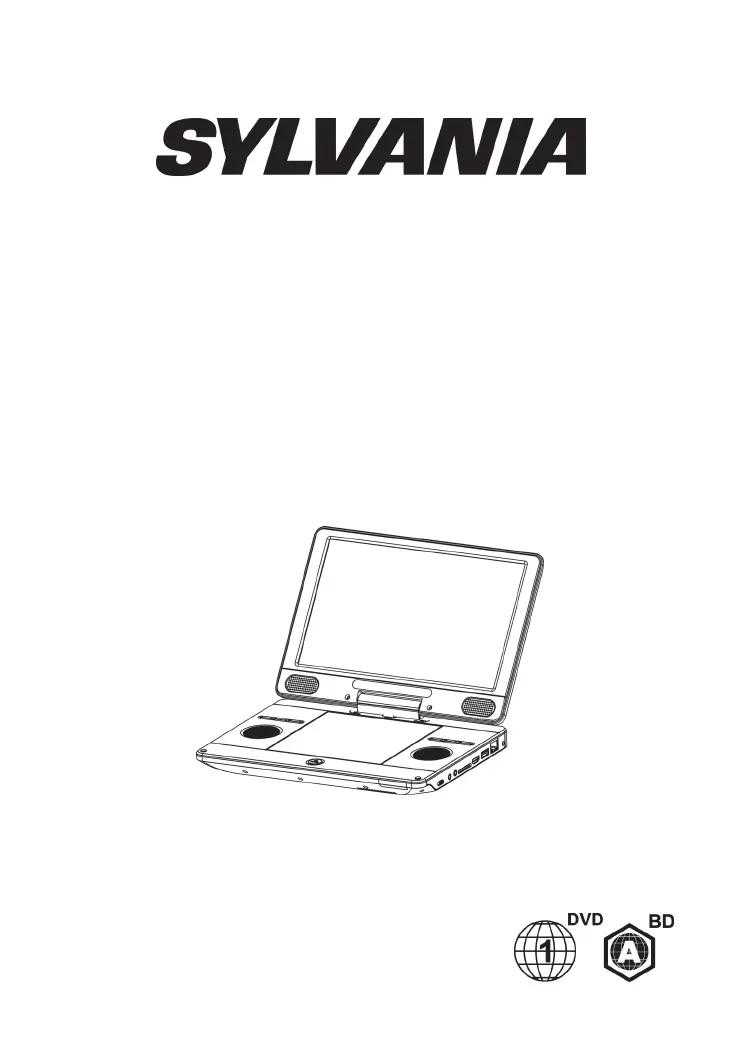
PORTABLE BLU-RAY DISC/DVD
PLAYER
USER MANUAL
SDVD1187

Questions and Answers

Summary

Safety and Maintenance

Security Instructions

Read all instructions before use and follow all warnings and instructions for safe operation.

Quick Starting Guide

Connections

Connect to the HDMI

Instructions for connecting the player to a TV using an HDMI cable for optimal video quality.

Connect Network

Guidance on connecting the player to a network for updates and BD-Live content.

Playback Operations

Display Menu

Explanation of MENU and POPUP functions for accessing BD-video disc menus.

Change Video Play

Functions like Audio, Subtitle, Repeat, Zoom, and Bookmarks to customize video playback.

Play a Blu-ray Video Disc

Steps to play Blu-ray discs, including inserting discs and using playback controls and menus.

Advanced Features

Enjoy BD-LIVE

Details on using BD-Live functions for interactive content, downloads, and online features when connected to the internet.

Media Playback

Play Music

Using the remote control for music playback, including play, pause, stop, and chapter navigation.

Play a Photo Slideshow

Instructions for playing JPEG files as a photo slideshow from discs or USB devices.

Controlling Photo slideshow

Using the remote control to manage photo slideshows, including rotating and flipping photos.

Settings and Configuration

Basic Operation for the Menu

Step-by-step guide to navigating and interacting with the player's menu system using remote buttons.

System

Configuration options for Screen Saver, Disc Auto Playback, Disc Auto Upgrade, Load Default, Upgrade, Easy Setup, and BUDA.

Language

Options to select OSD, Menu, Audio, and Subtitle languages for the player and discs.

Playback

Settings to control Closed Caption, Angle Mark, PIP Mark, Secondary Audio Mark, Last Memory, and PBC functions.

Security and Network

Security

Instructions for changing passwords, setting parental controls, and selecting country codes.

Network

Details on connecting to the internet, checking status, testing, and configuring IP and Proxy settings.

BD-Live Connection

Managing the connection status for BD-Live features and setting up proxy servers.

Display and Audio Settings

TV

Adjusting TV screen mode, resolution, system, color space, and HDMI deep color settings.

Video Processing

Fine-tuning video display by adjusting brightness, contrast, hue, saturation, and sharpness.

Audio Setting

Selecting HDMI audio mode and configuring downsampling for optimal sound output.

Maintenance and Specifications

Speaker Setting

Setting up speaker configuration for audio output, including channel settings and test tones.

Clean Discs

Instructions for properly cleaning discs using a microfiber cloth to ensure optimal playback.

Specifications

Details on supported disc/video/audio formats, accessories, and unit specifications.

Troubleshooting

No reaction to the remote control

Steps to resolve issues where the remote control is not responding, checking connections and batteries.

No picture;sound

Troubleshooting steps for no picture or sound, checking connections, volume, and audio settings.

No picture on HDMI connection

Resolving no picture on HDMI by checking cable integrity and adjusting resolution settings.

High-definition video signal not playing on the TV

Ensuring correct audio cable connections and TV audio input assignment for HD video.

No sound on HDMI connection

Troubleshooting no sound via HDMI, checking HDCP compliance of connected devices.

Disc cannot be played

Ensuring proper disc loading, player compatibility, region code, and disc finalization for DVD+RW.

Data Files cannot be played or read

Verifying file format (UDF, ISO9660, JOLIET) and JPEG extension for data file playback.

Not entry sign appears on the TV

Explanation for 'Not entry sign' error, indicating the requested operation is not possible.

BD-Live feature

Requirements for BD-Live: disc marking, network connection, USB/Card insertion, and BUDA setup.

Unable to access BD-Live feature

Troubleshooting BD-Live access by checking network connection, clearing USB storage, and verifying disc support.

Summary

Safety and Maintenance

Security Instructions

Read all instructions before use and follow all warnings and instructions for safe operation.

Quick Starting Guide

Connections

Connect to the HDMI

Instructions for connecting the player to a TV using an HDMI cable for optimal video quality.

Connect Network

Guidance on connecting the player to a network for updates and BD-Live content.

Playback Operations

Display Menu

Explanation of MENU and POPUP functions for accessing BD-video disc menus.

Change Video Play

Functions like Audio, Subtitle, Repeat, Zoom, and Bookmarks to customize video playback.

Play a Blu-ray Video Disc

Steps to play Blu-ray discs, including inserting discs and using playback controls and menus.

Advanced Features

Enjoy BD-LIVE

Details on using BD-Live functions for interactive content, downloads, and online features when connected to the internet.

Media Playback

Play Music

Using the remote control for music playback, including play, pause, stop, and chapter navigation.

Play a Photo Slideshow

Instructions for playing JPEG files as a photo slideshow from discs or USB devices.

Controlling Photo slideshow

Using the remote control to manage photo slideshows, including rotating and flipping photos.

Settings and Configuration

Basic Operation for the Menu

Step-by-step guide to navigating and interacting with the player's menu system using remote buttons.

System

Configuration options for Screen Saver, Disc Auto Playback, Disc Auto Upgrade, Load Default, Upgrade, Easy Setup, and BUDA.

Language

Options to select OSD, Menu, Audio, and Subtitle languages for the player and discs.

Playback

Settings to control Closed Caption, Angle Mark, PIP Mark, Secondary Audio Mark, Last Memory, and PBC functions.

Security and Network

Security

Instructions for changing passwords, setting parental controls, and selecting country codes.

Network

Details on connecting to the internet, checking status, testing, and configuring IP and Proxy settings.

BD-Live Connection

Managing the connection status for BD-Live features and setting up proxy servers.

Display and Audio Settings

TV

Adjusting TV screen mode, resolution, system, color space, and HDMI deep color settings.

Video Processing

Fine-tuning video display by adjusting brightness, contrast, hue, saturation, and sharpness.

Audio Setting

Selecting HDMI audio mode and configuring downsampling for optimal sound output.

Maintenance and Specifications

Speaker Setting

Setting up speaker configuration for audio output, including channel settings and test tones.

Clean Discs

Instructions for properly cleaning discs using a microfiber cloth to ensure optimal playback.

Specifications

Details on supported disc/video/audio formats, accessories, and unit specifications.

Troubleshooting

No reaction to the remote control

Steps to resolve issues where the remote control is not responding, checking connections and batteries.

No picture;sound

Troubleshooting steps for no picture or sound, checking connections, volume, and audio settings.

No picture on HDMI connection

Resolving no picture on HDMI by checking cable integrity and adjusting resolution settings.

High-definition video signal not playing on the TV

Ensuring correct audio cable connections and TV audio input assignment for HD video.

No sound on HDMI connection

Troubleshooting no sound via HDMI, checking HDCP compliance of connected devices.

Disc cannot be played

Ensuring proper disc loading, player compatibility, region code, and disc finalization for DVD+RW.

Data Files cannot be played or read

Verifying file format (UDF, ISO9660, JOLIET) and JPEG extension for data file playback.

Not entry sign appears on the TV

Explanation for 'Not entry sign' error, indicating the requested operation is not possible.

BD-Live feature

Requirements for BD-Live: disc marking, network connection, USB/Card insertion, and BUDA setup.

Unable to access BD-Live feature

Troubleshooting BD-Live access by checking network connection, clearing USB storage, and verifying disc support.

Sylvania SDVD1187 Specifications

General IconGeneral
BrandSylvania
ModelSDVD1187
CategoryBlu-ray Player
LanguageEnglish

Related product manuals