- 11 - EN
9I03
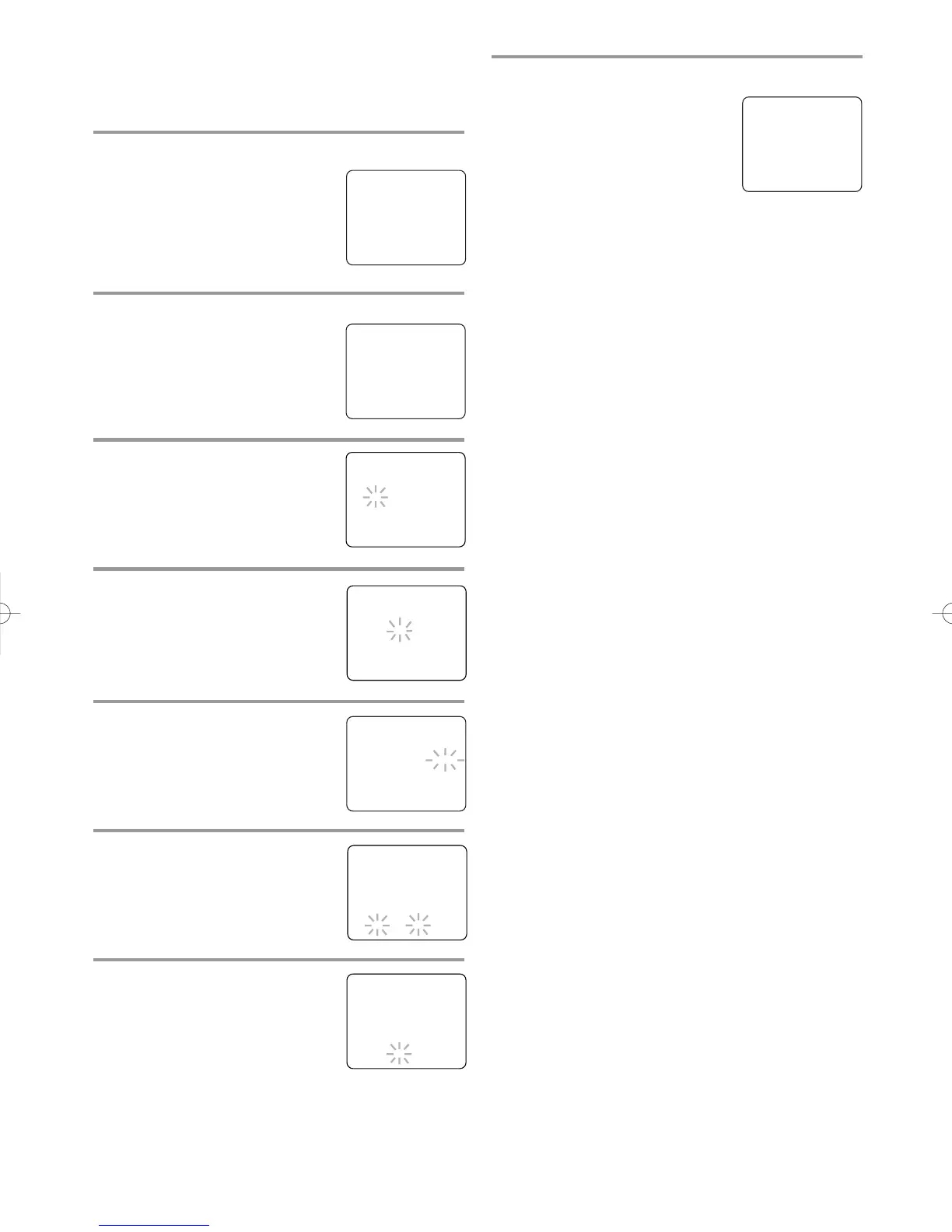
In the example below, the clock is to be set to:
DATE May 6th, 2004
SETTING TIME 5:40PM
1 Select “SETTING CLOCK”
Press the MENU button on the
remote control.
Press the PLAY/
K or STOP/L
button to point to “SETTING
CLOCK”.
Then, press the F.FWD/
B button.
2 Select “MANUAL CLOCK SET”
Press the PLAY/K or STOP/L
button to point to “MANUAL
CLOCK SET”.
Then, press the F.FWD/
B button.
3 Select the month
Press the PLAY/K or STOP/L
button until your desired month
appears. (Example: May → 05)
Then, press the F.FWD/
B button.
4 Select the day
Press the PLAY/K or STOP/L but-
ton until your desired day appears.
(Example: 6th → 06)
Then, press the F.FWD/
B button.
5 Select the year
Press the PLAY/K or STOP/L but-
ton until your desired year appears.
(Example: 2004)
Then, press the F.FWD/
B button.
6 Select the hour
Press the PLAY/K or STOP/L but-
ton until your desired hour appears.
(Example: 5, PM)
Then, press the F.FWD/
B button.
7 Select the minute
Press the PLAY/K or STOP/L but-
ton until the desired minute
appears. (Example: 40)
– MANUAL CLOCK SET –
MONTH DAY YEAR
0 5 / 0 6 THU 2 0 0 4
HOUR MINUTE
– – : – – – –
– MANUAL CLOCK SET –
MONTH DAY YEAR
0 5 / 0 6 THU 2 0 0 4
HOUR MINUTE
0 5 : – – PM
– MANUAL CLOCK SET –
MONTH DAY YEAR
0 5 / 0 6 THU 2 0 0 4
HOUR MINUTE
0 5 : 4 0 PM
– MANUAL CLOCK SET –
MONTH DAY YEAR
0 5 / – – – – – – – – –
HOUR MINUTE
– – : – – – –
– MANUAL CLOCK SET –
MONTH DAY YEAR
0 5 / 0 6 – – – – – – –
HOUR MINUTE
– – : – – – –
– SETTING CLOCK –
AUTO CLOCK [ON]
AUTO CLOCK CH SEARCH
AUTO CLOCK CH [ 02 ]
B MANUAL CLOCK SET
D.S.T. [OFF]
– M E N U –
TIMER PROGRAMMING
PICTURE CONTROL
B SETTING CLOCK
CHANNEL SET UP
USER’S SET UP
V-CHIP SET UP
LANGUAGE [ENGLISH]
CAPTION [OFF]
ZERO RETURN
TIME SEARCH
INDEX SEARCH
8 Start the clock
Press the MENU button on the
remote control.
Although seconds are not dis-
played, they begin counting from
00 when you press the MENU but-
ton on the remote control. Use this
feature to synchronize the clock with the correct
time.
NOTE:
When unplugging the AC cord or if there is a power
failure for more than 3 seconds, you may have to
reset the clock.
TO CHANGE CLOCK SETTING
If you want to change the clock,
1)Follow steps [1] and [2].
2)Select where you want to change using the
F.FWD/
B or REW/s button.
3)Enter correct numbers using the PLAY/
K or
STOP/L button.
4)Press the MENU button on the remote control to
start the clock.
PLEASE NOTE:
If there is no local PBS station in your area or on
your cable system, select “AUTO CLOCK” and
press the F.FWD/B or REW/s button to turn [OFF]
this function. Then you can manually adjust the
clock.
AUTOMATIC CLOCK SETTING
Make sure ...
•
The TV/VCR is turned on.
•
Confirm the TV/VCR is receiving a RF (Radio
Frequency) signal from either an antenna or cable
system connection using the ANT. terminal on the
rear of the TV/VCR.
NOTE:
•
If a cable converter box is being used, make sure it
is powered on.
•
You must use the TV/VCR remote control to per-
form the clock setting procedure.
•
If the TV/VCR is connected directly to a cable
converter box or satellite box, the local PBS sta-
tion must be selected on the cable box itself, and
the TV/VCR must be set to the output channel of
the cable converter box or satellite box (usually
channel 3 or 4), to be able to set up or correct the
clock automatically.
5:40 PM






 To Next Page