OPERATING CONTROLS AND FUNCTIONS
-FRONTPANEL-
-.
1 2 3 4 5 6 7 8
- REMOTE CONTROL -
7----O
01SPLAY
9- _ _ _'_
5-
4- --0
SYLVANIA
IkVl_l|lllkIIIllllU I|illlUN[ilm_
J
f
J
--14
--13
--12
--11
-10
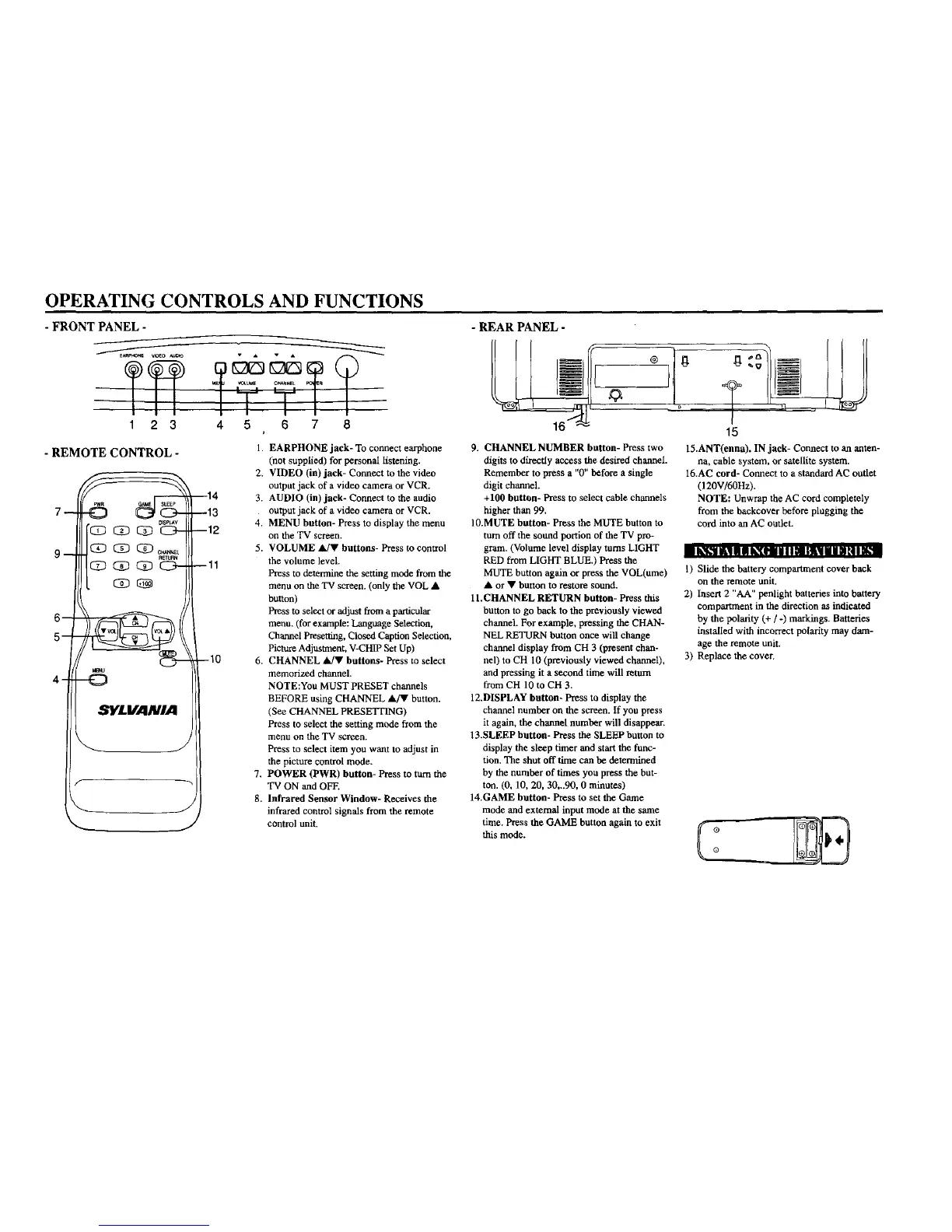
1. EARPHONE jack- To connect easphone
(not supplied) for personal listening.
2. VIDEO (in)jack- Connect to the video
output jack of a video camera or VCR.
3. AUDIO (in) jack- Connect to the audio
output jack of a video camera or VCR.
4. MENU button- Press to display the menu
on the TV screen.
5. VOLUME &/V buttons- Press to control
the volume level
Press to determine the setting mode from the
menu on the TV screen. (only the VOL •
button)
Press to select or adjust from a particular
menu. (for example: Language Selection,
Channel Presetting, Closed Caption Selection,
Picture Adjustment, V-CHIP Set Up)
6, CHANNEL _dV buttons- Press to select
memorized channel.
NOTE:You MUST PRESET channels
BEFORE using CHANNEL •/• button.
(See CHANNEL PRESETTING)
Press to select the setting mode from the
menu on the TV screen.
Press to select item you want to adjust in
the picture control mode.
7. POWER (PWR) button- Press to turn the
TV ON and OFF.
8. Infrared Sensor Window- Receives the
infrared control signals from the remote
control unit.
-REARPANEL-
16
9. CHANNEL NUMBER button- Press two
digits to directly access the desired channel.
Remember to press a "0" before a single
digit channel.
+100 button- Press to select cable channels
higher than 99.
10.MUTE button- Press the MUTE button to
turn off the sound portion of the TV pro-
gram. (Volume level display turns LIGHT
RED from LIGHT BLUE,) Press the
MUTE button again or press the VOL(ume)
• or • button to restore sound.
11.CHANNEL RETURN button- Press this
button to go beck to the previously viewed
channel. For example, pressing the CHAN-
NEL RETURN button once will change
channel display from CH 3 (present chan-
nel) to CH 10 (previously viewed channel),
and pressing it a second time will return
from CH 10 to CH 3.
12.DISPLAY button- Press to display the
channel number on the screen. If you press
it again, the channel number will disappear.
13.SLEEP button- Press the SLEEP button to
display the sleep timer and start the func-
tion. The shut off time can be determined
by the number of times you press the but-
ton. (0, 10, 20, 30,..90, 0 minutes)
14.GAME button- Press to set the Game
mode and external input mode at the same
time. Press the GAME button again to exit
this mode.
15
15.ANT(enna). IN jack- Connect to an anten-
na, cable system, or satellite system.
16.AC cord- Connect to a standard AC outlet
(120V/60Hz).
NOTE: Unwrap the AC cord completely
from the backcover before plugging the
cord into an AC outlet.
1) Slide the battery compartmem cover back
on the remote unit.
2) Insert 2 "AA" penlight batteries into battery
compartment in the direction as indicated
by the polarity (+ / -) markings. Battudes
installed with incorrect polarity may dam-
age the remote unit.
3) Replace the cover.




 To Next Page