
 Need help?
Do you have a question about the Synology DiskStation DS216se and is the answer not in the manual?
Lists all items included in the product package for verification purposes.
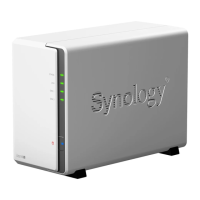
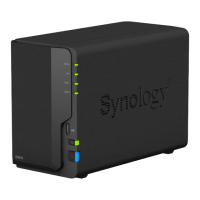
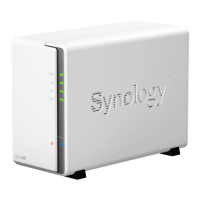
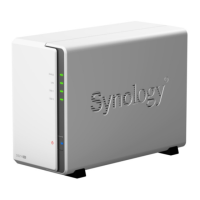
Provides an overview of the DiskStation's hardware components and ports.
Details essential safety precautions to prevent harm and device damage during operation.
Specifies the necessary tools and compatible storage drives for installation.
Step-by-step guide for physically installing storage drives into the unit.
Instructions on connecting power and network, and powering on the device.
Guide to installing DiskStation Manager using the Web Assistant tool.
Provides links for additional information and online resources.
The Synology DiskStation DS216se is a network-attached storage (NAS) device designed for home and small office users, offering a range of functionalities for data storage, sharing, and management. It serves as a centralized hub for digital content, allowing users to store files, back up computers, and access data remotely. The device supports two hard drives, providing options for increased storage capacity or data redundancy through RAID configurations.
At its core, the DS216se functions as a file server, enabling users to store and organize various types of data, including documents, photos, music, and videos. It facilitates file sharing across different platforms (Windows, Mac, Linux) and devices, making it easy for multiple users to access shared resources. The DiskStation Manager (DSM) operating system, a browser-based interface, provides a comprehensive suite of tools for managing the NAS, its stored data, and various applications.
One of the primary functions of the DS216se is data backup. It supports backing up data from client computers (Windows, Mac) to the NAS, offering a secure and centralized location for important files. Users can configure scheduled backups to ensure data is regularly protected. Conversely, the NAS itself can be backed up to external drives, other Synology NAS devices, or cloud services, providing an additional layer of data protection against hardware failure or disaster.
The DS216se also acts as a media server, allowing users to stream multimedia content (photos, music, videos) to a variety of devices, including smart TVs, media players, and mobile devices. This functionality transforms the NAS into a personal entertainment hub, making it convenient to enjoy digital media throughout the home. With appropriate applications, users can organize their media libraries, create playlists, and share content with family and friends.
Remote access is another key feature. The DS216se allows users to access their files and manage the NAS from anywhere with an internet connection. This is particularly useful for individuals who need to work remotely, access personal files while traveling, or share content with others outside their local network. Synology provides various mobile apps that extend the functionality of the NAS to smartphones and tablets, enabling on-the-go access to files, photos, and media.
Beyond basic storage and sharing, the DS216se supports a range of additional applications through the DSM Package Center. These applications can extend the NAS's capabilities to include features like a personal cloud, surveillance station for IP cameras, download station for managing downloads, and various productivity tools. This extensibility allows users to customize the NAS to meet their specific needs, making it a versatile device for various home and small office scenarios.
The DS216se is designed for ease of use, starting with its straightforward hardware setup. Users can install 3.5-inch or 2.5-inch SATA drives into the device's bays. The process involves sliding the drives into place and securing them with screws. For 2.5-inch drives, a separate disk holder is required. Once the drives are installed, the upper case is reattached and secured. Connecting the device to power and a network is a simple matter of plugging in the AC adapter and an RJ-45 LAN cable.
The software installation is guided by the Web Assistant, a built-in tool that simplifies the process of downloading and installing the DiskStation Manager (DSM) operating system. By accessing a specific web address in a browser on a computer connected to the same network, users can initiate the DSM installation. The Web Assistant automatically detects the DiskStation and guides the user through the setup, including configuring basic network settings and creating an administrator account. This web-based interface makes the initial setup accessible even for users with limited technical expertise.
The front panel of the DS216se features several LED indicators that provide visual feedback on the device's status. The Status LED indicates the overall health of the installed drives and volumes, while the LAN LED shows the network connection status and activity. Individual Disk LEDs provide information on the status of each installed drive. These indicators allow users to quickly assess the operational state of the NAS without needing to log into the DSM interface.
The power button on the front panel serves multiple functions. A single press powers on the DiskStation, while pressing and holding it until a beep sound is heard and the Power LED blinks initiates the power-off sequence. This simple control allows for easy power management.
On the back panel, the DS216se includes USB 2.0 ports for connecting external devices such as external hard drives or USB printers, expanding its functionality. An RJ-45 LAN port ensures network connectivity, and a power port connects to the AC power adapter. A Kensington Security Slot is also provided for physical security.
A notable usage feature is the RESET button on the back panel. This button offers two distinct reset functions. A short press and hold until a beep sound restores the default IP address, DNS server, and the password for the admin account. This is useful if network settings are misconfigured or the admin password is forgotten. A longer press and hold, followed by another press and hold after a beep, returns the DiskStation to a "Not Installed" status, allowing DSM to be reinstalled. This advanced reset option can be helpful for troubleshooting or completely reconfiguring the device.
The DS216se incorporates several features that contribute to its maintenance and longevity. The fan, located on the back panel, is crucial for disposing of excess heat and cooling the system. Proper ventilation is essential for maintaining optimal operating temperatures and preventing hardware damage. If the fan malfunctions, the DiskStation will emit a beeping sound, alerting the user to a potential issue that requires attention.
The DSM operating system itself includes various tools for system health monitoring and maintenance. Users can access logs, check system resource usage, and monitor the status of their hard drives. For instance, DSM typically integrates S.M.A.R.T. (Self-Monitoring, Analysis, and Reporting Technology) tests for hard drives, which can help predict potential drive failures by monitoring various drive attributes. If a drive error is detected, the Disk LED for that drive will indicate a problem, and DSM will provide alerts.
The LED indicator table in the manual serves as a valuable maintenance tool, allowing users to interpret the status of the device at a glance. Different colors and blinking patterns of the LEDs correspond to specific operational states or issues, such as a normal volume, a degraded or crashed volume, network connectivity problems, or drive errors. This visual feedback helps users quickly diagnose basic problems without needing to delve into complex troubleshooting steps.
Regular software updates are another aspect of maintenance. Synology frequently releases updates for DSM, which include bug fixes, security patches, and new features. Users can configure DSM to automatically check for and install these updates, ensuring the NAS operates with the latest improvements and security enhancements. Keeping the software up-to-date is critical for maintaining system stability and protecting against vulnerabilities.
The ability to easily install and replace hard drives is a key maintenance feature. If a drive fails or if users wish to upgrade their storage capacity, the modular design allows for relatively straightforward drive replacement. The manual provides clear instructions for installing drives, which can be reversed for removal. In a RAID 1 configuration, a failed drive can be replaced, and the array can be rebuilt, restoring data redundancy.
The reset functionality, as described in the usage features, also serves as a maintenance tool. If the system becomes unresponsive due to software issues or misconfigurations, the reset button provides a way to restore default settings or even reinstall the operating system, effectively allowing users to recover from certain software-related problems without losing hardware functionality.
Finally, Synology's online resources, including the official website and technical support, are integral to the maintenance ecosystem. The website provides documentation, FAQs, and a knowledge base that can help users troubleshoot issues, find solutions, and learn more about their DiskStation. For more complex problems, Synology's technical support can offer assistance, guiding users through advanced diagnostics or repair processes.
 General
| RAID levels | 0, 1 |
|---|---|
| Storage drive size | 3.5 \ |
| Hot-swap drive bays | No |
| Storage drive capacity | 8000 GB |
| Supported file systems | FAT, HFS+, NTFS, exFAT, ext3, ext4 |
| Storage drive interface | Serial ATA II, Serial ATA III |
| Storage drives installed | Yes |
| Installed storage drive type | HDD |
| Total installed storage capacity | 16 TB |
| Maximum supported storage capacity | 20 TB |
| Number of storage drives installed | 2 |
| Processor cores | 1 |
| Processor model | Armada 370 |
| Processor family | Marvell |
| Processor frequency | 0.8 GHz |
| Internal memory | 0.25 GB |
| Internal memory type | DDR3 |
| Ethernet LAN data rates | 10, 100, 1000 Mbit/s |
| Supported network protocols | CIFS, AFP, NFS, FTP, WebDAV, CalDAV, Telnet, SSH, SNMP, VPN (PPTP, OpenVPN) |
| USB 2.0 ports quantity | USB 2.0 ports have a data transmission speed of 480 Mbps, and are backwards compatible with USB 1.1 ports. You can connect all kinds of peripheral devices to them. |
| USB 3.2 Gen 1 (3.1 Gen 1) Type-A ports quantity | 0 |
| Chassis type | Compact |
| Cooling type | Active |
| Fan diameter | 92 mm |
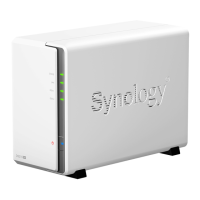
| Product color | White |
| Number of fans | 1 fan(s) |
| Cable lock slot type | Kensington |
| Type | NAS |
| Noise level | 18.4 dB |
| Device class | Home & Home Office |
| Share folder | 256 |
| Number of users | 512 user(s) |
| Browser supported | Chrome, Firefox, Internet Explorer 9+, Safari 8+, Safari (iOS 7.0+ iPad), Chrome (Android 4.0 on tablets) |
| Operating system installed | - |
| Mac operating systems supported | Mac OS X 10.10 Yosemite, Mac OS X 10.11 El Capitan |
| Windows operating systems supported | Windows 10 Education, Windows 10 Education x64, Windows 10 Enterprise, Windows 10 Enterprise x64, Windows 10 Home, Windows 10 Home x64, Windows 10 Pro, Windows 10 Pro x64, Windows 7 Enterprise, Windows 7 Enterprise x64, Windows 7 Home Basic, Windows 7 Home Basic x64, Windows 7 Home Premium, Windows 7 Home Premium x64, Windows 7 Professional, Windows 7 Professional x64, Windows 7 Starter, Windows 7 Starter x64, Windows 7 Ultimate, Windows 7 Ultimate x64, Windows 8, Windows 8 x64, Windows 8.1, Windows 8.1 x64 |
| Output voltage | 12 V |
| AC input voltage | 100-240 V |
| AC input frequency | 50 - 60 Hz |
| Power supply location | External |
| Power supply unit (PSU) capacity | 60 W |
| Cables included | AC, LAN (RJ-45) |
| Storage temperature (T-T) | -20 - 60 °C |
| Operating temperature (T-T) | 5 - 40 °C |
| Operating relative humidity (H-H) | 5 - 95 % |
| Sustainability certificates | RoHS |
| Certification | FCC Class B CE Class B BSMI Class B |
 Weight and Dimensions
| Depth | 225.5 mm |
|---|---|
| Width | 100 mm |
| Height | 165 mm |


 To Next Page