ADVANCED
Keymap
Information
• Only M1-4 buttons can be assigned mapping to other buttons.
• The existing Mapping will be replaced by the new setting on the same button.
• Set or edit in Keylinker app is an option.
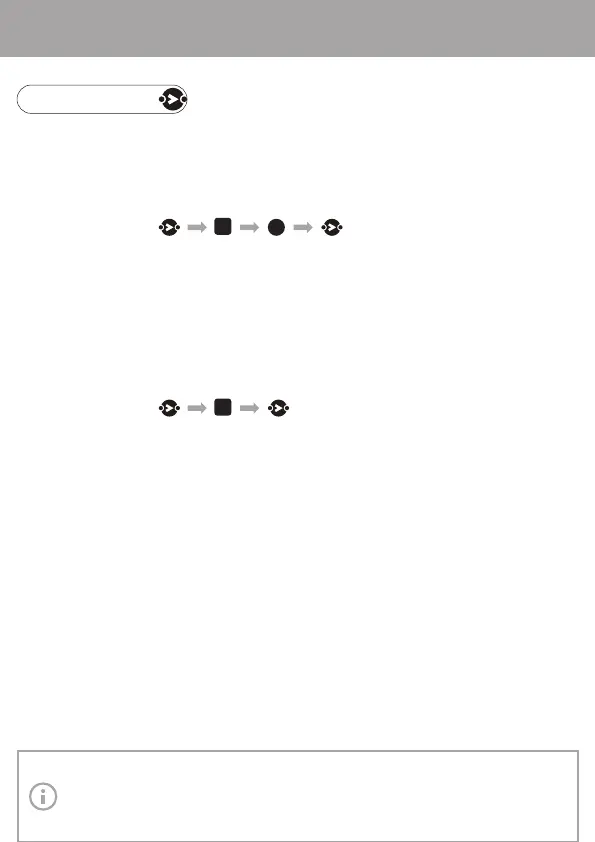
➀ Press Keymap button for 2 seconds, till the left light blinks red.
➁ Press any of M1-4 buttons chosen to assign mapping. Once succeed, the left light stays
blue, the right light starts blinking red.
➂ Press any button or buttons chosen to be mapped (sequence, time and interval will also
be recorded in case of buttons).
➃ Press Keymap button again to end and save. Once succeed, the both lights stay blue.
Repeat steps 1-4 to establish new mappings.
Mapping
General Operation
Press to activate. If mapping exists in any of M1-4 buttons, both lights stay blue, the button
functions the same as the mapped one.
Press again to disable.
➀ Press Keymap button for 2 seconds, till the left light blinks red.
➁ Press any of M1-4 buttons chosen to unmap. Once done, the left light stays blue, the right
light starts blinking red.
➂ Press Keymap button again to finish. In case there’s any other mapping relationship exists,
the both lights stay blue, otherwise the both lights turn red. Now the mapping to the button is
removed.
Repeat steps 1-3 to clear mappings for other buttons.
Clear Mapping
M
M



 To Next Page
 Loading...