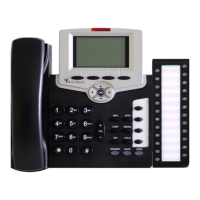
The Tadiran Telecom FlexSet-IP 280S is a fully functional IP keyset designed for telephony and office needs, combining IP communication capabilities with the robust features of the Coral system. It is suitable for typical office environments and can also connect to the Coral via an IP network from external locations, facilitating telecommuting without losing access to the Coral's rich features. The device is designed for ease of use, featuring clear and logical menus.
Key Features and Benefits:
- Single Set of Wiring: Simplifies installation and reduces cable clutter.
- Increased Mobility: Allows users to connect from various locations within an IP environment.
- 'True' Telecommuting Ability: Extends office telephony features to remote workers.
- Clear, Logical Menus: Enhances user experience and simplifies navigation.
Technical Specifications and Components:
The FlexSet-IP 280S features a comprehensive set of controls, buttons, and keys:
- Display Panel: A 3-line, 40-character display that shows system information (1st and 2nd lines) and available function options (3rd line) based on the phone's status. In idle state, it typically shows time, date, site name, station name, and number. During calls, it relays pertinent telephony states, operations, and calling party information.
- Dial Pad (Key Pad): Standard digit buttons for dialing phone numbers or extension numbers.
- Fixed Keys:
- ENTER: Activates a telephony feature after selection with navigator keys or acts as a soft key.
- ESC: Returns to the previous menu or list.
- ABC: Reserved for future use.
- MENU: Provides access to all FlexSet functions via soft keys.
- Navigator Keys: Four arrow keys (up/down, right/left) used to move between options on the display. The right/left arrows also move the cursor or navigate to the next/previous menu/list when at the end of a line. The up/down arrows are used to scroll soft key option lists.
- Soft Keys: Five keys located directly below the display screen, acting as triggers for currently displayed FlexSet functions or options. Their functions change dynamically based on the phone's state.
- Programmable Keys (DSS): 22 user-programmable keys with LED indicators. These can be configured to activate telephony features or speed dial telephone numbers. LEDs light up when a key or feature is activated.
- System Defined (Fixed) Keys: Four system-wide programmed keys (market dependent) for basic features: Speaker, Loop, Transfer, and Hold.
- Handset: Functions as a typical phone handset.
- Loudspeaker: Output sound device for hands-free operation, paging, and ringing.
- Microphone: Input sound device for hands-free operation.
- Ring and Message Waiting Lamp: Flashes slowly to indicate a waiting message and flashes quickly when the FlexSet is ringing.
- Volume Buttons: Adjust the volume of the speakerphone, handset, and ringer.
- Removable Faceplate: Allows for customization or maintenance.
Connectivity:
The FlexSet-IP 280S offers several connection points:
- RJ-45 Jack to LAN: Connects to the local area network or to a previous FlexSet-IP 280S in a daisy-chain setup.
- RJ-45 Jack to PC: Connects to a personal computer or to the next FlexSet-IP 280S in a daisy-chain setup.
- Power Supply: Requires a 24 to 36 VDC external power supply.
- Handset Connection (#1): For connecting the handset.
- Headset Connection (#2): For connecting a headset.
Installation and Configuration:
- Desk Elevation Installation: Involves attaching a bracket to the back of the phone. First, place the bracket's legs (thin edge) into the lower narrow slots, then snap the legs (thick edge) into the upper wide slots.
- Wall Mounting: Requires rotating the handset hook tab. Lift the tab, rotate it, and re-insert it into the opening. For bracket installation, follow the same steps as desk elevation: place the bracket's legs (thin edge) into the narrow slots on the back, then snap the legs (thick edge) into the lower slots.
- MAC Address Viewing: The MAC number can be found on a label on the base of the phone or on the packing box. Alternatively, it can be viewed via the phone's menu: Press MENU, choose SysDef, then select IP Params > Static > Self MAC Adr.
- IP Address Inputting: Users must define relevant IP addresses (static or dynamic). This involves pressing MENU, choosing SysDef, selecting IP Params > Static, and then selecting the desired IP Address. The edit soft key is used to change values, and Save is used to store changes.
- Static Address: Requires entering the exact IP address, subnet mask, primary/secondary Call Agent (CA) addresses, and default router address provided by the system manager, including leading zeros. Incorrect entries can cause network malfunctions.
- Dynamic Address: Enter
000.000.000.000 in the Self IP field. If no response from DHCP or DNS server within 10 minutes, the phone will reset. If no physical link is detected, the display will show "No Physical Link," and the phone will restart in 5 minutes.
- IP Parameters Table:
- Self IP Adr: Mandatory field for the IP address of the keyset.
- Net Mask: The subnet mask for this keyset.
- Primary CA: Mandatory field defining the UGW card address to be used.
- Secondary CA: Defines an alternate UGW card address if the Primary UGW is not operating.
- Default Rout.: The default router address for the LAN or WAN.
- CA Name: The name of the Call Agent (default: TTBSMGC).
- CA Port: The port used by the Call Agent (default: 2427).
- Self MAC Adr: Display-only field showing the unique MAC hardware address defined by the manufacturer.
Usage Features (General):
The user guide details various telephony features, including making and answering calls, using the speakerphone or headset, adjusting volume and ring settings, and advanced attendant features.
Maintenance Features:
The manual includes sections on troubleshooting (Appendix F) and a glossary (Appendix C) to assist users with common issues and terminology. It also mentions that information is periodically updated, and changes will be incorporated into subsequent editions, encouraging users to report errors.
The document contains proprietary information subject to copyright and patent laws. Reproduction or disclosure to third parties without written permission from Tadiran Telecom Business Systems Ltd. is strictly forbidden. The manufacturer reserves the right to change equipment design or specifications without prior notice. While information is believed to be accurate, no responsibility is assumed for its use or for third-party rights affected by its use. Warranties are limited to the manufacturer's standard limited warranty. U.S. Patents for Coral include 6,594,255; 6,598,098; 6,608,895; 6,615,404. All trademarks are property of their respective holders.

 Need help?
 General

 To Next Page