Adjusting the CM-11 Display
You may need
to
adjust
the
display
of
the
CM-11 before using it.
The
five rotary
controls used
to
adjust
the
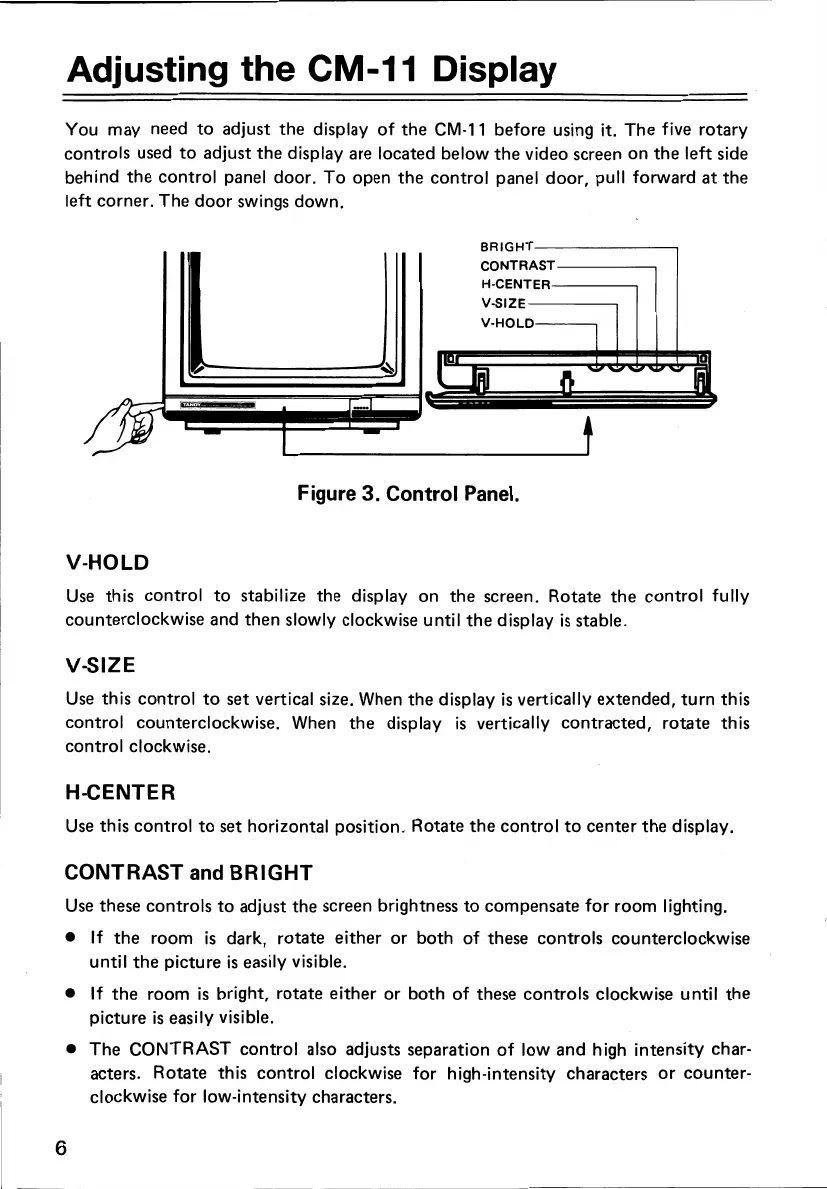
display are located below
the
video screen
on
the
left side
behind
the
control panel door.
To
open
the
control panel door, pull forward
at
the
left corner. The
door
swings down.
I _.
BRIGHT------~
CONTRAST----~
H-CENTER---~
V-SIZE---~
V-HOLD--~
Figure
3.
Control Panel.
V-HOLD
Use
this control
to
stabilize
the
display on
the
screen. Rotate
the
control fully
counterclockwise and then slowly clockwise until
the
display
is
stable.
V-SIZE
Use
this control
to
set vertical size. When
the
display
is
vertically
extended,
turn
this
control counterclockwise. When
the
display
is
vertically contracted, rotate this
control clockwise.
H-CENTER
Use
this control
to
set horizontal position. Rotate
the
control
to
center
the
display.
CONTRAST and BRIGHT
Use
these controls
to
adjust the screen brightness
to
compensate for room lighting.
•
If
the
room
is
dark, rotate either or both of these controls counterclockwise
until
the
picture
is
easily visible.
•
If
the
room
is
bright, rotate either or both of these controls clockwise until
the
picture
is
easily visible.
•
The
CONTRAST control also adjusts separation
of
low and high intensity char-
acters. Rotate this control clockwise for high-intensity characters
or
counter-
clockwise for low-intensity characters.
6


 To Next Page