27
HOOKUP
Before Operation (Continued)
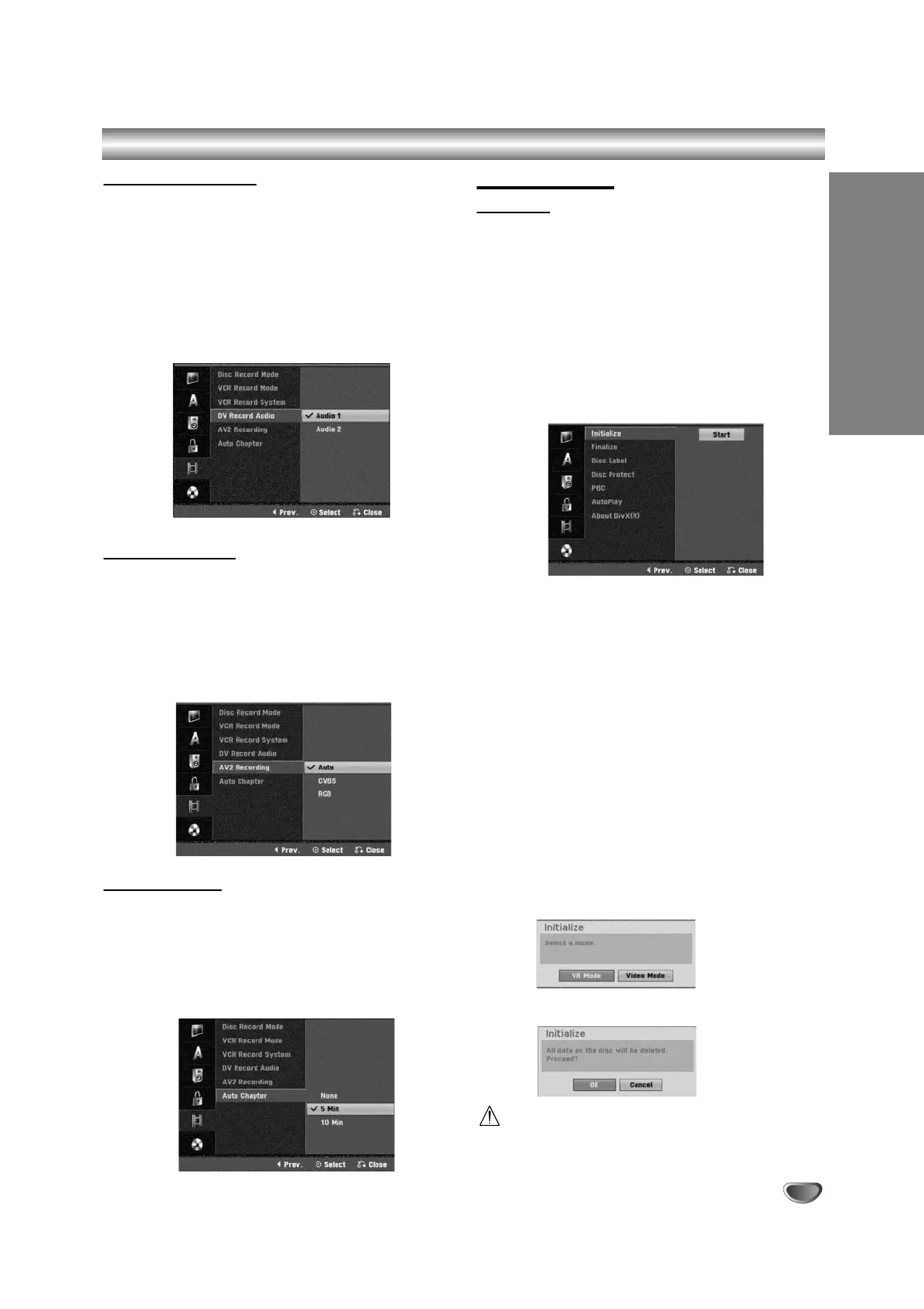
DV Record Audio
You need to set this if you have a camcorder using
32kHz/12-bit sound connected to the front panel DV IN
jack.
Some digital camcorders have two stereo tracks for
audio. One is recorded at the time of shooting; the other
is for overdubbing after shooting.
On the Audio 1 setting, the sound that was recorded
while shooting is used.
On the Audio 2 setting, the overdubbed sound is used.
AV2 Recording
You can select the type of the signal when recording
video input signal from the device connected to the
EURO AV2 socket.
Auto : The video input signal will automatically follow
the video signal received.
CVBS : Only for recording CVBS input signal.
RGB : Only for recording RGB input signal.
Auto Chapter
When recording, chapter markers are put in specified
setting. You can change this interval to 5 minutes, or
10 minutes. If you select None, switch off automatic
chapter marking altogether with the No Separation
setting.
Disc Settings
Initialize
If you load a completely blank disc, the recorder will ini-
tialize the disc.
DVD-R: The recorder initialize the disc to Video mode.
The recording mode will always be Video mode.
DVD-RW: The Initialize menu will appears. Select
“OK” then press ENTER. The recorder initialize the
disc to Video mode. If you change to VR mode, go to
step 9.
DVD+R(DL)/DVD+RW: The Initialize menu will
appears. Select “OK” then press ENTER.
Also, you can reformat the DVD-RW/DVD+RW from the
Setup menu as below.
11
Press HOME.
The Home menu appears.
22
Use b / B to select the Setup option.
33
While the Start option is selected, press ENTER.
44
Use v / V to select the Disc option.
55
Press B to move to the second level.
66
Use v / V to select the Initialize option.
77
Press B to move to the third level.
Start icon is highlighted.
88
Press ENTER.
Initialize menu appears.
99
In case of the initialized DVD-RW, use b / B to
select a desired Disc Format Mode (VR Mode or
Video Mode) then press ENTER.
In case of DVD+RW, go to step 10.
1100
Use b / B to select “OK” then press ENTER.
It takes a few moments to format the disc.
Caution
If you want to change the disc format, everything
recorded on the disc will be erased.
RC174P1_NA4UTTA_S_48T_ENG 7/24/06 2:07 PM Page 27



 To Next Page